Agents & Teams
Once you have users, this chapter is about turning them into a working team: which agents handle which queues, who supervises whom, and how to watch your agents' live status.
In the app: all under the Users menu — Routing Profiles, Agent Hierarchy, and Agent States.
1. Routing Profiles — the agent's job assignment
A Routing Profile answers the question: "Which queues does this agent handle, in what order, and with what timing?" You assign one routing profile to each agent, and many agents can share the same profile.
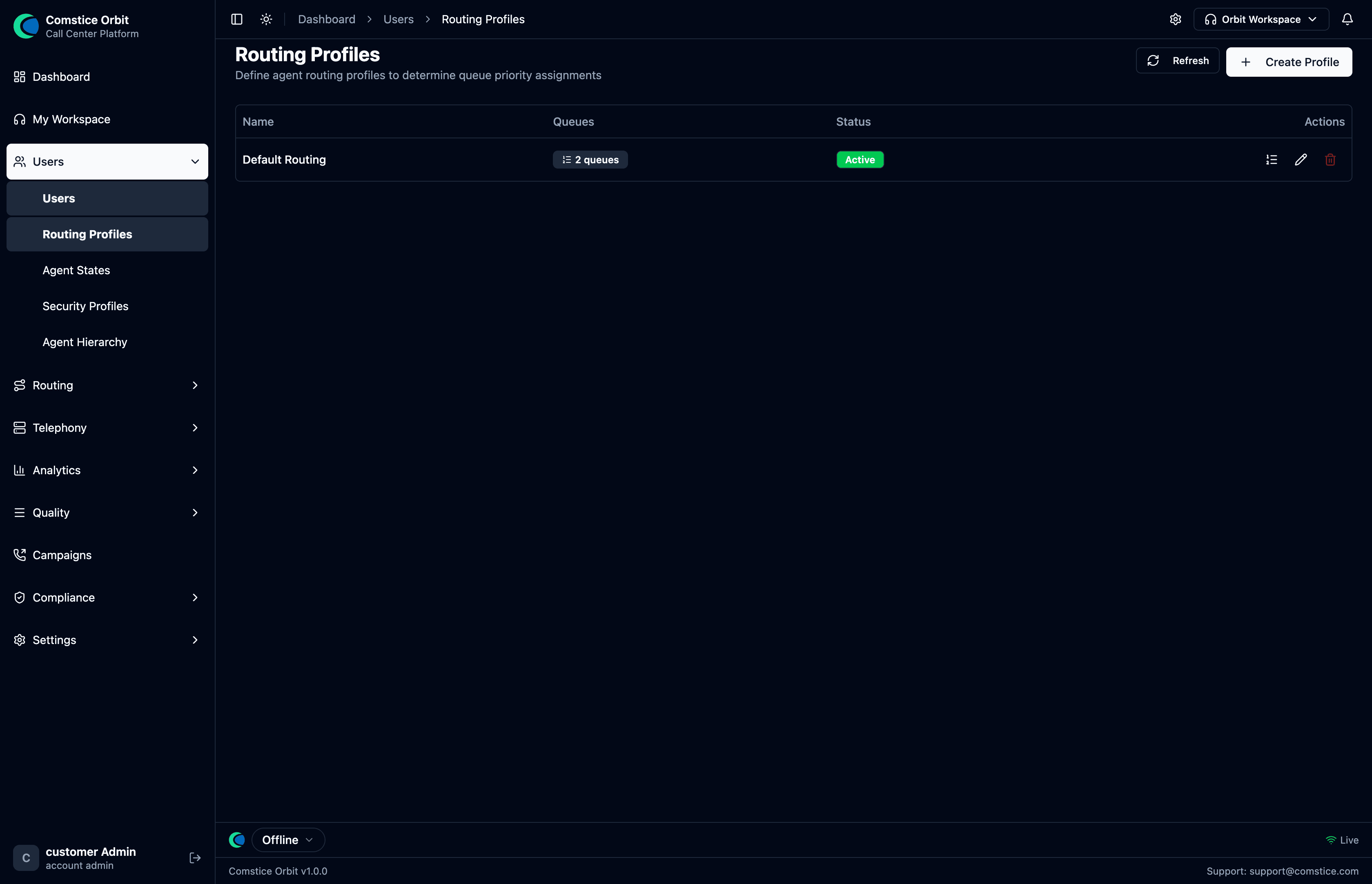 A routing profile bundles the queues an agent serves, with a priority and delay per queue.
A routing profile contains a list of queues, each with:
- Priority —
1is highest. When an agent frees up, Orbit checks their queues in priority order and serves the highest-priority waiting caller first. - Delay (seconds) — a caller must wait this long in the queue before agents
on this profile become eligible. This is the "Amazon Connect delay" pattern:
give senior agents
delay 0and juniorsdelay 30, and juniors only pick up calls that have waited 30 seconds.
The profile itself also carries a Default outbound queue — which queue an agent's outbound calls are attributed to. Note this is a property of the profile, not of each queue row in the list.
Where a multi-channel platform would let a routing profile mix voice, chat, and email and set a "max contacts per agent," Orbit is voice-only and an agent handles one call at a time. There's no channel or concurrency setting to configure here — a profile is simply the agent's ordered list of voice queues.
To create one: Routing Profiles → Create Profile:
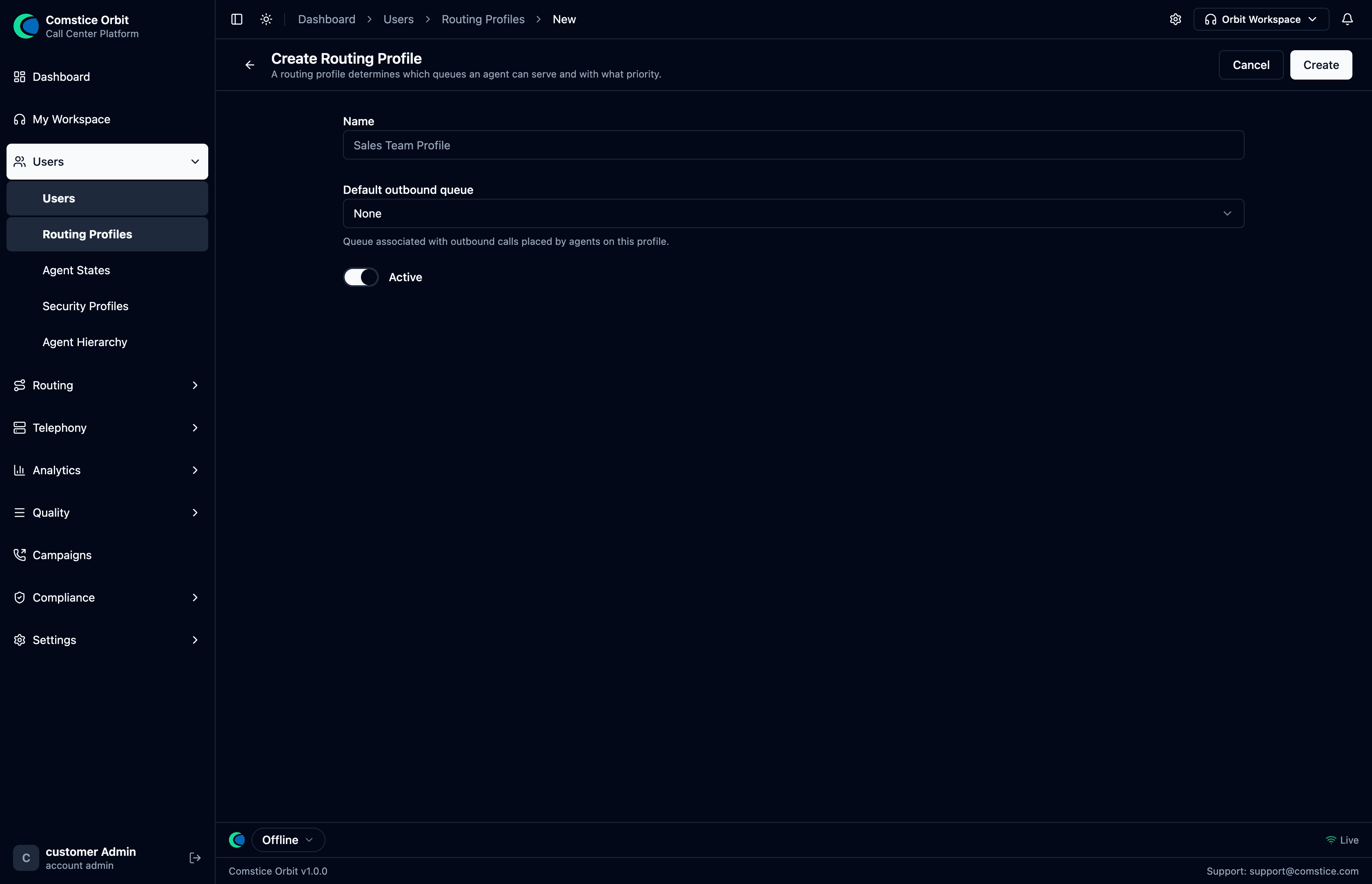
| Field | What it does |
|---|---|
| Name | A name for the profile (e.g. "Sales Team Profile"). |
| Default outbound queue | Where this profile's agents' outbound calls are attributed. |
| Active | Whether the profile is in use. |
The full recipe, start to finish:
- Routing Profiles → Create Profile — name it and set the default outbound queue.
- Add queues to the profile.
- For each queue set its priority (
1= highest) and delay (seconds). - Assign the profile to agents — on each user's record, or in bulk from this screen. An agent with no routing profile is not an agent yet and nothing rings them.
There is no "add agent to queue" button. Instead you add queues to a routing profile, then assign the profile to agents. This keeps large teams manageable — change the profile once, every agent on it updates.
2. Agent Hierarchy (who supervises whom)
The Agent Hierarchy screen (Users → Agent Hierarchy) organizes your agents into a 2-level org tree — Department → Team. This matters for two reasons, exactly as in a classic call center:
- Reporting — the tree groups agents into departments/teams so reports and dashboards can roll up by branch.
- Access control — a supervisor's powers (monitoring a call, viewing evaluations, setting an agent's state) are scoped to the agents below them in this tree. A supervisor never sees agents outside their branch.
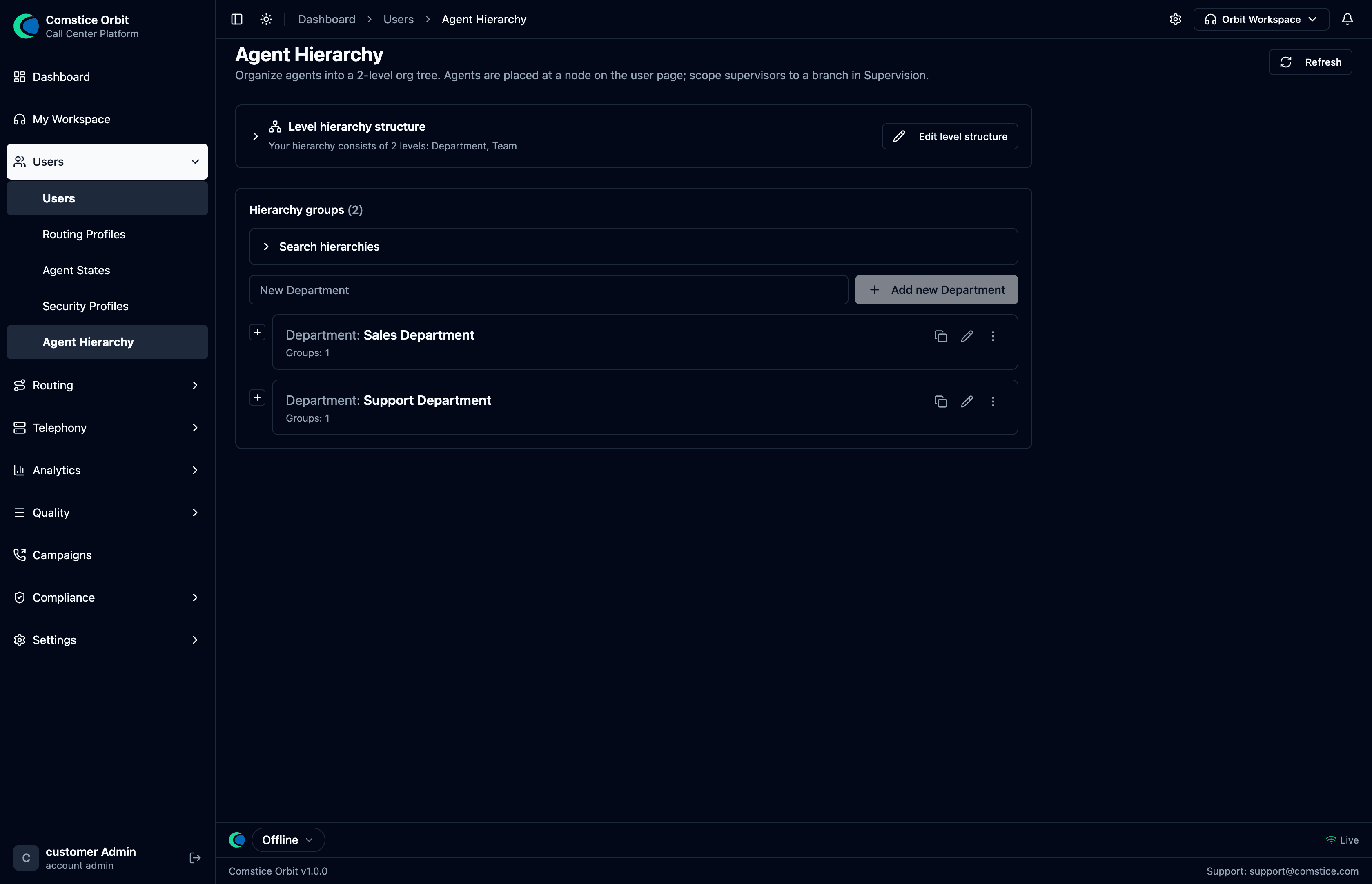 A 2-level hierarchy (Department, Team). Build the branches here — e.g. Sales Department and Support Department — then place each agent at a node.
To set it up:
- Level hierarchy structure confirms your levels (Department, Team) — Edit level structure to rename them.
- Under Hierarchy groups, add your Departments (and their Teams inside).
- Place each agent at a node on their user record.
- Scope supervisors to a branch (in Supervision) so they only see their part of the tree.
A supervisor can only monitor, whisper/barge, evaluate, and set the state of the agents in their own branch of the hierarchy. Position in the tree — not any "team lead" label — is what grants supervision scope.
Moving an agent to a different branch changes which team their past calls roll up under and which supervisor can see them going forward. Plan hierarchy changes around your reporting periods so historical numbers stay meaningful.
3. Agent States (the live roster)
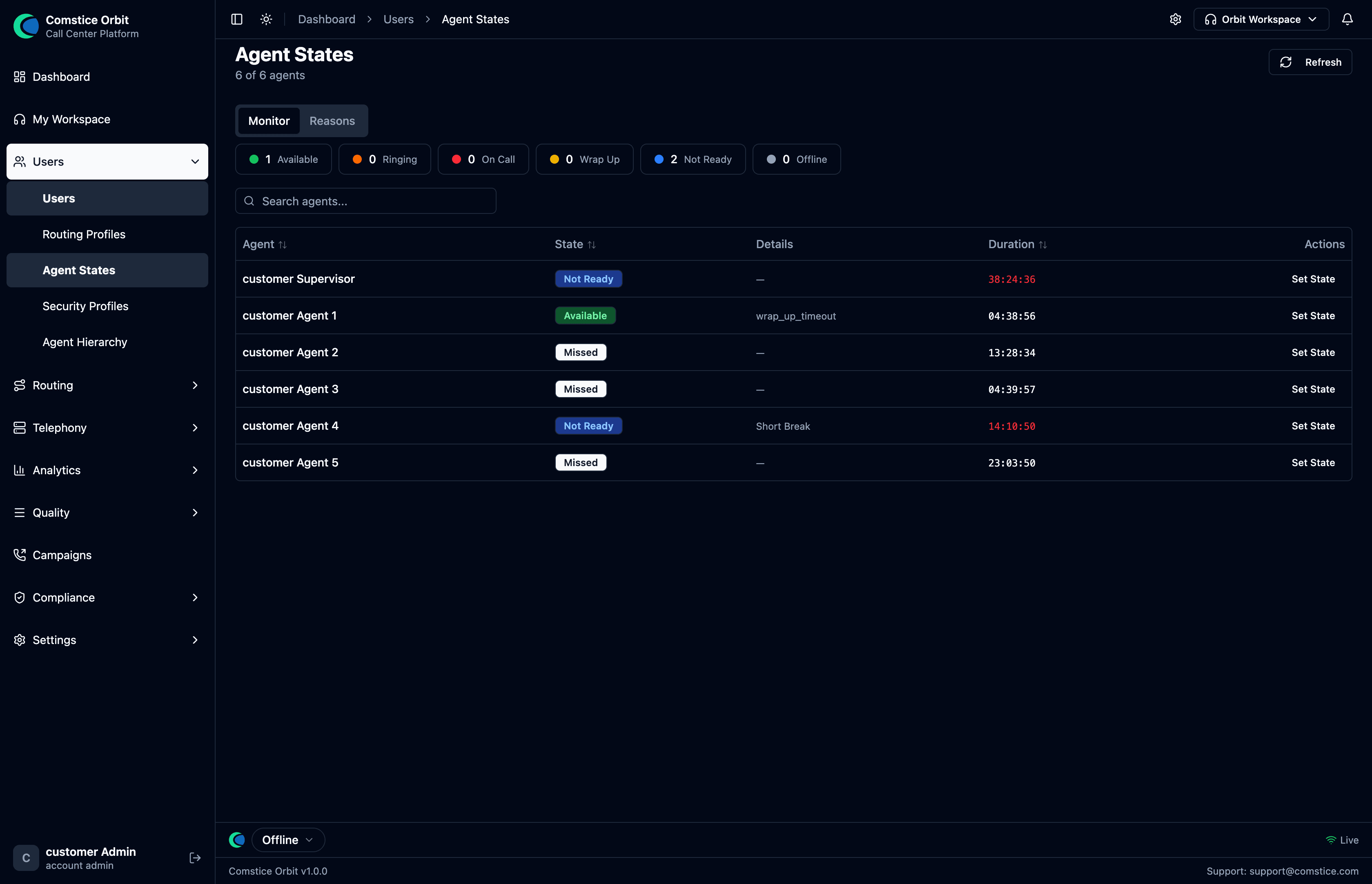 Live counts (Available, Ringing, On Call, Wrap Up, Not Ready, Offline) and a per-agent state table.
Agent States is the real-time roster of everyone who can take calls and what they're doing right now.
Two kinds of state — know the difference. Some states the agent sets themselves; the rest the system sets automatically based on what's happening on their phone:
| State | Set by | Meaning |
|---|---|---|
| Available | Agent | Ready to receive calls. |
| Not ready / Break / Lunch | Agent | Signed in but not taking calls (a reason may be required). |
| Offline | Agent | Not signed in to the softphone. |
| Ringing | System | A call is being offered — the agent can't pick this state. |
| On call | System | Currently talking to a customer. |
| Wrap-up (ACW) | System | Doing after-call work (notes); the agent can finish early to go Available, or it auto-clears when the timer ends. |
| Missed | System | The agent let an offered call ring out — see the warning below. |
The agent controls the top three (Available / Break / Offline); Ringing / On call / Wrap-up / Missed are system-driven — they change on their own as a call arrives, connects, ends, or goes unanswered, and the agent can't select them manually. (Wrap-up is the one crossover: it's system-entered but the agent can end it early.) Wrap-up is the industry's After Contact Work (ACW) — the same thing, under Orbit's friendlier name.
If an agent lets an offered call ring out (no-answer), Orbit moves them to Missed and stops sending them new calls until they set themselves back to Available. This is the most common "why did my calls stop?" — the fix is simply for the agent to go Available again (or a supervisor to do it for them).
- Available is the only state that takes inbound calls. An agent on Break, Lunch, or in Wrap-up will not be rung.
- Outbound works from (almost) any state. An agent can place an outbound / click-to-dial call even while set to a custom Not Ready reason — going on Break stops calls coming in, not calls going out.
The roster columns give you what you need to manage the floor at a glance: Agent, State, Details (the reason, e.g. "Paper Work", when Not Ready), Duration (how long they've been in the current state — watch for someone stuck in Wrap-up or over on Break), and Set State. Counters across the top tally how many agents are in each state, and a Reasons tab breaks down Not-Ready reasons.
The list is scoped: an admin sees everyone, a supervisor sees their branch, an agent sees themselves. The roster updates live over a WebSocket — no refresh needed.
What supervisors can do here: with the right permission, change an agent's state (e.g. pull someone out of Break), and jump straight into live call control — monitor, whisper, or barge. See Handling Calls.