Knowledge Base
The Knowledge Base is your account's pool of answer articles. It's what Agent Assist surfaces to agents mid-call and what the AI voice bot searches to answer callers — one pool, sliced by tags so each queue sees the right topics.
Knowledge managers and supervisors curate it: write articles by hand, upload documents, or approve suggestions mined from your own call transcripts.
In the app: Analytics → Knowledge Base. The page opens on the Dashboard tab — the health view — with the curation work one click away in the Articles and Review tabs.
Start at the Dashboard — is the pool working?
The landing tab answers one question: is the knowledge base actually answering your callers? All numbers are 30-day windows.
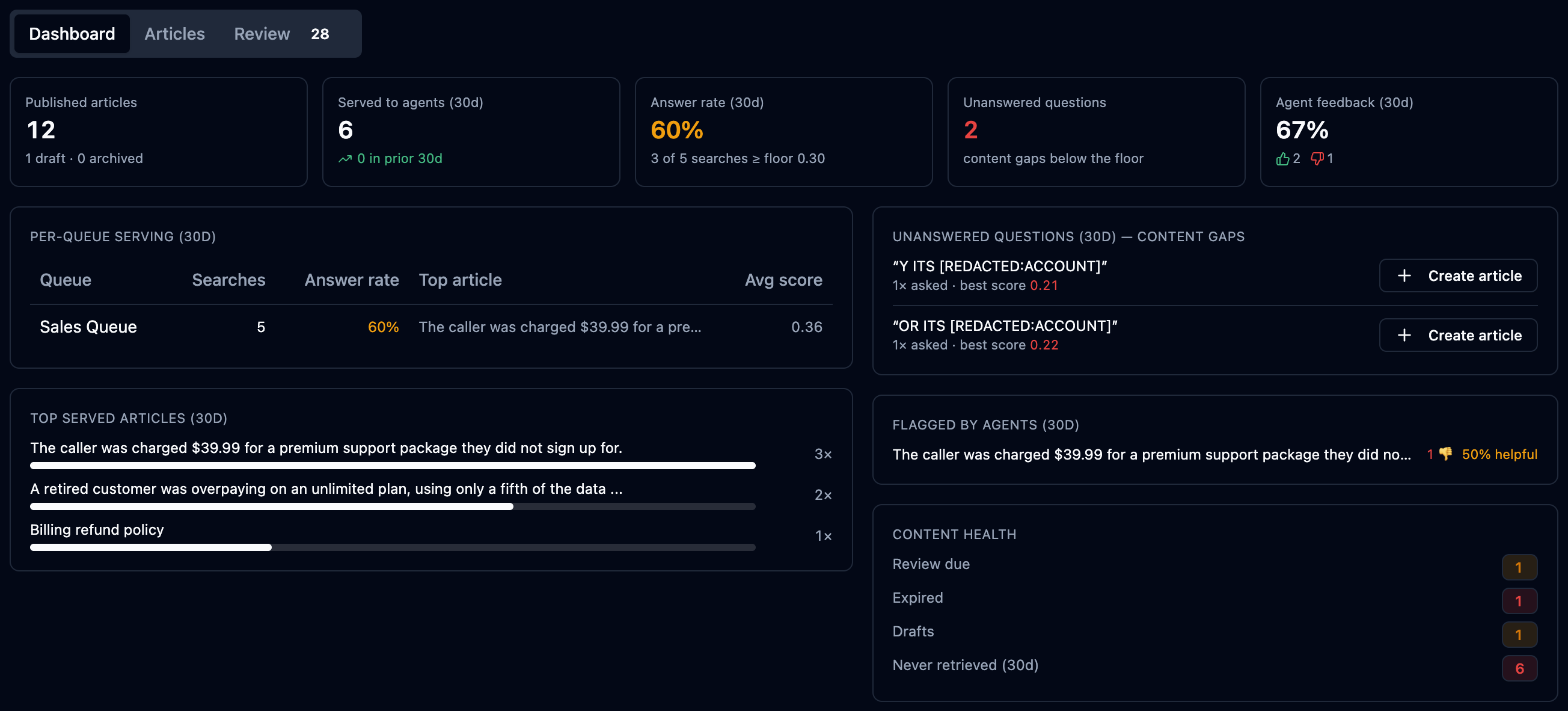
- Answer rate — the share of live agent-assist searches that found content above the serving floor. This is the single health number for the pool.
- Unanswered questions — content gaps — real caller questions that found nothing good enough. Each row has a Create article button that opens the New Article dialog prefilled with the question — the fastest honest way to grow the pool.
- Per-queue serving — searches, answer rate and the top article per queue, so you can see which queue's topics are covered and which starve.
- Top served articles — what Assist actually uses.
- Flagged by agents — articles collecting 👎 votes (see Let agents rate what Assist serves).
- Content health — Review due / Expired / Drafts / Never retrieved counters, the same signals as the list badges in one glance.
Serving and search counts are recorded live from real calls; the Test retrieval probe in the article drawer is deliberately never counted.
Browse and search articles
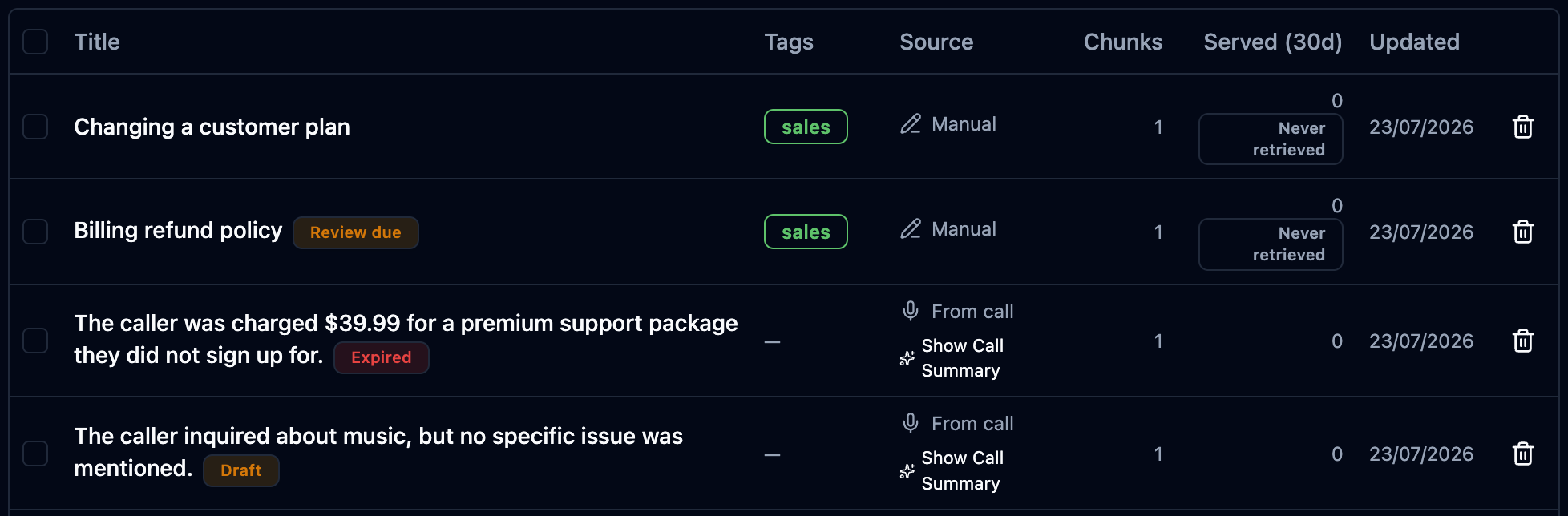
Switch to the Articles tab to see every article in the pool. Each row shows its tags, its source, how many search chunks it was split into, how often Agent Assist actually served it in the last 30 days, and when it was last updated.
- Search titles… filters by title as you type.
- All sources narrows by where an article came from — Manual (typed in), Document (uploaded file), or From call (mined from a transcript).
- All statuses narrows by lifecycle state — Published, Drafts or Archived (see Control what gets served below).
- The tag chips under the toolbar filter to one or more topics.
- Served (30d) is the pruning signal: an older article that was never retrieved carries a gray Never retrieved badge — dead content you can rework or remove.
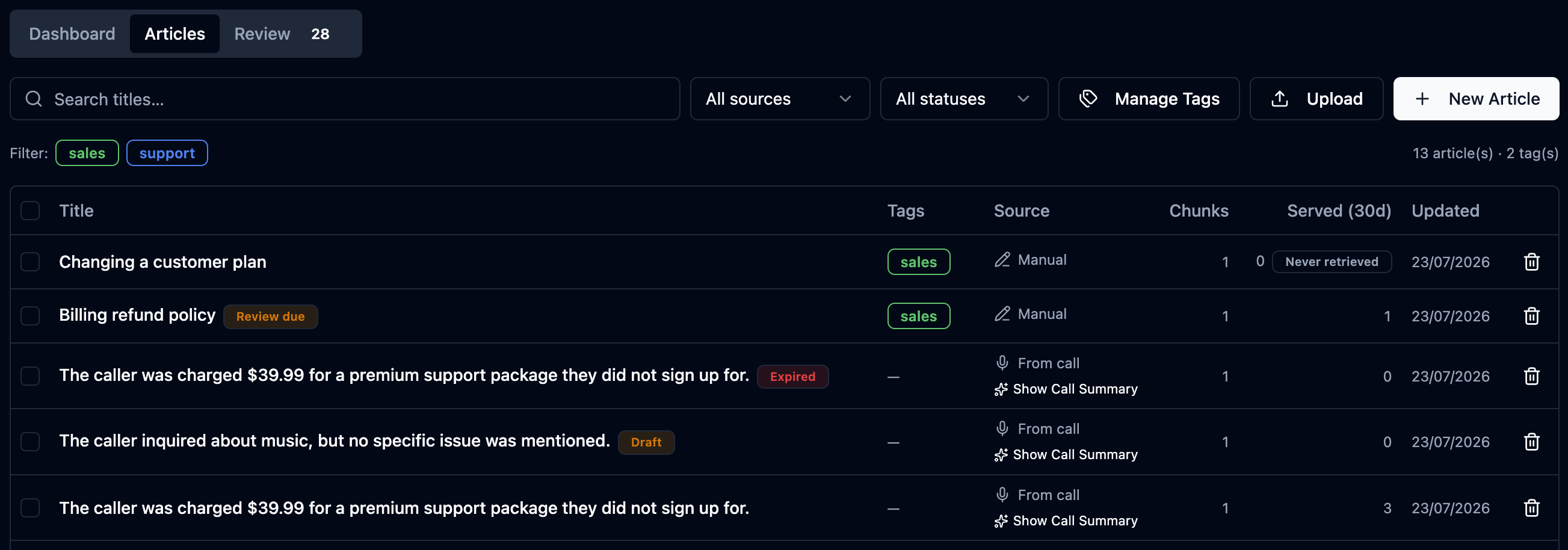
A From call article links to the call summary it came from; open it to see the original conversation.
Anyone with Knowledge Base → view can browse and search. Creating, editing, uploading and tagging need Knowledge Base → manage; approving mined candidates needs Knowledge Base → review.
Inspect an article — the detail drawer
Click any row to open the article. The drawer shows everything an admin needs to trust what the AI will say, in four tabs:
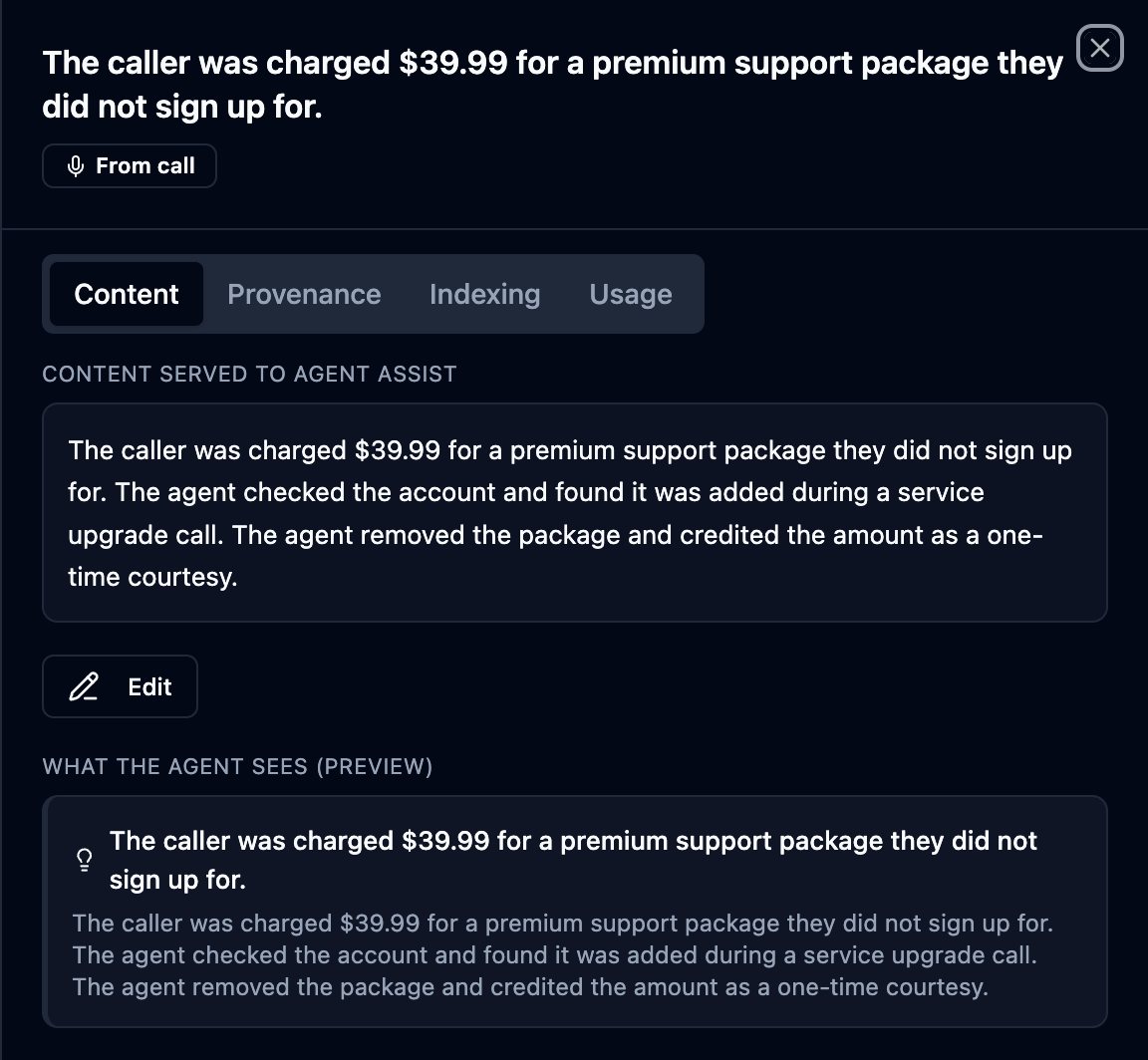
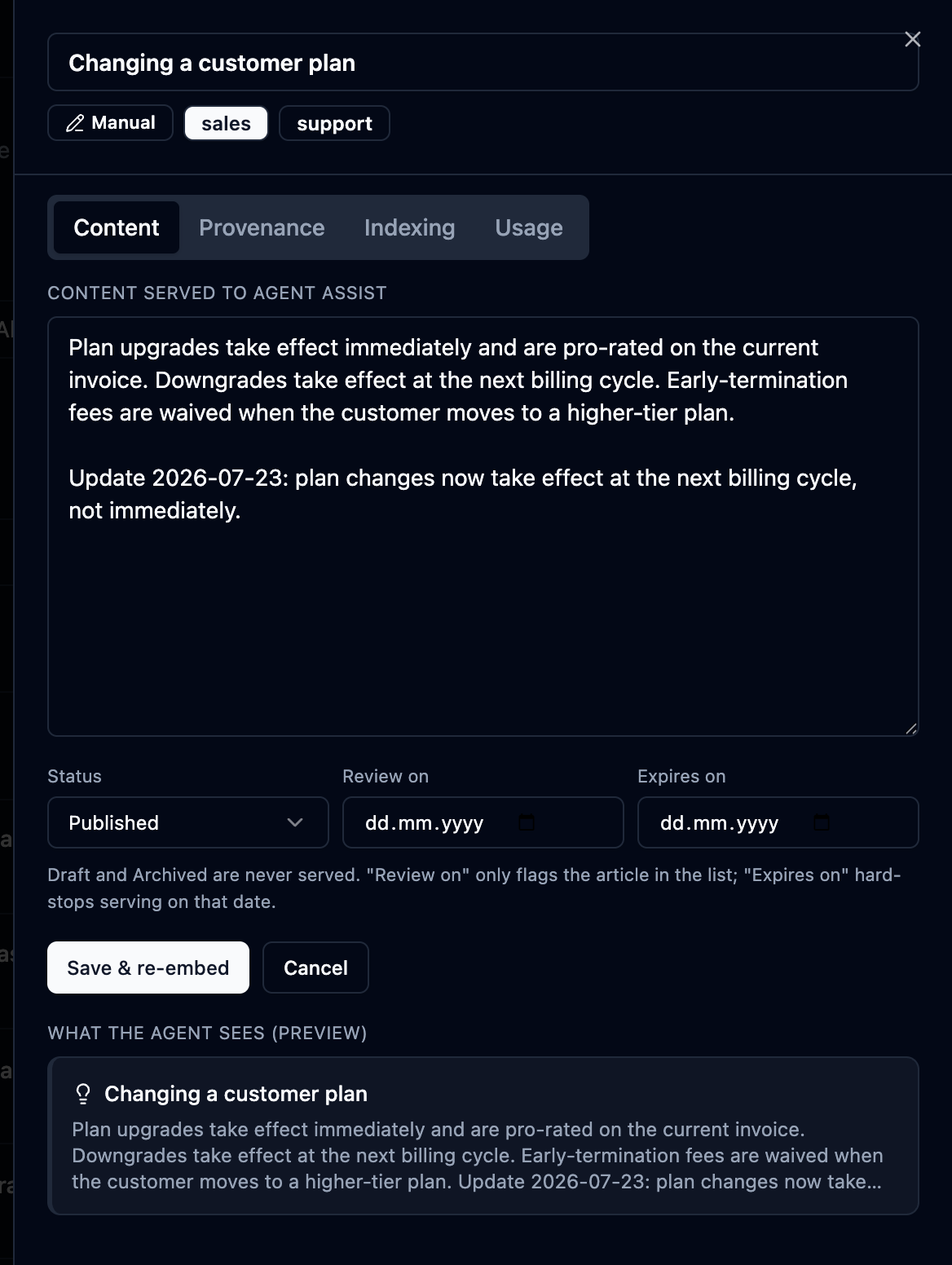
- Content — the exact text served to Agent Assist, an Edit button (saving re-chunks and re-embeds automatically), and a preview of the suggestion card as an agent would see it mid-call.
- Provenance — where the article came from: for a From call article the link to its call summary; for a document, the original filename; plus created and updated dates and the article's version history (see See and restore earlier versions below).
- Indexing — the search internals in plain terms: indexed status, the embedding model, each chunk with how often it was served, and a Reindex this article button.
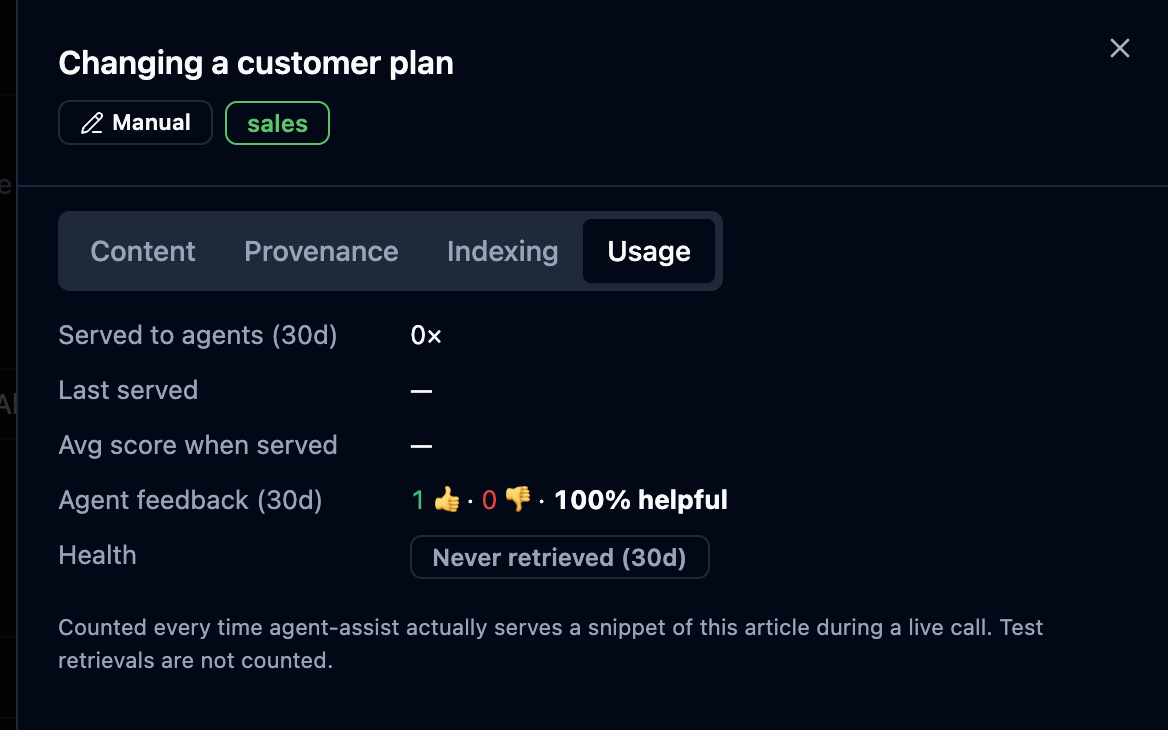
- Usage — served count (30d), last served time, average match score, and an Active / Never retrieved health badge.
Test whether an article will be found
On the Indexing tab, type a caller question into Test retrieval and press Test. Orbit scores the question against this article's chunks and shows the account-wide top matches, colored against the serving floor — green means "would be served", red means "too weak to surface".
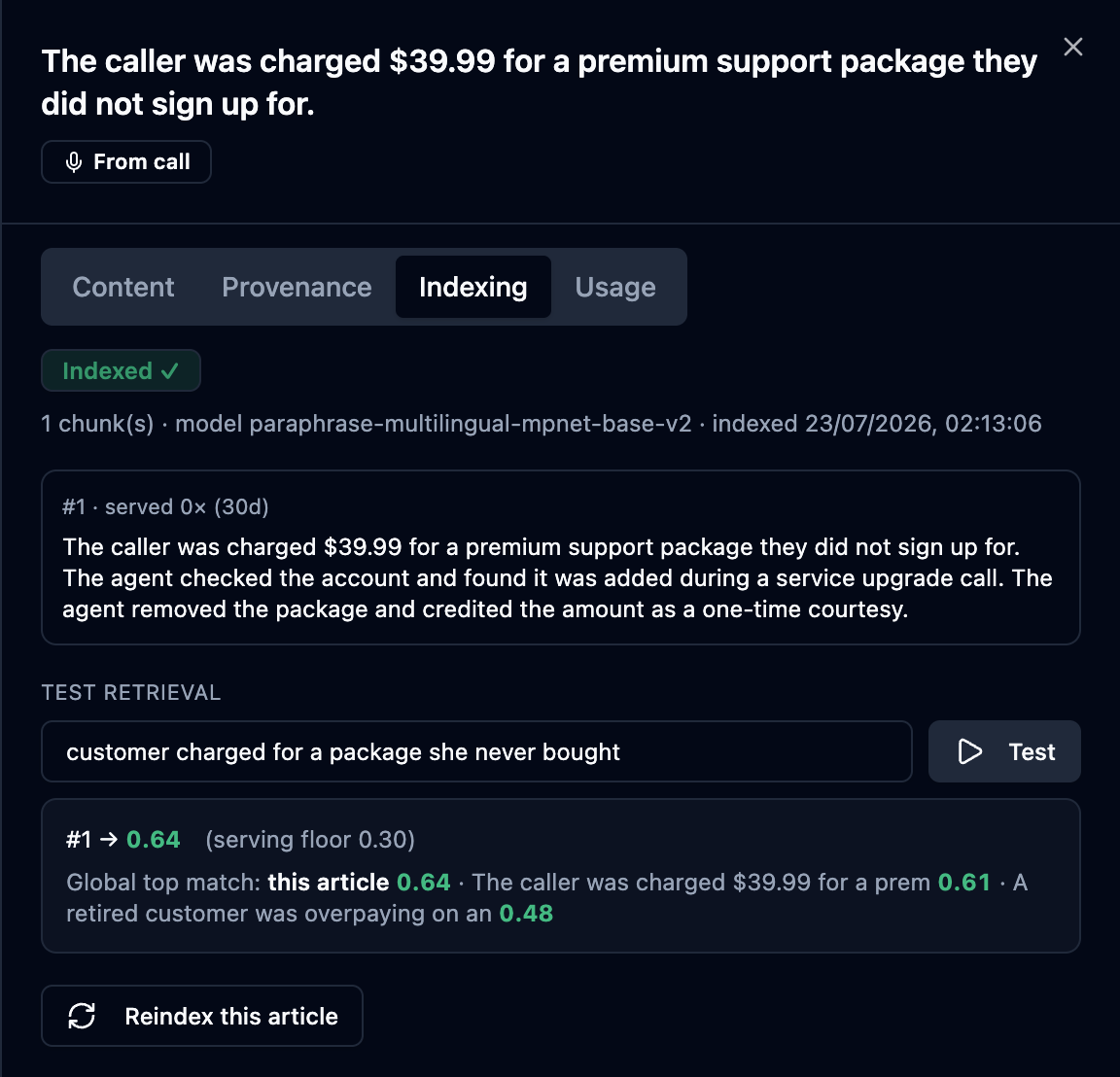
After writing or editing an article, test it with two or three questions your callers actually ask. If the score stays below the floor, the article needs the caller's wording, not more prose.
Control what gets served — status and dates
Every article has a lifecycle status: Published (live), Draft (still being written) and Archived (kept for reference, no longer used). Only Published articles are served to Agent Assist and the voice bot — a draft or an archived article is invisible to agents and callers, no matter how well it matches.
Two optional dates keep content fresh:
- Review on — a reminder, not a switch. When the date passes, the article gets an amber Review due badge in the list; it keeps serving.
- Expires on — a hard stop. When the date passes, the article stops serving immediately and shows a red Expired badge. The text is kept — extend the date or archive it.
To change any of these, open the article and click Edit — the status selector and both dates sit under the content box. The drawer header also warns "Not served to Agent Assist or the voice bot" whenever the article is a draft, archived or expired, so you always know why an article isn't showing up.
Promotions, holiday hours, temporary workarounds — set Expires on when you write them. The article retires itself on the right day instead of waiting for someone to remember it.
See and restore earlier versions
Every time someone saves a title or content edit, Orbit snapshots the previous text first — nothing is ever overwritten silently. The Provenance tab lists the history: version number, who replaced it and when.
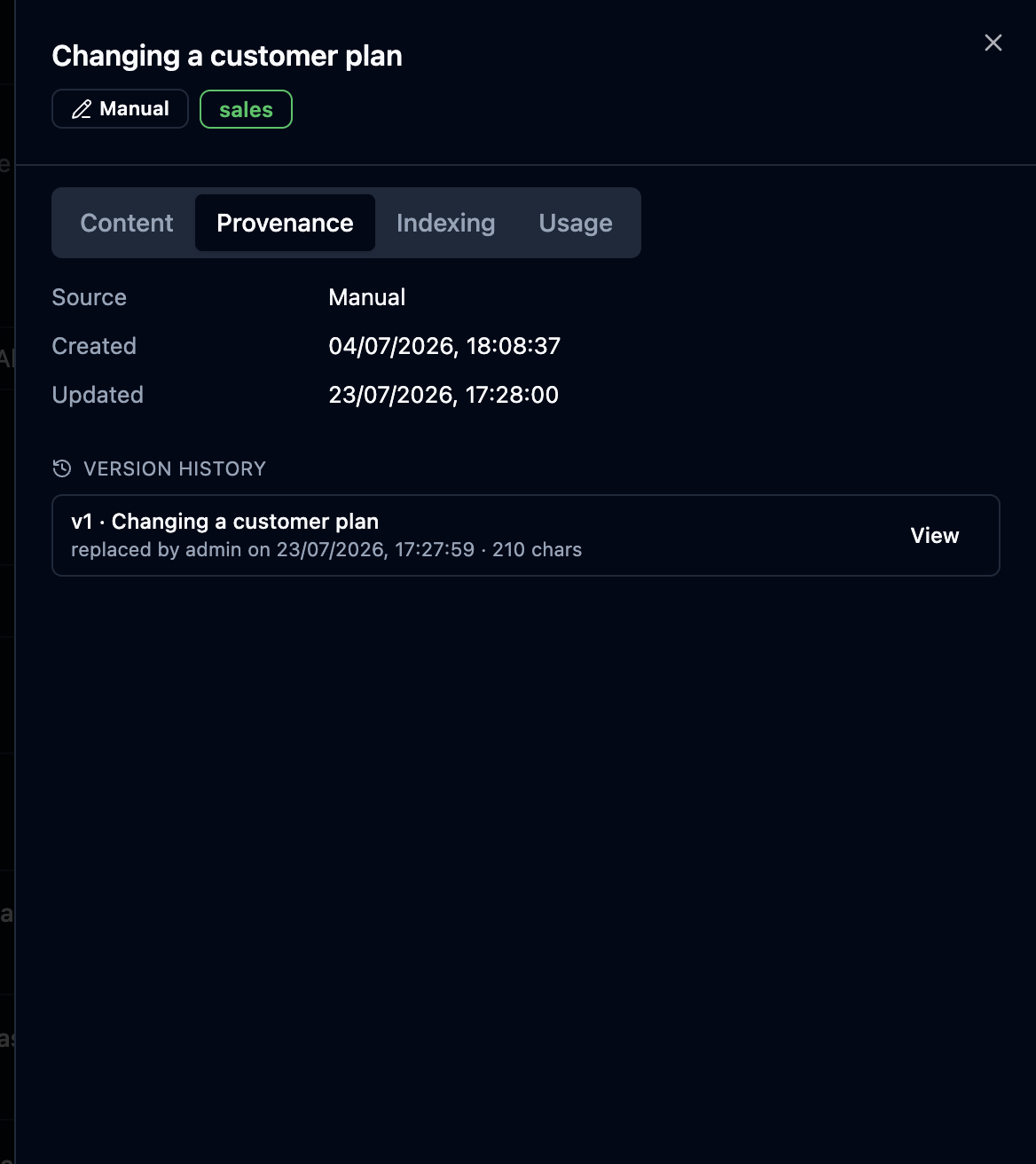
Click View to read an old version in full, and Restore this version to bring it back:
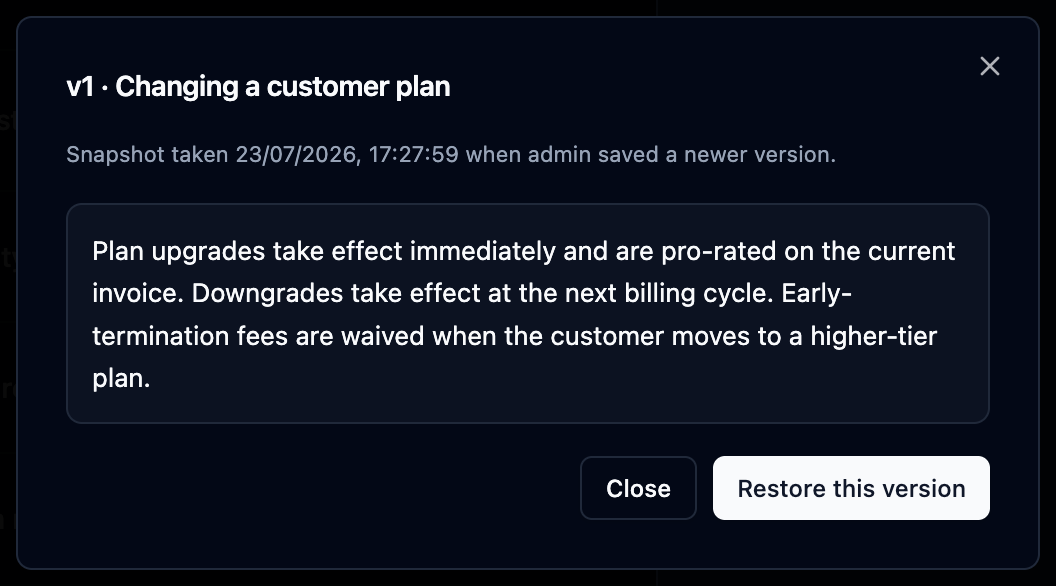
A restore goes through the same edit path as any other save, so the version you just replaced is snapshotted as well. The trail never loses a state — you can always get back to any point.
Create an article
- Click New Article (top right of the Articles tab).
- Give it a Title and write the Content — the answer an agent should see: steps, policy, or a resolution.
- Optionally attach one or more tags.
- Optionally tick Save as draft if the text isn't ready for agents yet.
- Click Save.
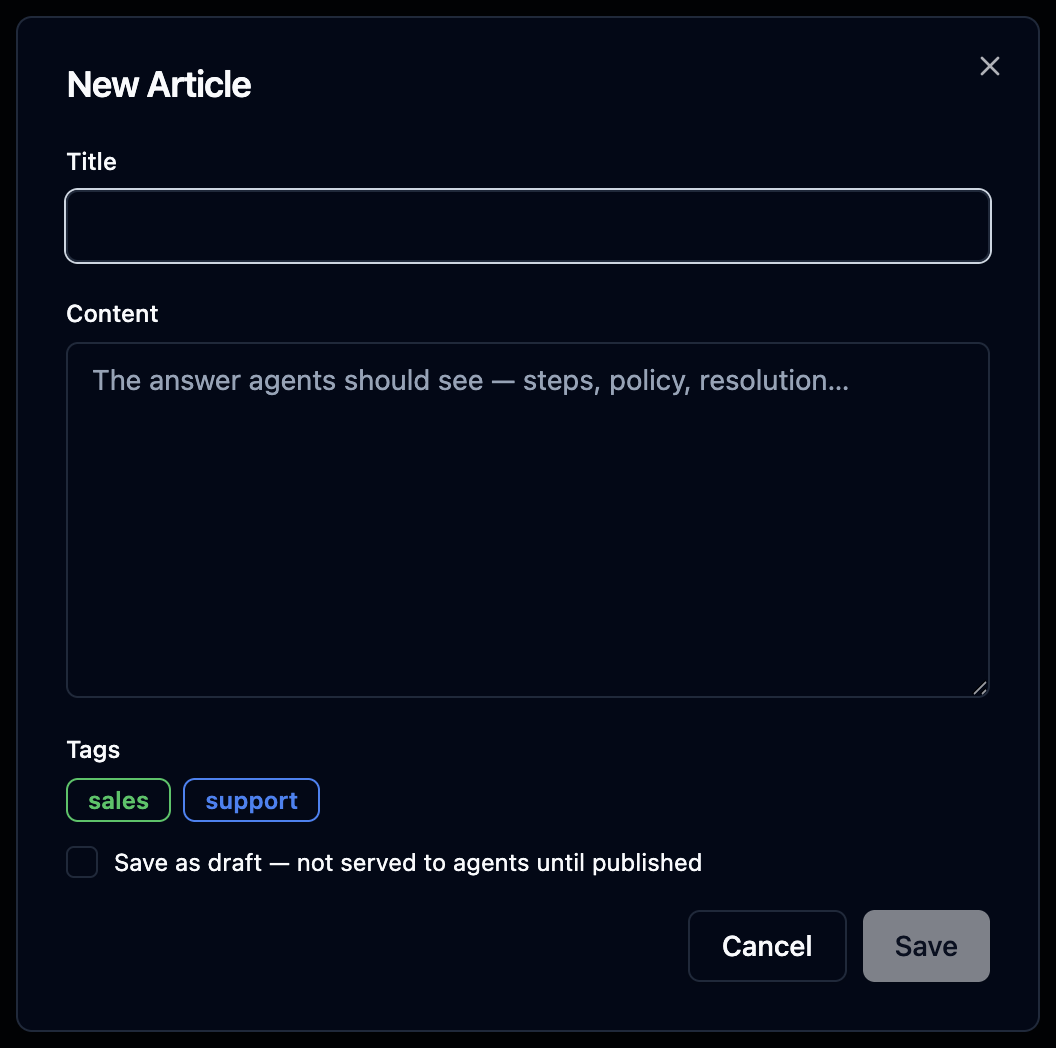
Unless you saved it as a draft, the article goes live immediately — Orbit splits it into search chunks and embeds it into the pool, so Agent Assist and the voice bot can find it on the next call. A draft is embedded too but held back from serving until you publish it from the article drawer.
Delete an article
To remove an article, click the trash icon at the end of its row and confirm. Orbit deletes the article and its embedded chunks, so it stops appearing in Agent Assist and voice-bot answers right away.
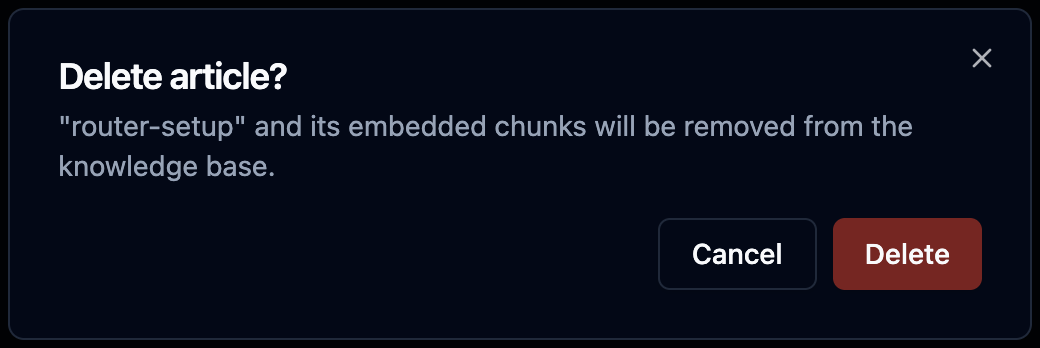
There's no undo and no trash — a deleted article is gone, version history included. If you only want to stop it serving, set its status to Archived instead (see Control what gets served); to hide it from one queue only, remove its tag (see Organize with tags).
Organize with tags
Tags are how you slice one pool into per-queue topics (e.g. sales, support,
billing), so a support agent isn't shown sales articles.
Open Manage Tags to create, rename or delete tags. Pick a colour, type a name, and Add. Rename by clicking a tag's name; the number on the right is how many articles carry that tag.
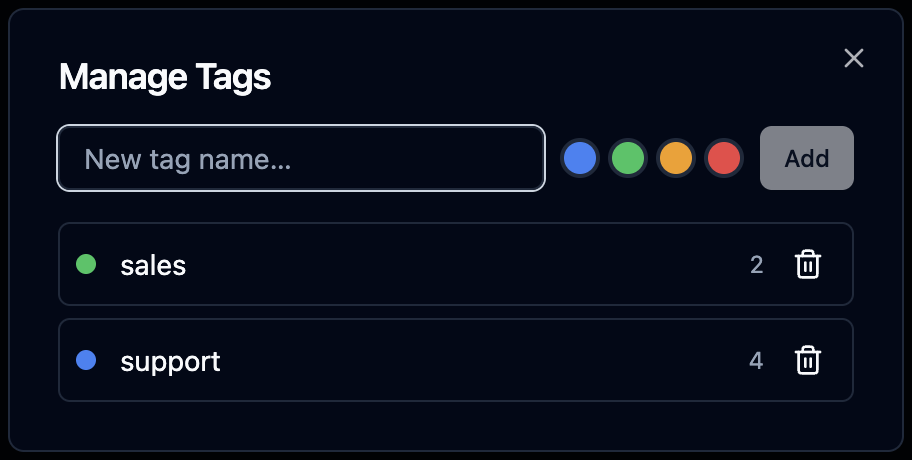
To tag many articles at once, tick their checkboxes in the list and use the Add tag / Remove tag bar that appears.
Once your topics exist, point each queue at the tags it needs in the flow's Agent Assist step — that's what keeps suggestions relevant per queue.
If a tag is referenced by a call flow, deleting it is blocked and Orbit names the flows — detach it there first.
Upload a document
- Click Upload.
- Choose a PDF, Word (.docx), Markdown or plain-text file (up to 20 MB).
- Optionally attach tags, then Upload.
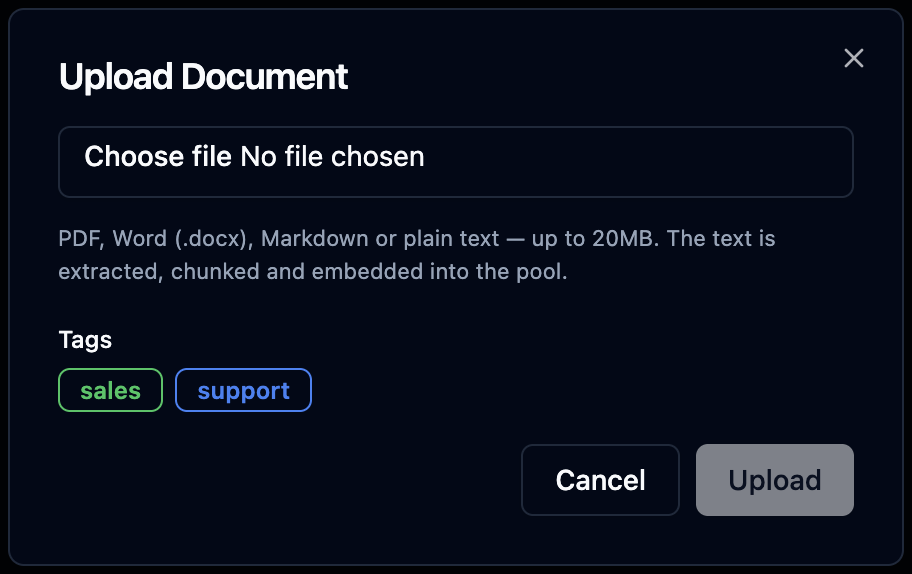
Orbit extracts the text, splits it into chunks and embeds them into the pool. The document then appears in the list with a Document source and its filename; a toast confirms how many chunks were ingested.
Long content is split into smaller passages so search returns the exact relevant part, not a whole document. The Chunks column shows how many an article produced — it's normal for an uploaded file to have several.
Review candidates mined from calls
When a call runs through a flow with Auto-source knowledge enabled, Orbit turns its AI summary into a candidate article and drops it in the Review tab (the badge shows how many are pending). This is how the pool grows itself from real conversations — you stay in control by approving only the useful ones.
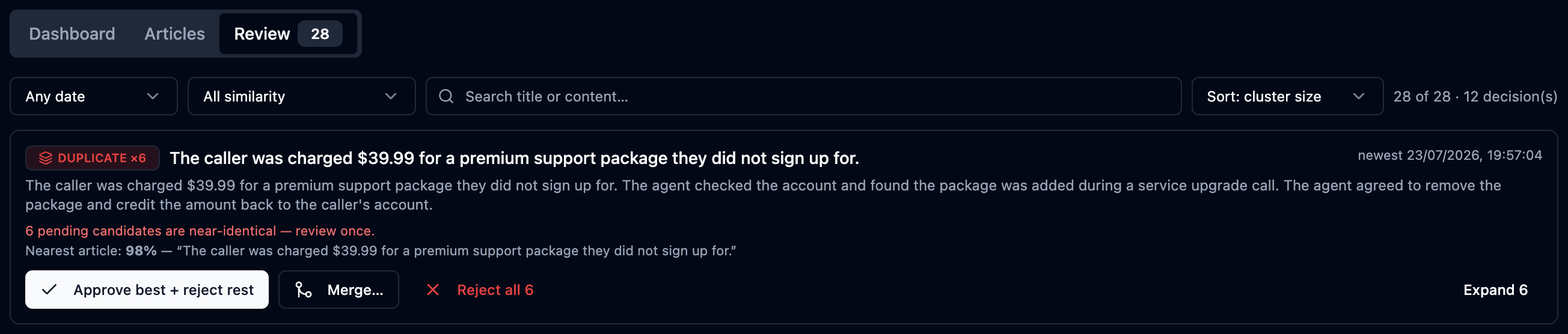
Ten similar calls should not mean ten separate decisions. Candidates that are near-identical to each other are stacked into one cluster card — "DUPLICATE ×6 … review once" — with three group actions:
- Approve best + reject rest — publish the newest version, close the clones.
- Merge… — fold it into the existing article instead (see below).
- Reject all — discard the whole group.
The toolbar keeps a big queue workable: filter by date or similarity band (Likely new / Related / Likely duplicate), search title and content, and sort by cluster size, newest, or similarity. Tick individual cards to get a bulk Approve / Reject bar.
Review a single candidate
For each candidate you can Edit the suggested title/content, adjust its tags, then Approve, Reject, or open Show source call. Every card also states its nearest existing article and match score, so you always see how new the content really is:

- 90%+ match — the card is flagged DUPLICATE and approving asks for an explicit confirmation.
- 75–90% — an amber hint with a view side-by-side / merge link.
- A separate warning appears when the candidate matches another pending candidate — the same issue arriving from several calls at once.
Similarity is re-checked against the live pool every time you approve something, and pending candidates are also compared with each other — so the fifth copy of the same story is flagged even if it arrived before the first one was approved.
Merge instead of rejecting
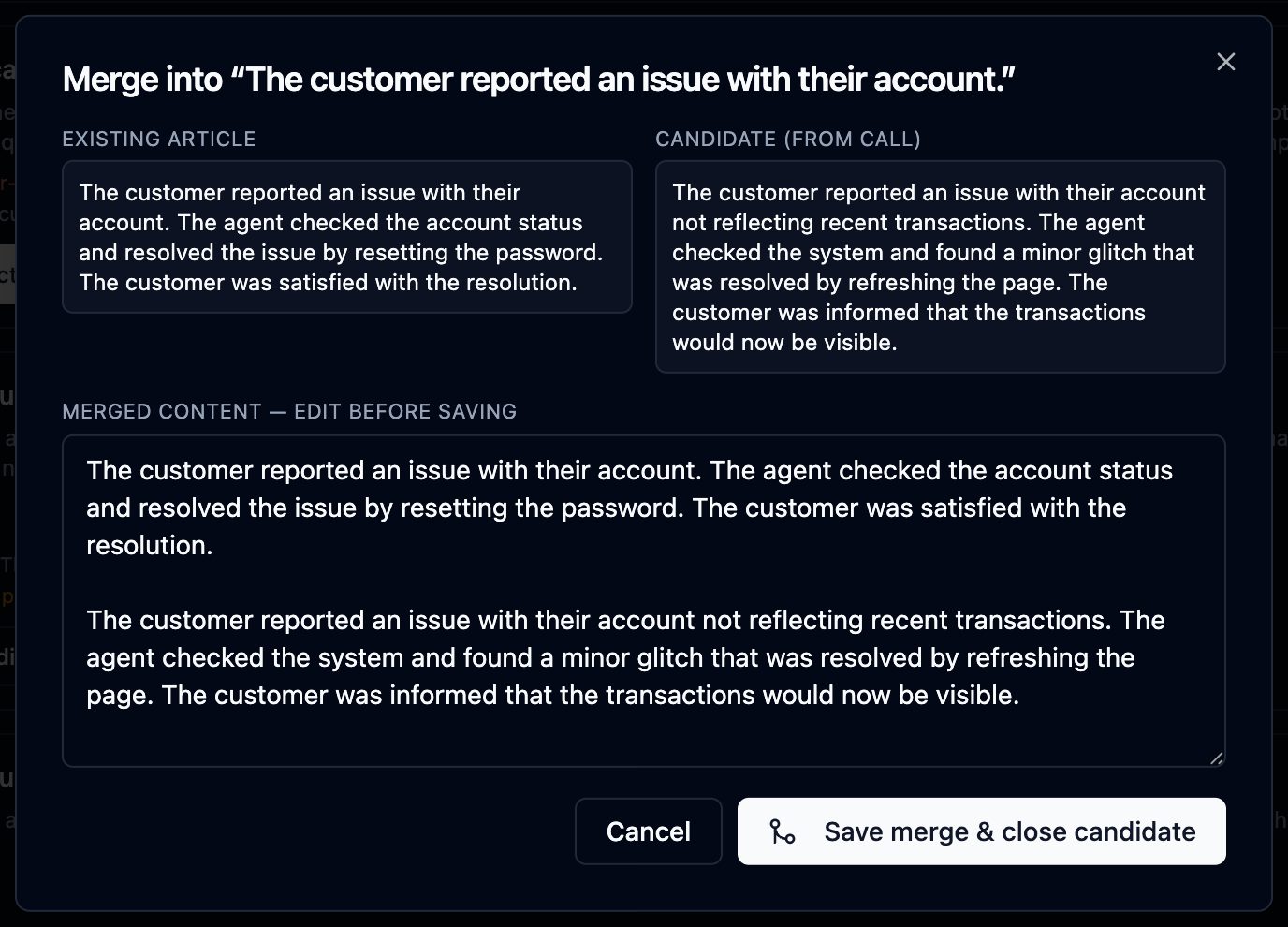
A near-duplicate usually carries one new detail. Merge… opens the matched article next to the candidate, pre-fills a combined version for you to edit, and on save updates the existing article (re-embedding it) and closes the candidate — no second article, no lost detail.
Let agents rate what Assist serves
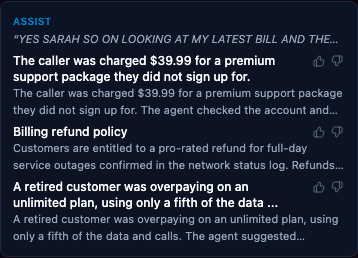
When Agent Assist shows a suggestion during a live call, the agent can rate it in one click — 👍 Helpful or 👎 Not relevant — right on the suggestion card. The vote is silent (it never interrupts the call), one vote counts per suggestion per call, and voting again simply changes the vote.
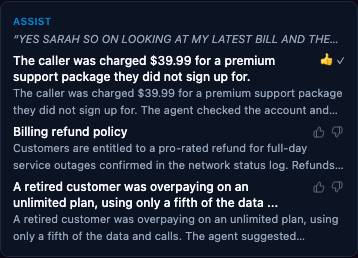
After voting, the buttons collapse into a small check so the agent knows the vote landed:
The votes surface in two places for knowledge managers:
- The article drawer's Usage tab shows Agent feedback (30d) — thumbs up, thumbs down and a helpful %.
- The Dashboard's Flagged by agents panel lists the articles collecting 👎 votes, worst first.
Either the content is wrong/stale (fix the text), or a fine article keeps matching the wrong questions (check with Test retrieval and tighten the wording or tags). The feedback tells you where to look, not what is wrong.
Reindex after an embedding-model change
You'll rarely see this. Search works by comparing embeddings (numeric vectors) of your content. If the account's embedding model or tier changes, the stored vectors no longer match the new model, and an amber banner appears at the top of the Articles tab with a Reindex now button. Your articles' text is kept — reindexing just re-embeds everything with the new model.
It can take several minutes. Search keeps serving the old vectors until the new set is ready, then swaps over — no downtime, but new content may lag until it finishes.