Organization & Access Management
This chapter is about who exists in Orbit and what they're allowed to do: the company hierarchy, security profiles (permissions), and user accounts. If you're an admin setting up a company, start here.
In the app: Users → Users, Users → Security Profiles (plus the platform-admin screens Accounts / Service Providers / Plans / Licensing).
1. The organization tree
Orbit organizes everyone into a three-level tree. Each level sees only itself and the levels below it.
PLATFORM            (Comstice — runs Orbit)
   └── SELLER       (a reseller / service provider)
          └── CUSTOMER   (a call center — your company)
- A Platform admin sees everything.
- A Seller admin sees their own customers, but not other sellers'.
- A Customer admin sees only their own company.
This isolation is enforced at the data layer (row-level security), so one customer can never see another's queues, users, recordings, or reports — even though everyone shares the same platform.
Each customer is a tenant with its own sign-in URL
(yourco-orbit.comstice.com). See Getting Started.
2. Platform & reseller administration
These screens are only visible to platform and (where allowed) reseller admins. Each is a real screen with its own workflow, not just a list:
Accounts — the customer companies (tenants) on the platform. To create one:
Accounts → New → set the company name and its sign-in subdomain
(acme → acme-orbit.comstice.com), choose the plan, and (for a reseller)
the parent seller. Saving provisions the tenant with its own isolated data and
default profiles. From the row you can edit, suspend, or open the account.
Service Providers — reseller accounts that sit between the platform and their own customers. To create one: Service Providers → New → name the reseller and set what they're allowed to resell. Their admins then manage their customers (and can't see other resellers'). Skip this screen entirely if you sell direct.
Plans — the pricing/entitlement tiers. A plan bundles which products/features (recording, sentiment, QA, campaigns, API access…) and seat counts a customer on that tier gets. To define one: Plans → New → name the tier and tick the included products/limits. Plans are what you then attach to an account.
Licensing — the enforcement side of plans: license keys, enabled products, and seat/usage counts per account. Use it to see how many seats a customer is consuming against their entitlement and to apply or refresh a license. If a feature is greyed out for a customer, this is where you confirm their plan includes it.
Cluster Config — an operational, mostly read-only view of the platform's own health: the service nodes, topology, and failover status (which database is primary, RabbitMQ nodes, Redis, service heartbeats). You look here to answer "is the platform healthy?", not to configure a customer.
View-As: A platform or reseller admin can temporarily "become" a customer (header → View-As) to see and configure Orbit exactly as that customer would. Everything you do while in View-As is recorded in the customer's audit log.
3. Security Profiles (permissions)
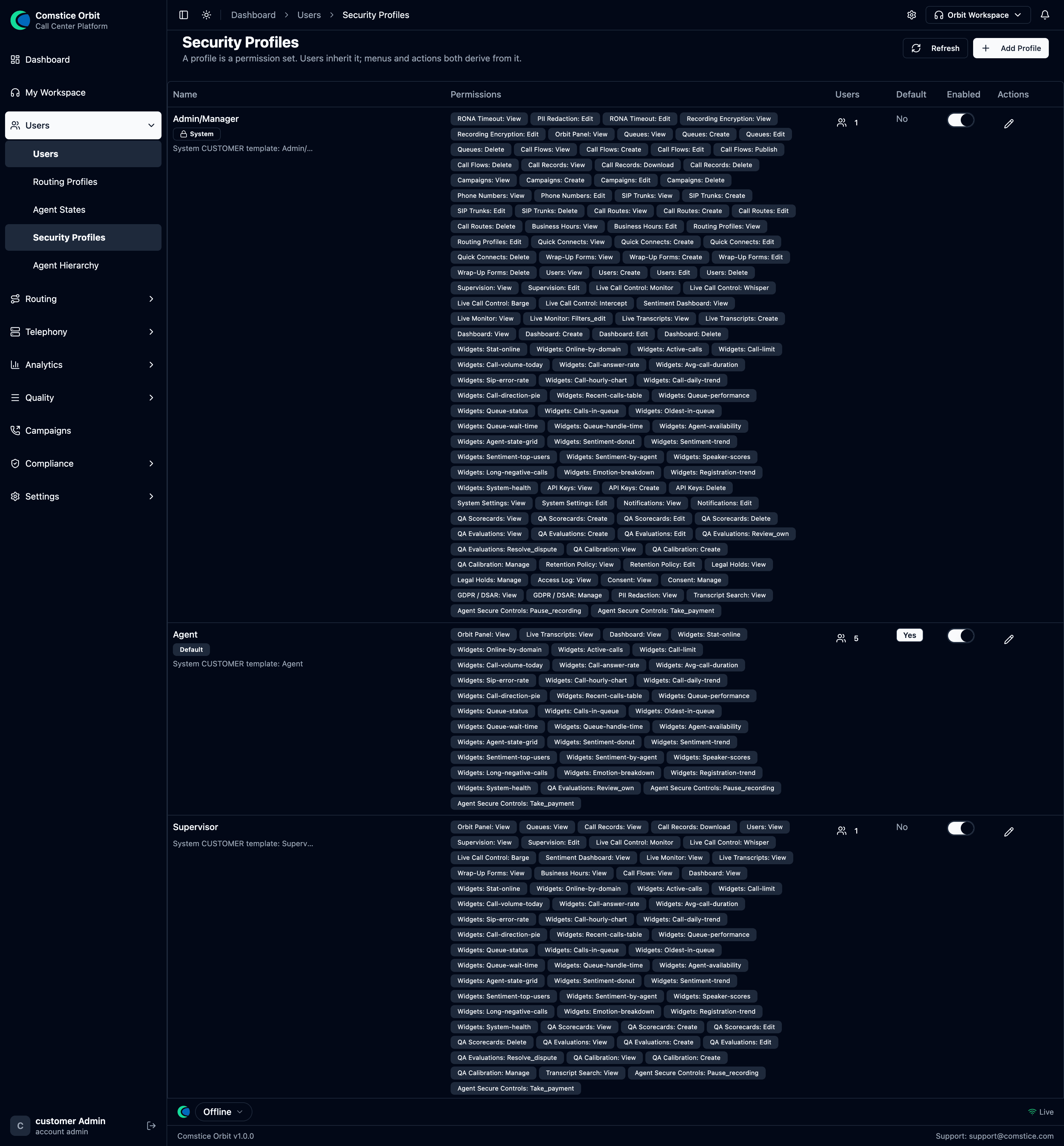 Each profile is a set of permission chips; users inherit one, and menus + actions derive from it.
A Security Profile is a named bundle of permissions — think of it as a job title that lists what someone is allowed to do. In Orbit a user is assigned exactly one profile, and that profile decides which menus appear and which buttons work. (This is a deliberate simplification: where Amazon Connect lets a user hold several security profiles at once, Orbit keeps it to one per user so "who can do what" is always unambiguous.)
- Default security profiles (Admin, Supervisor, Agent) are system-provided blueprints. They are read-only — you can't edit them, but you can clone them and adjust the copy.
- Custom profiles are yours: clone a default profile or build one from scratch, then tick the exact permissions you want. Prefer cloning a default and removing what you don't need over building up from empty — you're less likely to forget a permission the role actually needs.
Permissions are written as resource.action, and each object is typed view /
create / edit / delete, for example:
queues.view,queues.create,queues.edit,queues.deleteusers.view,users.editcall_control.monitor,call_control.whisper,call_control.bargeorbit_panel.view(required for an agent to use the softphone)
To create a profile: Security Profiles → New. The Create Security Profile page opens:
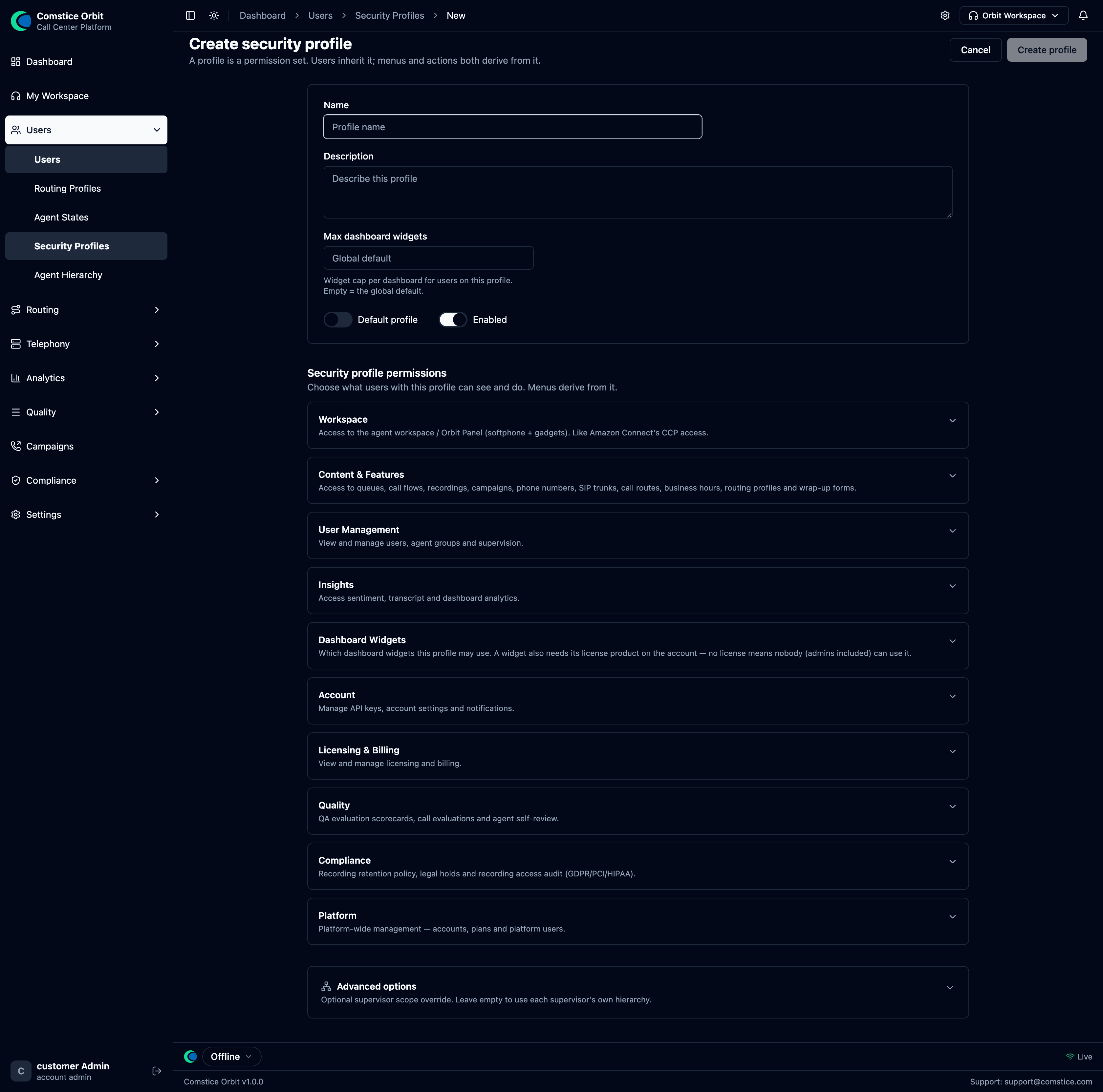 Name the profile, then tick permissions from the grouped catalog (Users, Queues, Call flows, Telephony, Recordings, Supervision, Quality, Compliance…). Each object is typed view / create / edit / delete.
| Field | What it does |
|---|---|
| Name | The profile's name (e.g. "Team Lead", "Billing Agent"). |
| Description (optional) | A note on who this profile is for. |
| Permissions | Tick the resource.action permissions this role should have, grouped by area. Leave the rest unticked. |
Name it, select the permissions, then Save.
You cannot grant a profile more permissions than you yourself hold. This stops an admin from accidentally (or deliberately) creating someone more powerful than themselves.
Granting one permission can quietly pull in read access to related objects so
the screens still work. For example, giving users.edit implicitly lets that
profile see the list of security and routing profiles (otherwise the
assignment dropdowns would be empty). So before you assign a profile, think about
what a permission implies, not just what it literally names — this is the usual
answer to "why can this profile see X?"
Best practices for security profiles
A short risk checklist — worth reading once before you hand out profiles:
- Limit who holds
users.create/users.edit. Anyone who can edit users can reset another user's password (including an admin's) and grant themselves or others the Admin profile — that's effectively full account takeover. Treat these two permissions as the crown jewels and give them to as few people as possible. - "Hiding the download button" is not a security control. Removing a recording-download permission stops the button from showing, but a determined user with recording access can still get the audio through less-obvious paths. If a recording is truly sensitive, control who can access it — don't rely on hiding an icon. (This is why every recording access is written to the access log.)
- Review what a permission implies before granting it (see Inherited permissions above).
- Prefer least privilege. Clone a default profile and remove, rather than build one up from empty and risk over-granting.
4. Users
A user is anyone who can sign in. A user becomes an agent (someone who takes calls) only when you give them a Routing Profile — see Agents & Teams. Without one, they're a non-agent user (e.g. an admin or supervisor).
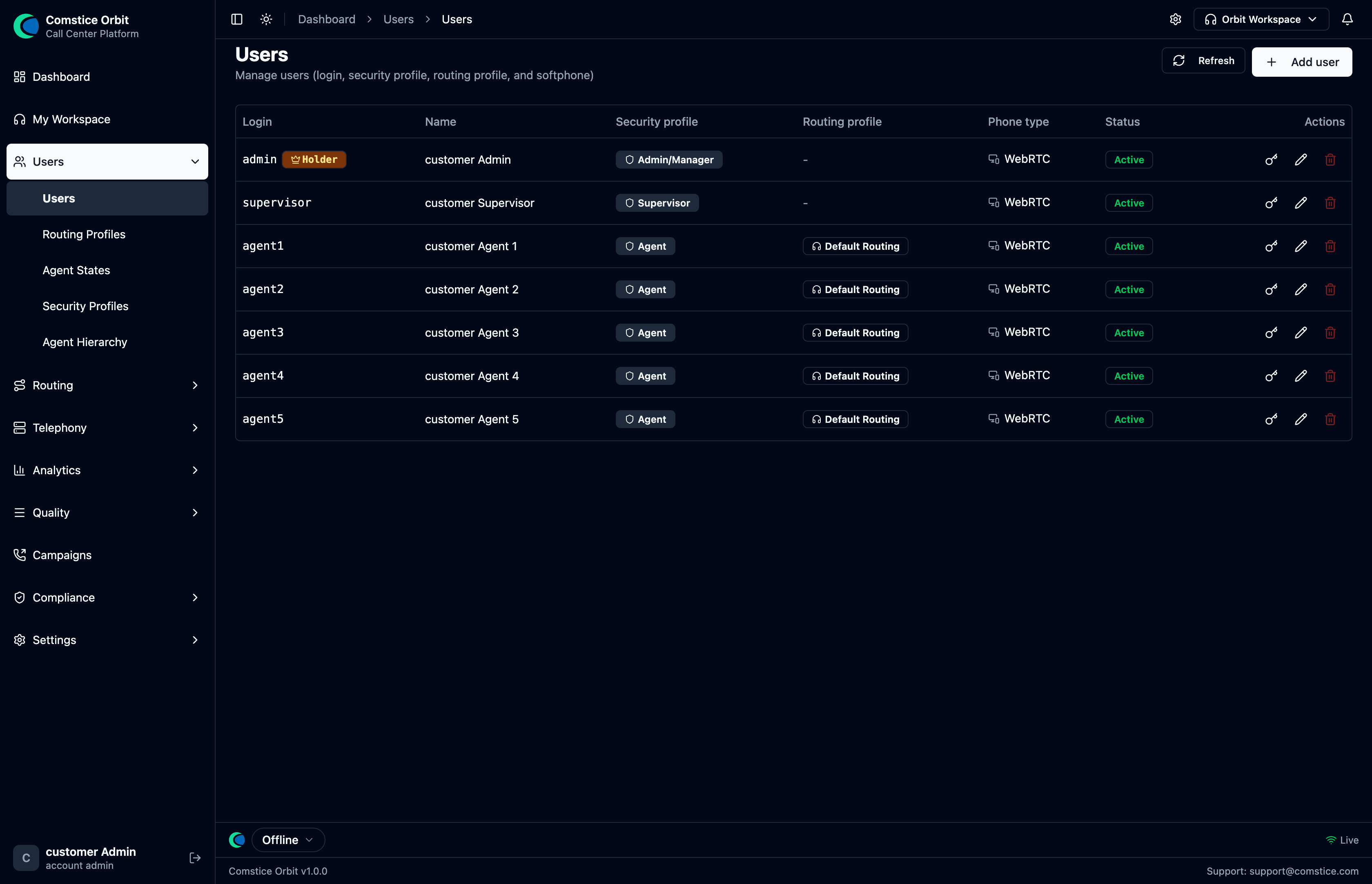 The user list: login, name, security profile, routing profile, phone type, and status.
To create a user: Users → Add user. The Create User page opens:
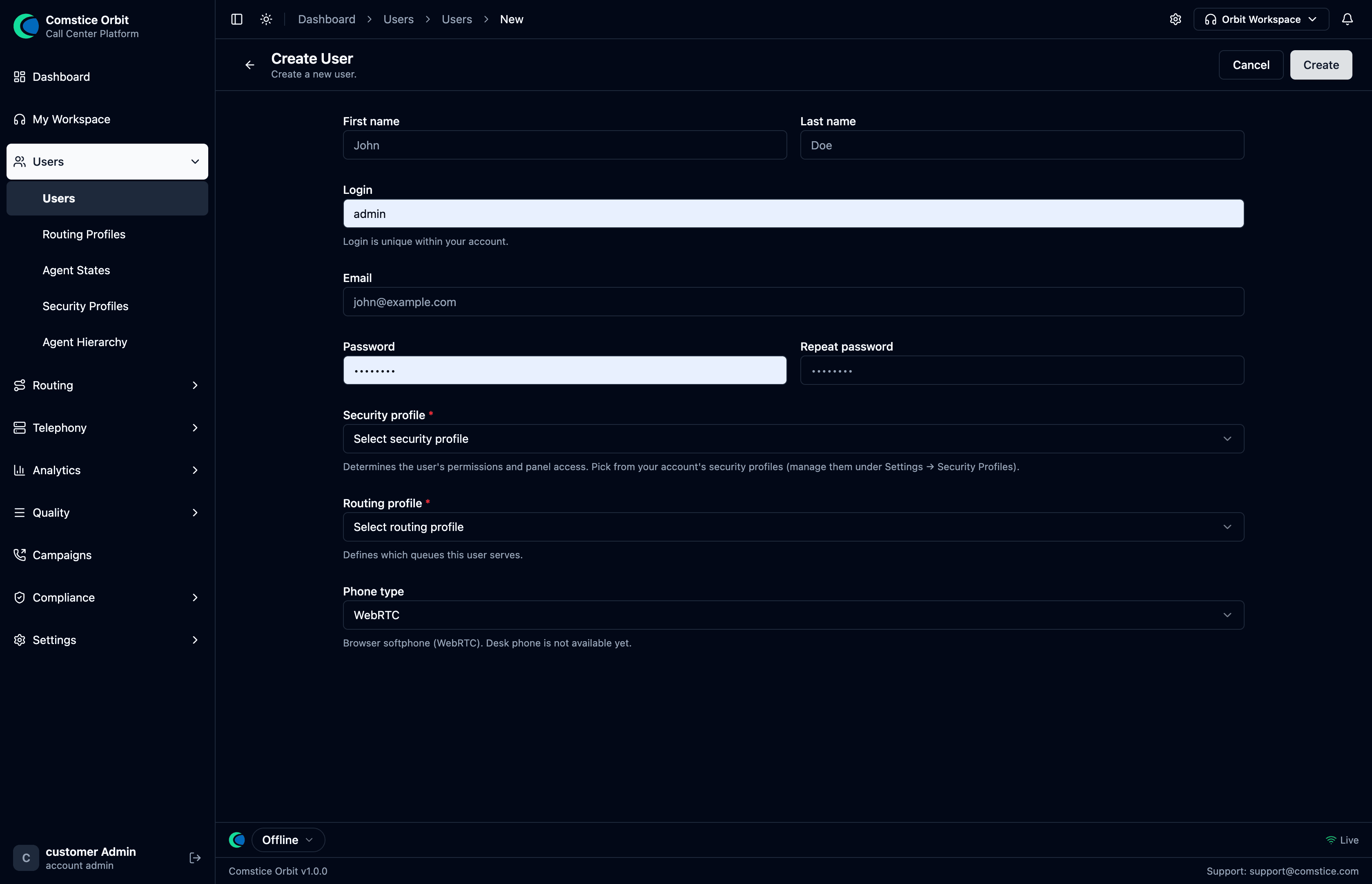 The Create User page: name, login, email, password, and the two profile pickers — Security Profile (what they can do) and Routing Profile (what can be routed to them).
| Field | What it does |
|---|---|
| First name / Last name | The person's display name. |
| Login | The sign-in username. Unique within your account. |
| Contact email (used for notifications / password reset). | |
| Password / Repeat password | The sign-in password (must match). |
| Security Profile (required) | The permission set — decides which menus and actions the user gets (section 3). Managed under Security Profiles. |
| Routing Profile (required for agents) | Which queues this user serves (see Agents & Teams). Set this only if they'll handle calls; leave it for non-agents. |
| Phone type | The softphone type — WebRTC (browser softphone). Desk phone is not available yet. |
Select Create, and the user can sign in at your company's URL.
Other row actions: edit details, reset password, and deactivate (soft-delete) / re-activate. Deactivated users keep their history but can't sign in.
To add or edit users you need users.create / users.edit. If Add user or
the row actions are greyed out, your security profile doesn't include them — see
the best-practices note on why these are
tightly held. Orbit creates users one at a time today; there's no bulk CSV
import.