Handling Calls
This chapter is for the people on the phones: agents who take calls in the browser softphone, and supervisors who watch and assist live. The first half is an agent's day-to-day handbook; the second half is supervisor live call control.
In the app: My Workspace (softphone) · Analytics → Live Monitor and Supervisor Monitoring (supervisors) · Routing → Wrap-Up Forms and Routing → Quick Connects (admins).
1. Before your first shift (agents)
A quick checklist so your first call goes smoothly:
- ✅ Browser: use Google Chrome (recommended).
- ✅ Headset & mic plugged in before you sign in.
- ✅ Your company's sign-in URL and your username/password (from your admin).
- ✅ When the browser asks to use your microphone, click Allow — without mic permission you can't be heard.
- ✅ If you'll use the pop-out softphone (Orbit Panel), allow pop-ups for the site.
Your literal first call, start to finish:
- Sign in at your company's URL.
- Open My Workspace (in-app softphone) — or Orbit Panel from the Workspaces menu (pop-out).
- Allow microphone access when prompted.
- Set your state to Available (presence control in the Call Bar / panel). Nothing rings until you're Available.
- When a call is offered, the softphone rings — click Answer.
If you see "softphone not available," your account hasn't been set up to take calls yet (it needs an agent routing profile and softphone access). Ask your admin to enable your softphone.
2. The softphone
Agents handle calls in a built-in WebRTC softphone — just your browser, a headset, and a mic. Orbit offers it in two forms:
| Form | Where | Best for |
|---|---|---|
| Orbit Workspace (in-app, "My Workspace") | inside Orbit | Working in Orbit — the softphone sits in the page and a Call Bar follows you on every screen, so you can browse records while on a call. |
| Orbit Panel (pop-out) | /orbit-panel, standalone window (~400×720) | A focused softphone you keep beside other apps. |
Switch between them from the header's Workspaces menu. They're mutually exclusive — one active at a time — and your state and current call carry over when you switch.
The Call Bar (bottom of every page in the in-app workspace) is your control strip: your current state, the call state (idle / ringing / connected), and the on-call controls below.
The gadget, screen by screen
The screenshots below are the pop-out Orbit Panel (~400 px wide) — the same controls appear in the in-app Call Bar. This is the agent's whole day in one strip.
At rest — signed in and waiting
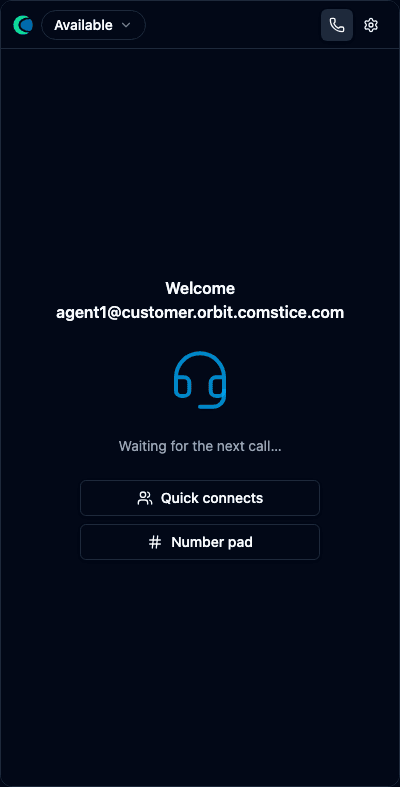
When you're Available the gadget shows a welcome, a headset, and "Waiting for the next call…", with shortcuts to Quick connects and the Number pad. The top bar always has your state dropdown, a dial icon, and ⚙ settings.
Set your state
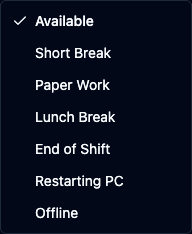
Open the state dropdown to switch between Available and your center's Not Ready reasons — Short Break, Paper Work, Lunch Break, End of Shift, Restarting PC — or Offline. Only Available receives inbound calls.
Settings & devices
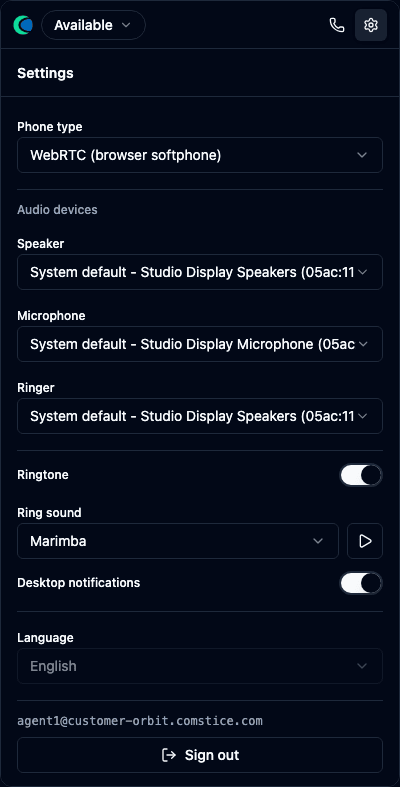
The ⚙ panel is where you pick your phone type (WebRTC browser softphone), your speaker / microphone / ringer devices, the ringtone, desktop notifications, language, and Sign out. Set your headset here before your first call.
Dialing out
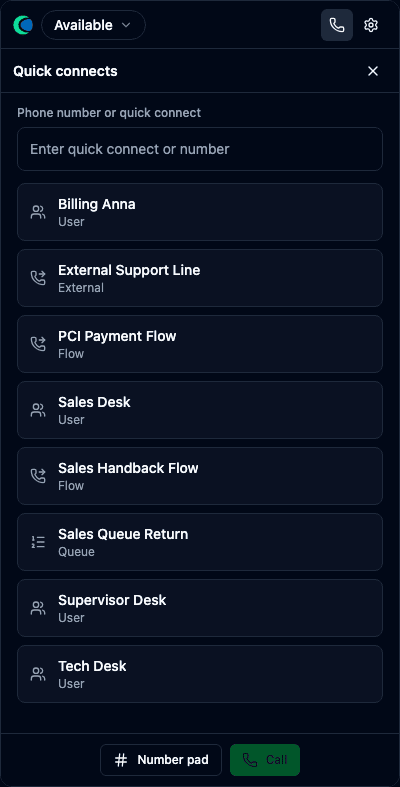
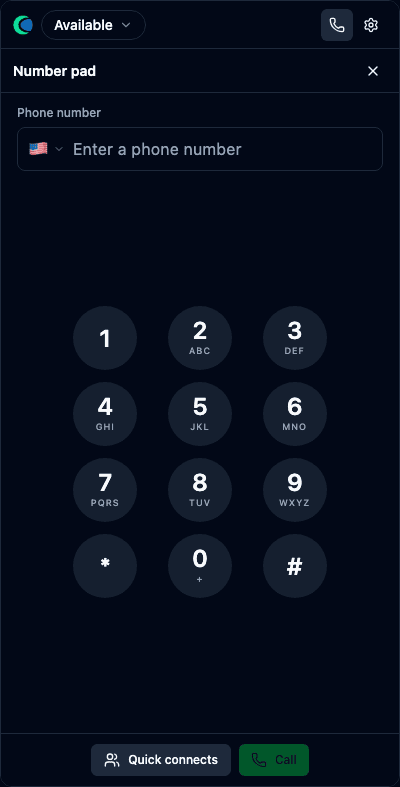
Two ways to place a call: Quick connects (named destinations your admin set up — colleagues, external lines, flows, queues) or the Number pad (type any number).
A call arrives
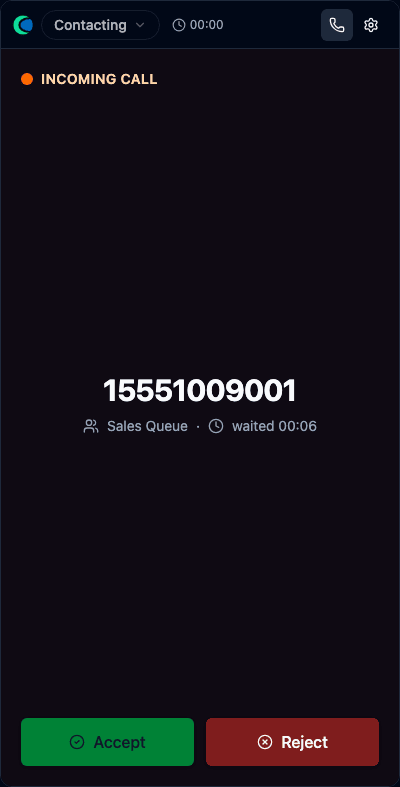
The gadget rings and shows INCOMING CALL with the caller's number, the queue it came from, and how long they waited. Click Accept to take it or Reject to send it back to the queue.
On the call
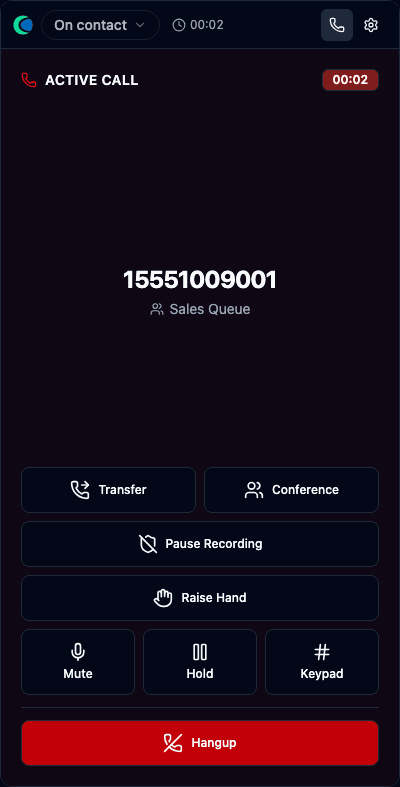
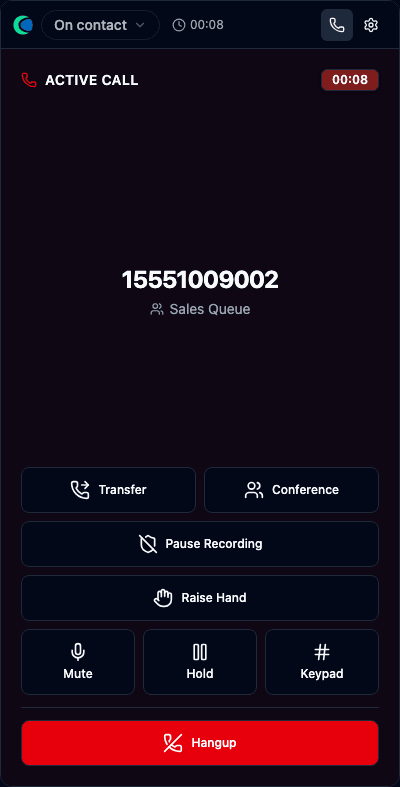
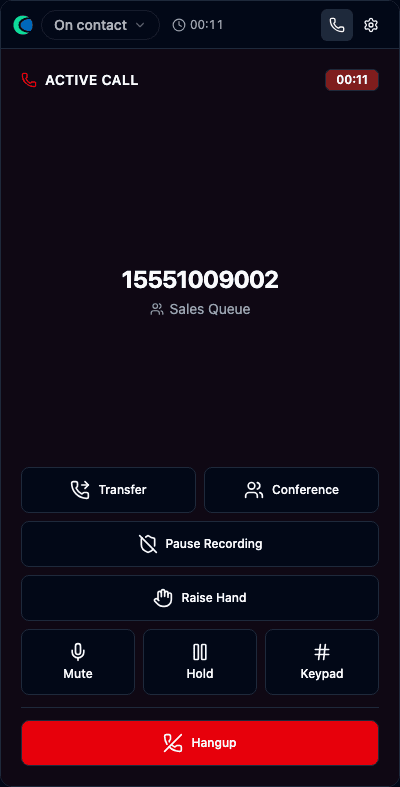
Once connected you see ACTIVE CALL with a live timer, the caller, and the queue. Your controls, top to bottom: Transfer and Conference, then Pause Recording, Raise Hand, and a row of Mute, Hold and Keypad (send DTMF).
Hangup sits alone on its own full-width red row at the bottom, deliberately away from everything else — so ending a live call is never a mis-click.
Agent-assist (live help)
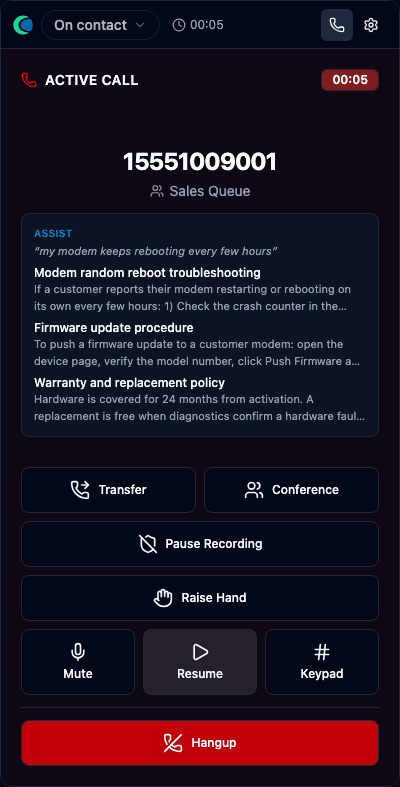
While you talk, Orbit listens and quietly surfaces relevant knowledge-base snippets in an ASSIST panel — matched to what the caller just said — so newer agents answer like veterans.
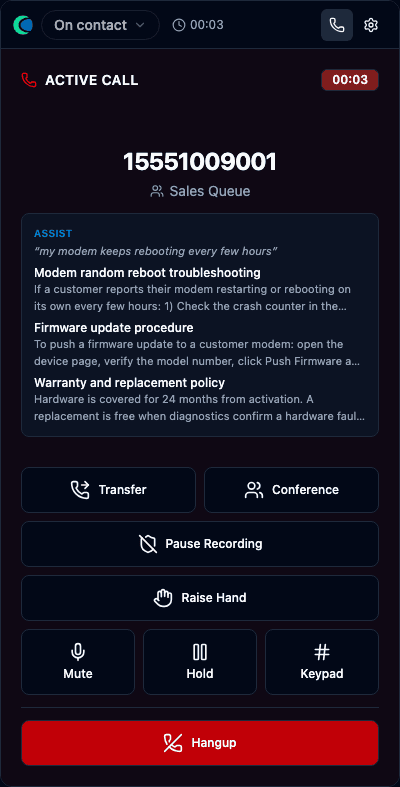
Each suggestion carries a 👍/👎 — rating them is what teaches the pool which articles actually help on a live call. See Knowledge Base for where those votes land.
Raise your hand for help
Stuck mid-call and you need a supervisor now? Press Raise Hand. You get a "Hand raised — your supervisor has been notified" confirmation, and your supervisor gets an alert they can't miss and can jump straight into the call — you never have to leave the customer to go find someone.
The button turns amber and reads Lower Hand while your hand is up; press it again to put it down. It's tied to this call — when the call ends the hand drops by itself, so it never carries over to the next customer.
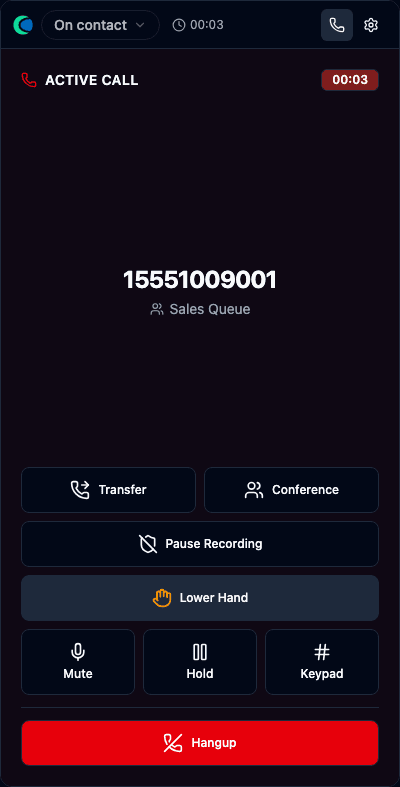
A raised hand shows up as a must-see alert and marks you HAND RAISED in Live Monitor, so they can open your call and listen, whisper or barge — see When an agent raises their hand.
Hold & resume
Hold parks the caller (they hear your queue's hold experience); the button becomes Resume to bring them back. Avoid long holds.
Secure pause (PCI)
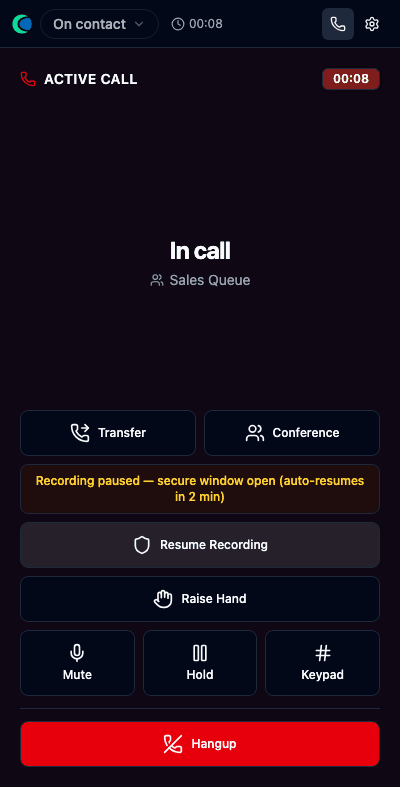
Press Pause Recording at a payment moment: the recording is masked and a banner shows "Recording paused — secure window open (auto-resumes in 2 min)", with a Resume Recording button. Card details never reach the stored audio. (This button only appears if your flow enabled the Agent Capabilities → Pause Recording for the call.)
Transferring
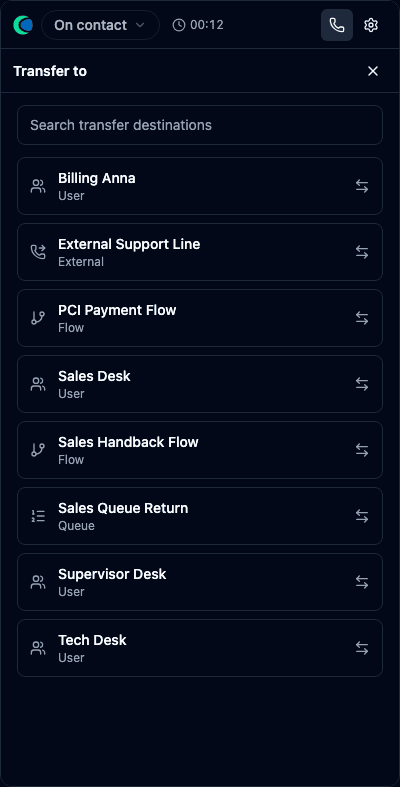
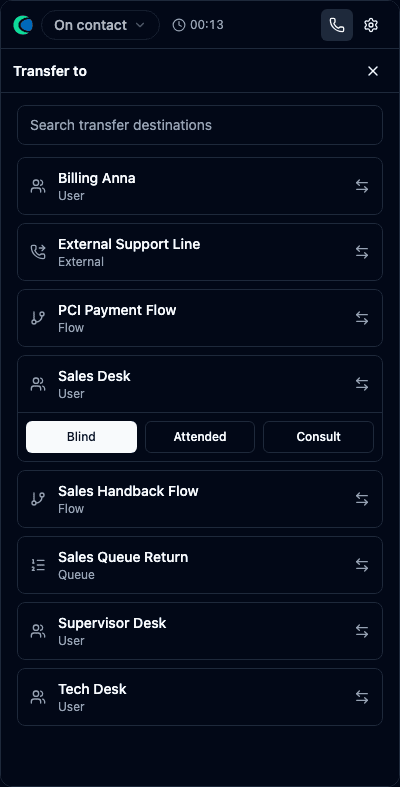
Transfer opens a searchable list of destinations. Pick one and choose the type: Blind (send immediately), Attended (talk first, then complete), or Consult (a private consult you can turn into a transfer or conference).
Consult & conference across agents
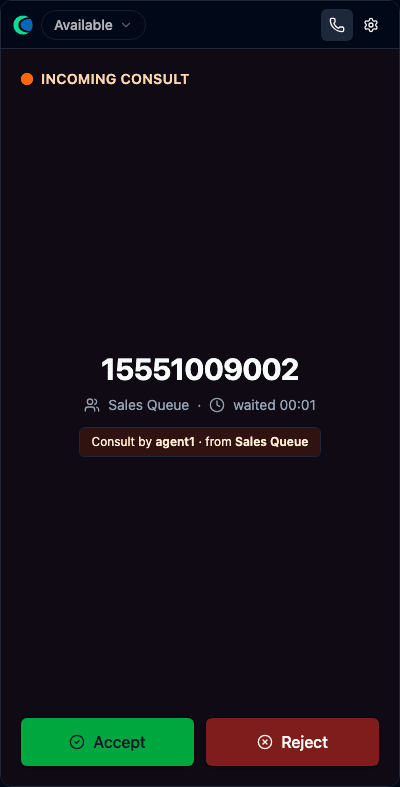
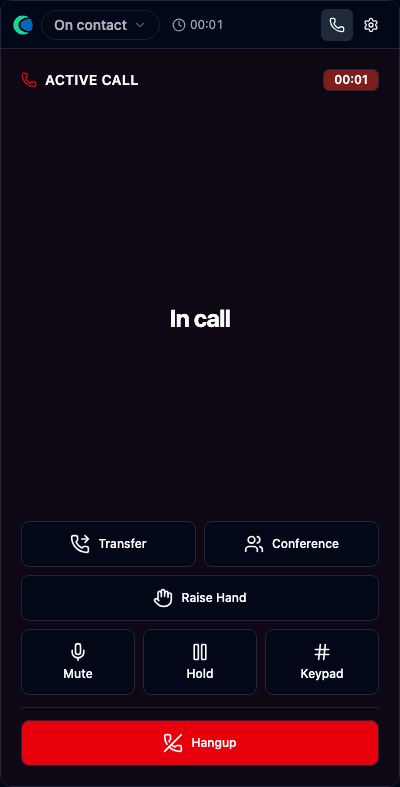
When you Consult a colleague, their gadget shows INCOMING CONSULT — "Consult by you · from queue" — so they know it's an internal consult, not a new customer. Accept, and you two talk privately (the caller is held); then complete the transfer or start a Conference so all three are on the line together.
Wrap-up — the disposition form, inside the gadget
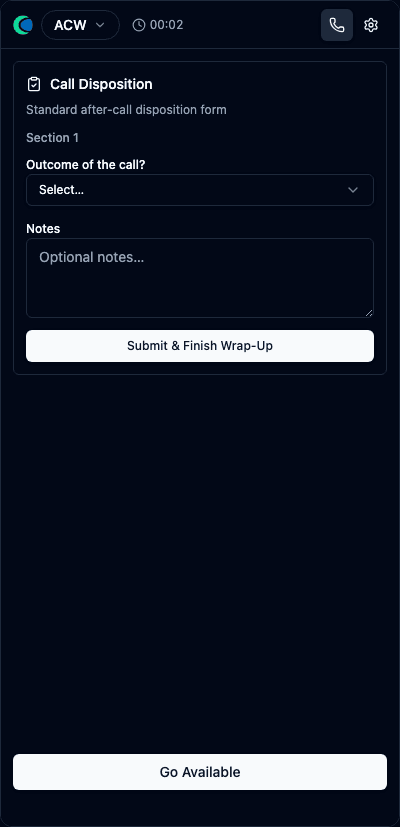
When the call ends you go straight into ACW (wrap-up) and, if your queue has a Wrap-Up form, the form opens inside the softphone itself — the same place the Assist panel appears, not a separate column beside it. Pick the outcome/disposition, add notes, and Submit & Finish Wrap-Up.
Two things worth knowing:
- Only two actions exist here — Submit & Finish Wrap-Up in the form, and Go Available pinned at the bottom. Quick connects and the Number pad are hidden during wrap-up so nothing competes with finishing the call.
- Go Available never loses your work. If you leave without pressing Submit, whatever you had selected (or left blank) is saved anyway, then you go Available for the next call.
A long form doesn't push Go Available off-screen: the form area scrolls on its own while the button stays put.
3. Handling a live call
When a call is offered to you, the softphone rings.
| Action | What you do | What the caller experiences |
|---|---|---|
| Answer | Click Answer on the ringing softphone. | You're connected; any agent-whisper plays to you first. |
| Reject / no-answer | Click Reject, or let it ring out. | The call goes back to the queue for the next agent. Repeated misses may move you to Not Ready (your center's policy). |
| Mute | Toggle Mute to silence your mic. | They can't hear you; they still hear the live call (not hold music). Use it to cough or ask a colleague. |
| Hold / Resume | Hold parks the caller; Resume brings them back. | They hear your queue's hold experience (music/announcements). Avoid long holds. |
| Dialpad (DTMF) | Open the dialpad to send key tones. | Tones are sent down the line — used to drive an external IVR (e.g. when transferring to a system that asks for an extension). |
| Hang up | Click End to finish. | The call ends; you move into Wrap-up (below). If the caller hangs up first, you still get wrap-up time. |
Rejecting or missing a ringing call doesn't drop the customer — the ACD re-queues them for the next available agent (see Queues & ACD). It may count toward your miss stats.
4. Transfers & conference
Transfers are the most error-prone agent action, so know the types:
| Transfer type | What it means | When to use |
|---|---|---|
| Blind (cold) transfer | Send the caller away immediately without speaking to the destination first. | You're sure where they should go and don't need to brief anyone. |
| Attended (warm / consult) transfer | Talk to the destination first (the caller is on hold), then complete the transfer. | You want to introduce the caller or check the person is available. |
| Transfer to queue | Send the caller into another queue (e.g. Billing). | The right team should take it, not a specific person. |
| Transfer to agent | Send to a specific colleague. | You know exactly who should help. |
| Transfer to external number | Send to an outside phone number via a trunk. | Escalation to a third party / another site. |
How to do an attended transfer: start the transfer → the caller goes on hold → you reach the destination and brief them → complete to connect them and drop yourself, or cancel to pull the caller back if the destination can't take it.
Conference (3-way): add a third party so everyone hears each other (you, the caller, and the third person). Use it when the caller needs to stay on the line while you bring in help, rather than handing them off.
If you started an attended transfer and the destination can't help, use cancel / pull-back to return to the caller — don't just hang up, or you'll drop the customer.
Quick Connects — the transfer destinations you can pick
Rather than typing a number or hunting for a colleague, agents transfer to a named Quick Connect from the softphone. An admin curates the list on Routing → Quick Connects and binds each one to the queues whose agents may use it — so a Sales agent sees Sales destinations, not the whole company.
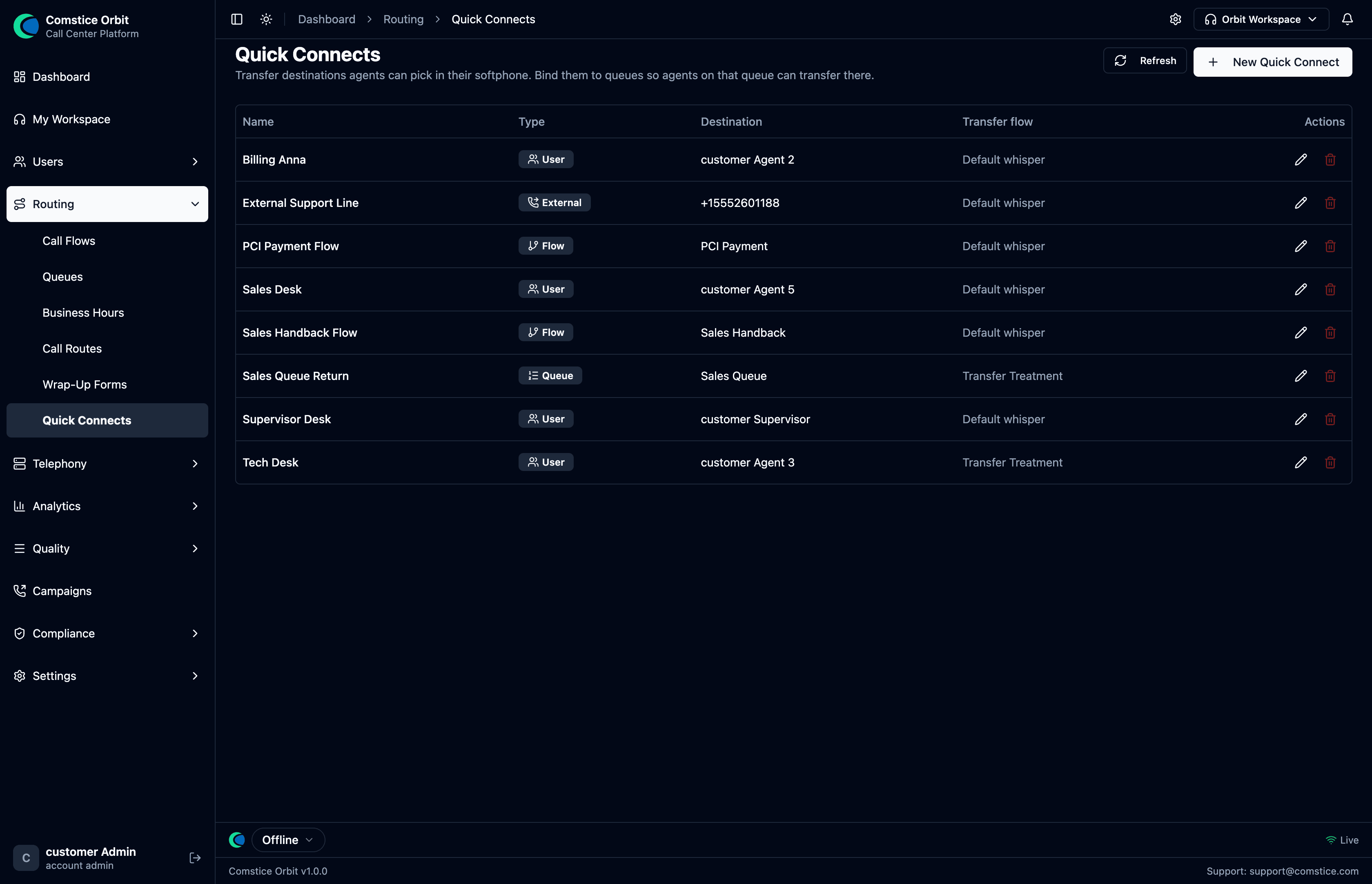 Each quick connect has a Name, a Type (User / External / Flow / Queue), a Destination, and an optional Transfer flow (e.g. a whisper played to the receiver).
| Type | Sends the caller to… |
|---|---|
| User | a specific colleague (e.g. "Supervisor Desk" → customer Supervisor). |
| External | an outside phone number (e.g. "External Support Line" → +1 555…). |
| Queue | another queue (e.g. "Sales Queue Return"). |
| Flow | a call flow / module (e.g. "PCI Payment"), for a scripted hand-off. |
A quick connect can also name a Transfer flow (a whisper/treatment) that runs as the transfer completes. Admins create them with New Quick Connect; agents just pick them by name.
5. Wrap-up (after-call work)
When a call ends you enter Wrap-up — also called After Contact Work (ACW) — protected time to finish notes before the next call rings.
- If your queue uses a Wrap-Up form, it appears automatically inside the softphone: pick a disposition/reason, add notes, flag a callback if needed, then submit.
- The wrap-up timer is set per queue (e.g. 30 seconds; 0 = none). You can usually finish early to go straight back to Available. When the timer expires you return to Available automatically — so submit your notes before then.
- Your wrap-up notes later appear in the call's Call Review.
Designing a Wrap-Up form (admins): Routing → Wrap-Up Forms → New:
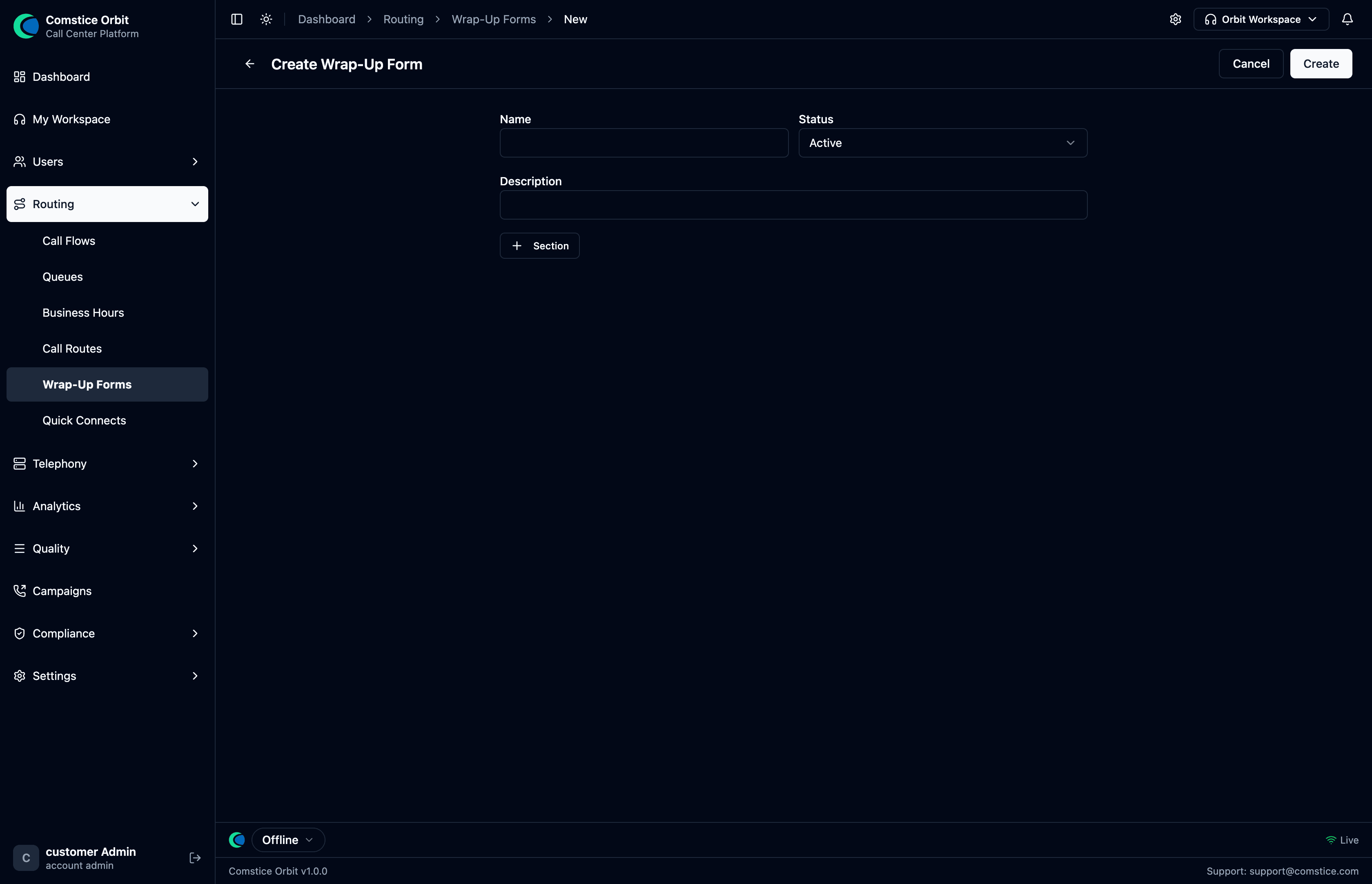 Name the form, list the dispositions/reasons the agent picks from, and add any extra fields (notes, callback flag). Attach it to a queue or via a Set Wrap-Up Form block in a flow.
| Field | What it does |
|---|---|
| Name | The form's name (e.g. "Sales Wrap-Up"). |
| Dispositions / reasons | The list of outcomes the agent chooses from (e.g. Sale, No answer, Callback). |
| Extra fields (optional) | Additional inputs — free-text notes, a callback flag, etc. |
Attach the form per queue, or via a Set Wrap-Up Form block in the call flow.
6. Your status (presence)
Your state tells the system whether to send you calls. Change it from the presence control in the Call Bar / panel.
| State | Meaning |
|---|---|
| Available | Ready — calls can ring you. |
| Ringing | A call is being offered (set automatically). |
| On call | You're talking to a customer (automatic). |
| Wrap-up | After-call work (automatic after a call). |
| Not ready / Break / Lunch | Signed in but not taking calls. |
| Offline | Not signed in to the softphone. |
- You must be Available for any call to ring — a new agent sitting in Not Ready will wonder why it's silent.
- Some centers require a reason when you go Not Ready (e.g. Break, Lunch, Training). If your center uses reason codes, pick one when prompted.
- Auto-transitions: answering moves you Ringing → On call; ending a call moves you to Wrap-up → Available.
- A supervisor can change your state (e.g. pull you out of Break). If your state changes on its own, that's likely your supervisor — see §9.
7. Outbound & callback
- Outbound / click-to-dial: open the dialpad, enter the number (or click a number on a record), and place the call. The caller ID the customer sees is set by your routing/queue configuration — ask your admin if unsure.
- Queued callback: if a queue offers "press 1 for a callback instead of waiting," the system calls the customer back and rings you like a normal call when it's their turn — handle it as you would any offered call.
8. Supervisor Monitoring
Supervisor Monitoring is a standard feature of Comstice Orbit that gives supervisors everything they need to oversee live conversations and prove that oversight took place. It combines an on-call roster of every agent currently connected within the supervisor's scope, live call control to step into any of those calls, and a complete, tamper-evident audit trail of every session. Together these tools make Supervisor Monitoring a core instrument for improving call quality and evaluating team performance.
8a. Stepping into a live call
When an agent is on a call, a supervisor can step in at four escalating levels of involvement. Each mode is gated by its own permission, so a supervisor can be granted silent listening without also being able to join or take over a call.
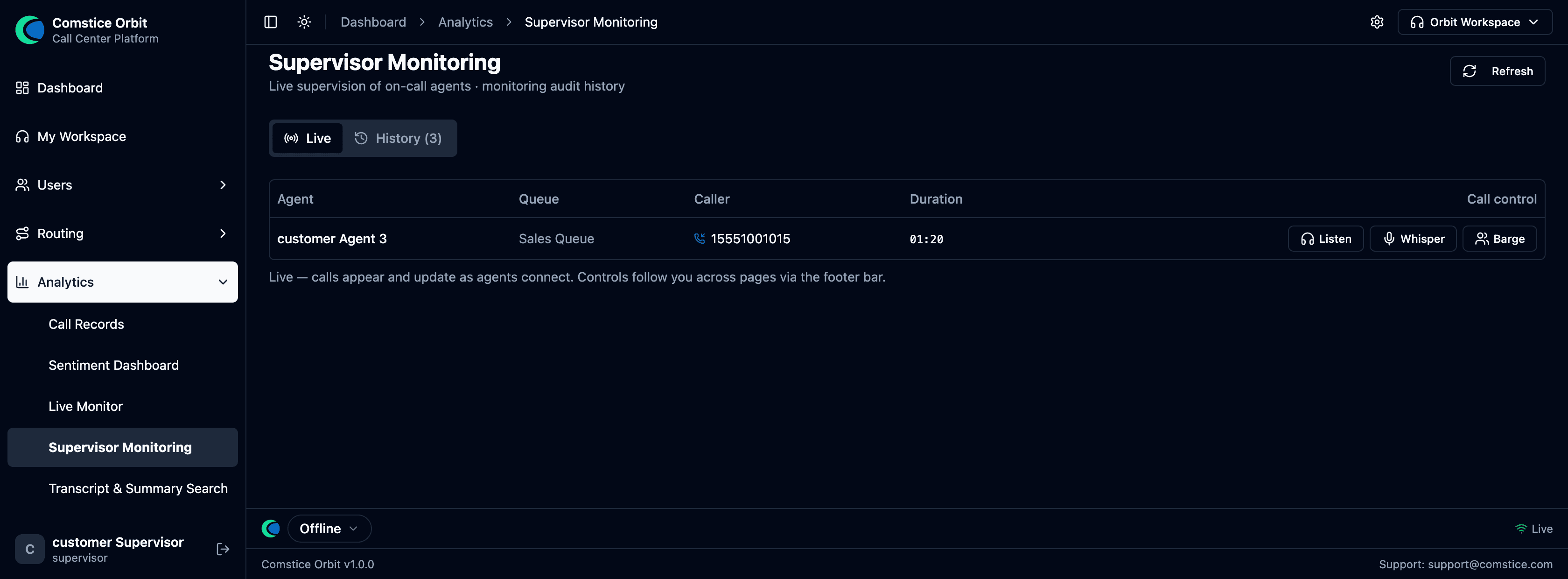 The Live roster: one row per on-call agent in your scope — agent, queue, caller and a live duration — with Listen · Whisper · Barge right there in the Call control column. It updates the instant an agent connects or hangs up, so stepping into any live call is a single click.
| Mode | What the supervisor does | Who hears them |
|---|---|---|
| Monitor | Listens silently to the conversation | Nobody — both the agent and the caller are unaware |
| Whisper | Coaches the agent during the call | The agent only |
| Barge | Joins the conversation as a three-way call | Both the agent and the caller |
| Intercept (take over) | Replaces the agent on the call | The caller — the agent is dropped from the call |
To step in:
- Open the roster (or the Agent States view) and pick an agent who is currently on a call.
- Choose Monitor to begin listening silently.
- Escalate to Whisper, Barge, or Intercept as the situation requires, or select Stop to leave the call.
Call controls follow the supervisor from page to page through a persistent call bar, so navigating elsewhere in Orbit never interrupts an active session. A supervisor can only act on their own agents, as defined by their position in the reporting hierarchy (scope).
To watch calls unfold live with transcript and sentiment before you step in, see Live Monitoring.
Supervisor Whisper (live coaching of an agent during a call) is not the same as a whisper flow in call-flow design. A whisper flow is a pre-connect announcement played to the agent before the caller is joined. The two share a name but are separate features.
8b. When an agent raises their hand
The modes above are you deciding to step in. Raise Hand is the other direction: the agent asks you, mid-call, without leaving the customer.
The moment they press it you get an alert wherever you are in Orbit — and the bell in the header counts up:
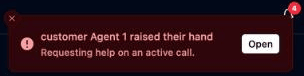
Click Open and you land directly on that call in Live Monitor — no hunting through the roster:

Three things are waiting for you there: the call sits at the top of Calls Needing Attention flagged HAND RAISED, the live transcript and sentiment tell you what you're walking into, and Listen · Whisper · Barge · Take Over are one click away. Confirm on the alert marks it as handled so it stops demanding attention.
8c. Monitoring history & audit
Every monitoring session is retained and searchable. History is kept in two complementary ways:
- Per-user history — each supervisor can review their own monitoring activity, answering questions such as "show everything I monitored this week."
- Audit record — the same sessions are stored as a tamper-evident record for compliance, independent of any individual supervisor's view.
Each entry captures the supervisor, the agent, the call, the start and end times, and the total duration. The history is filterable by supervisor and by agent (AOR), so you can answer targeted questions like "how often was this agent coached last week?" or "show everything I monitored."
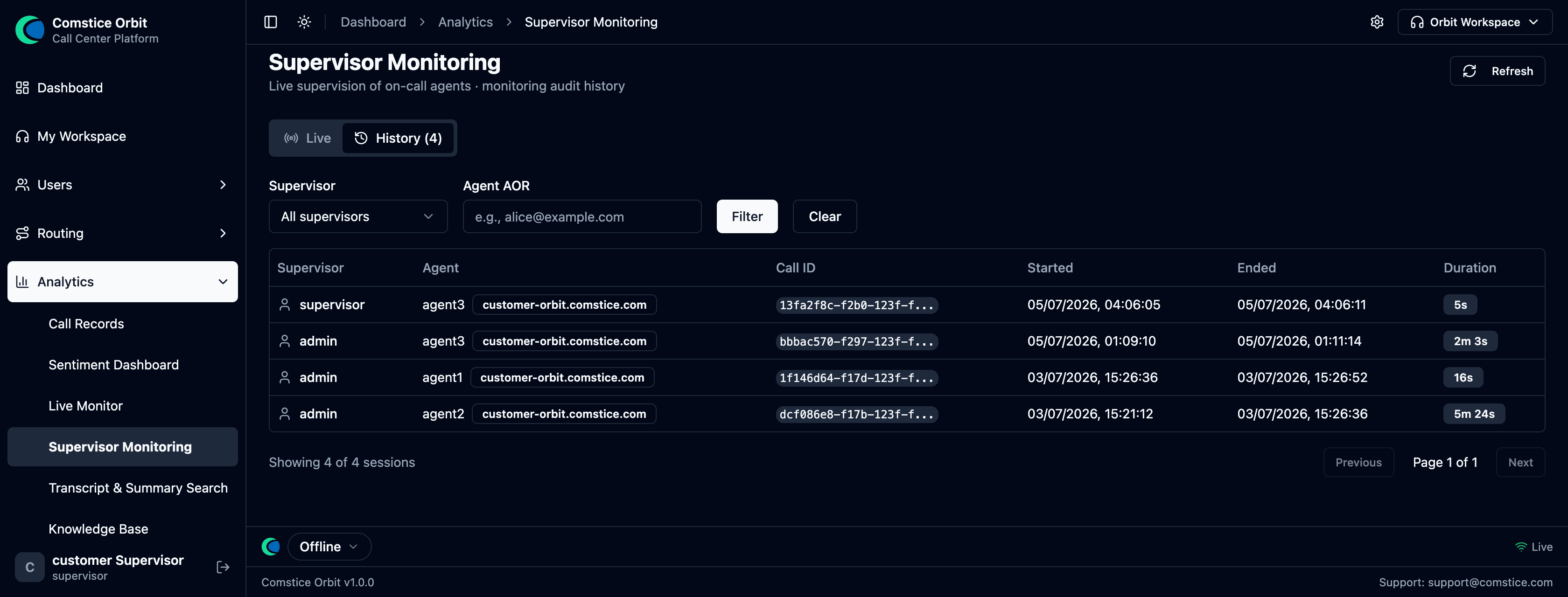 The History tab is the supervision audit trail — every past monitor / whisper / barge session with the supervisor, the agent, the call, start & end times and duration. It is filterable by supervisor or agent, and a supervisor can always look back over their own monitoring history here.
9. Live Monitoring (licensed) — Real-Time Call Monitoring
Live Monitoring lets a supervisor follow conversations as they happen. The call streams live as an agent ↔ caller transcript, rendered word by word so you can read the exchange in real time without joining it.
Each utterance is scored by sentiment analysis, surfacing calls that are going badly the moment they turn. Sensitive data is redacted live, so card numbers, names, and other PII never appear on the supervisor's screen.
The central idea is that supervisors do not have to sit and watch every call. Once thresholds are configured, Orbit proactively raises alarms and alerts and pushes the at-risk call to the top of a "calls needing attention" rail. Configurable triggers include:
- Long-duration calls — a call running past a set time.
- Abusive or prohibited language — toxicity or "bad words" detected in the conversation.
- Unhappy customers — sentiment falling past a defined threshold.
Attention filters let a busy floor collapse to just the calls that need a supervisor right now, so a large team stays manageable at a glance.
Live Monitoring depends on the Real-Time Analytics feature being enabled on the call flow. Without it, a call still connects and completes normally, but there is nothing to stream and nothing to watch.
Live Monitoring is a licensed feature, delivered by Real-Time Analytics. It requires the Real-Time Analytics feature to be enabled on the call flow. When it is not enabled, calls connect as usual but do not stream a live transcript or sentiment.
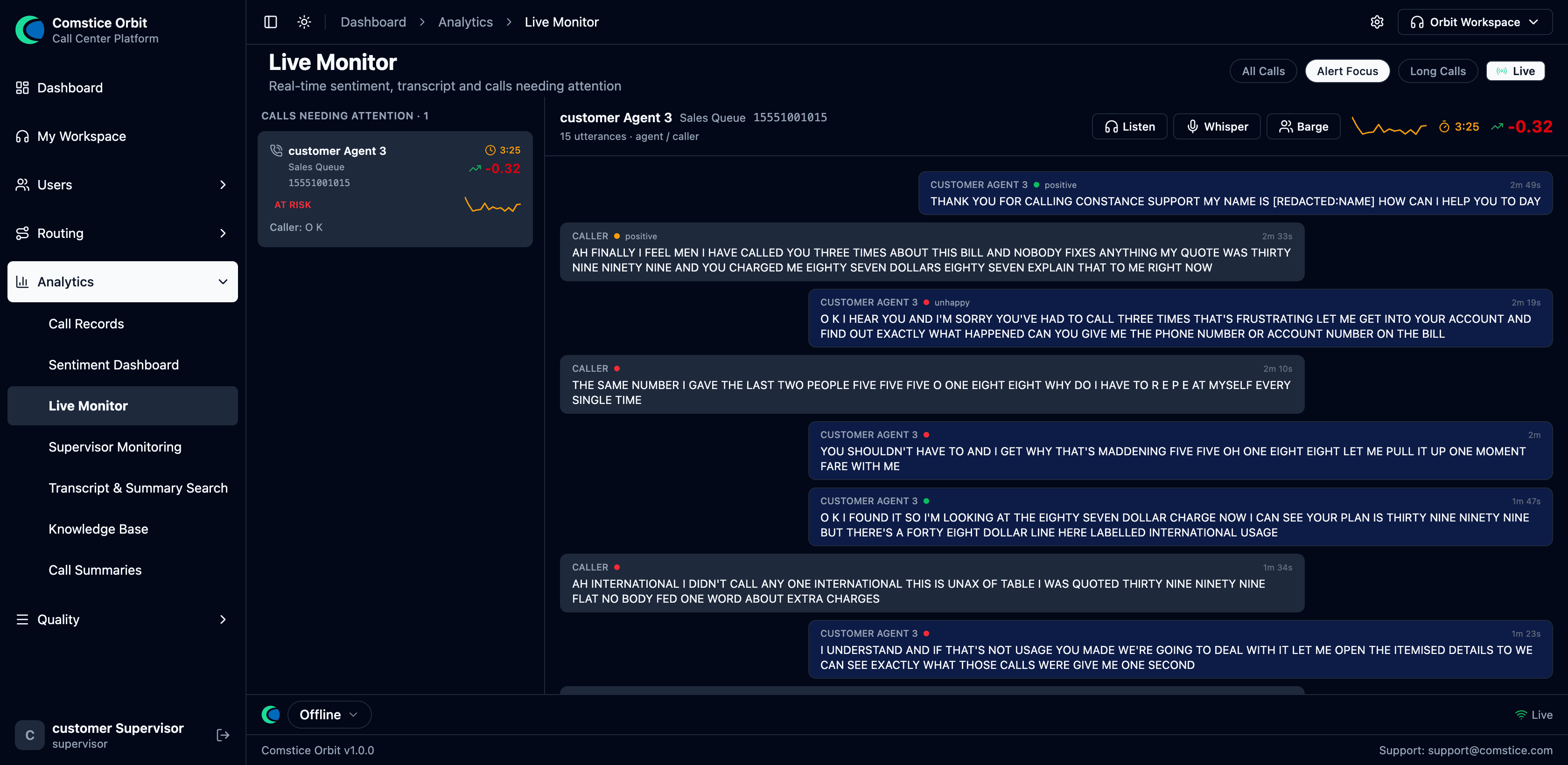 Live Monitoring: the agent's and caller's words stream in live as bubbles, each tagged with its sentiment (positive / unhappy) and PII redacted live ([REDACTED:NAME]). The left rail flags calls needing attention — here "AT RISK" on a falling sentiment trend — while the Listen · Whisper · Barge controls sit one click away in the header.
Leave Live Monitoring open on a second screen. You do not need to read every conversation — at-risk calls rise to the top of the attention rail on their own through alarms and alerts, so a quick glance is enough to catch the calls that need you.
10. When you're being monitored (agents)
It's normal to be monitored — here's what each mode feels like from your seat:
| Mode | What you experience |
|---|---|
| Monitor | Nothing. Your supervisor listens silently; you and the caller are unaware. |
| Whisper | You hear your supervisor's voice coaching you — the caller cannot hear them. A coaching prompt may appear on screen. |
| Barge | Your supervisor joins the call and both you and the caller can hear them — it becomes a 3-way conversation. |
| Intercept | Your supervisor takes the call over and you are removed from it. Your call simply ends on your side; the customer keeps talking to the supervisor. |
If you suddenly leave a call you didn't end, it was likely an Intercept — your supervisor stepped in. Nothing is wrong on your side.
11. Compliance during the call (agents)
- Recording disclosure / consent: depending on your center's policy, callers may hear a "this call may be recorded" announcement automatically, or you may be asked to confirm consent. If your center uses explicit consent, follow your script and your supervisor's guidance on what to do if a caller declines.
- Card numbers / payments: if your flow uses Secure Input (PCI), the recording is automatically masked while the caller types their card — you don't have to do anything. If your center hasn't enabled that yet, follow your center's manual procedure for taking card details (don't assume the system is masking). See Compliance.
12. Your performance (agents)
- My Evaluations (Quality → My Evaluations): open it to see evaluations of your own calls. For each one you can read the scorecard and either Acknowledge it or Dispute it with a reason. A dispute is sent to your supervisor to review — it's not an unappealable score. See Quality Assurance.
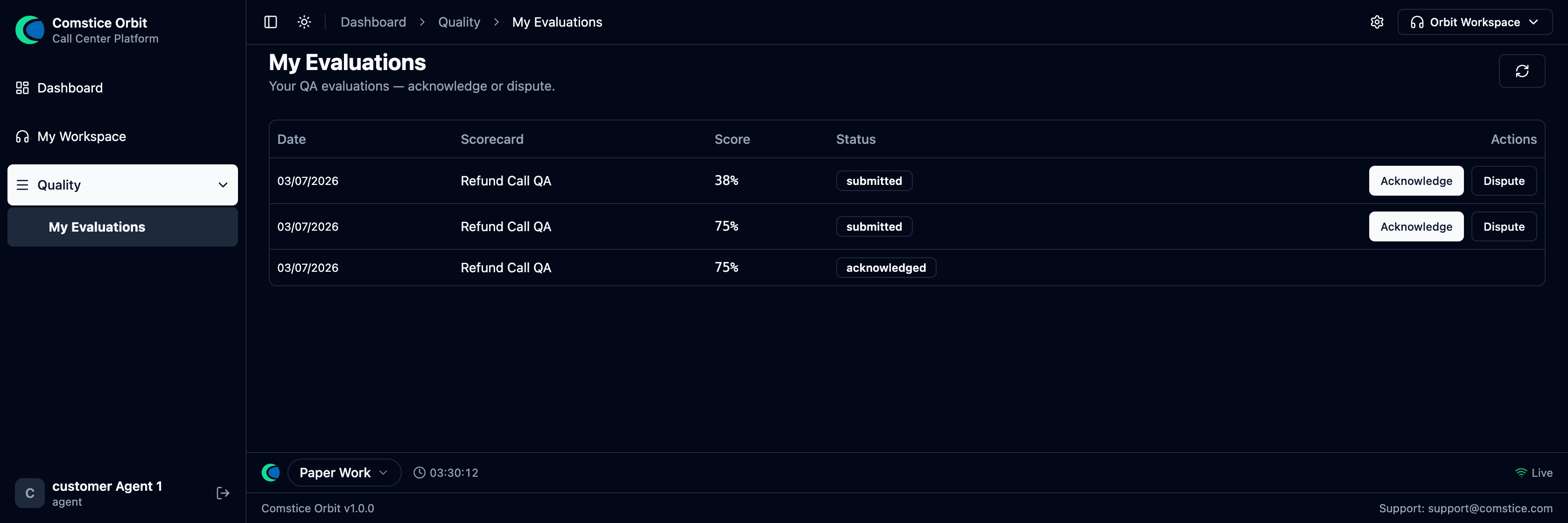 My Evaluations: your own QA results — the scorecard, the score, and a status (submitted / acknowledged). Use Acknowledge to accept a score, or Dispute to send it back to your supervisor with a reason.
- Your stats: the Dashboard shows your own numbers (your calls handled, AHT, sentiment) — scoped to you.
- Your calls' recordings/transcripts/sentiment: whether you can open your own call recordings, transcripts, and sentiment depends on the permissions your admin grants your agent profile. If you need them to prepare for coaching or a dispute, ask your admin to enable recording/transcript view for agents.
13. If something goes wrong (agents)
| Problem | What to do |
|---|---|
| No audio / one-way audio / echo | Check your headset is selected as the mic and speaker; re-check the browser mic permission; reload and sign in again. |
| Mic permission was denied | Click the camera/mic icon in the browser address bar → allow the microphone → reload. |
| Softphone disconnected / "reconnecting" | Wait a few seconds — it reconnects automatically. If it doesn't, reload the page and sign back in. |
| Browser refreshed mid-call / tab closed | A refresh can drop an active call. If you lose the customer, follow your center's callback procedure. Avoid refreshing while on a call. |
| Network blip | Brief drops recover; a longer outage ends the call — set yourself Not Ready until your connection is stable. |
| Pop-out Panel won't open | Your browser's pop-up blocker is on — allow pop-ups for the Orbit site. |
If you're stuck on a live call and need help, ask your supervisor — they can whisper guidance to you without the caller hearing (§8–§9).