Recordings, Transcripts & AI Analytics
Orbit can record calls, turn speech into text, and score how the customer felt. There are two easily-confused pairs of features — live (during the call) and post-call (after it ends). This chapter keeps them clearly separated.
In the app: Analytics → Call Records (and Review), Analytics → Sentiment Dashboard, Analytics → Live Monitor, Analytics → Supervisor Monitoring, Analytics → Transcript & Summary Search.
Live features stream during the call and are for supervisors watching now. Post-call features are produced from the saved recording and are what you review later. They are computed independently and never mixed.
Supervisor Monitoring (the on-call roster, call control and audit trail) is a standard feature. Live Monitoring (the real-time transcript + sentiment watching wall, with proactive alarms) is licensed — it needs Real-Time Analytics enabled on the call flow. Both are covered in full in Handling Calls → Supervisor Monitoring.
1. Recordings
Recording is turned on by a Set Recording block in your call flow (see Call Flows). Two choices matter:
- When does recording start?
- Call Start — records everything, including the IVR and queue wait.
- Agent Connect — records only once an agent is bridged in (skips IVR/queue).
- Channel mode?
- Stereo (recommended) — caller on the left channel, agent on the right. This separation is what makes transcription and sentiment accurate.
- Mono / Caller only / Agent only — single channel variants.
Playback: open Call Records, find the call, and press play — or open the full Call Review screen (below). Every playback, download, and export is written to the access log for compliance.
2. Transcripts — live vs post-call
| Live transcript | Call-record transcript | |
|---|---|---|
| When | During the call, word by word | After the call, from the recording |
| Engine | A low-latency streaming ASR engine (partial results as words are spoken) | A high-accuracy batch ASR engine with word-level time alignment |
| Accuracy | Good enough to watch live | High — the system of record |
| Timing | Live stream clock | Aligned to the recording's waveform |
| Where you see it | Live Monitor (supervisor) | Call Review → Transcript tab |
Why two? The live one is instant but rough; the post-call one is accurate and time-aligned to the audio so you can click a sentence and jump to that moment. Call Review always shows the post-call transcript — never the live one — so the text lines up with the recording.
Right after a call ends, the post-call transcript may show "processing…". The Call Review screen refreshes automatically every few seconds until it's ready.
3. Sentiment — live vs post-call
Sentiment scoring (powered by a CardiffNLP model) rates each spoken segment as positive / neutral / negative, on a scale from −1.0 to +1.0.
| Live sentiment | Call-record sentiment | |
|---|---|---|
| When | During the call | After the call |
| Purpose | Alert supervisors to a call going badly now | Review and report after the fact |
| Detail | Running averages + alerts per speaker | Per-segment scores with timing |
| Where you see it | Live Monitor (live badges/alerts) | Call Review → Sentiment tab + the colored stripe |
In Call Review, the post-call sentiment appears as a thin vertical Sentiment Stripe next to the waveform: green = positive, red = negative, amber = neutral. Click any segment to jump to that point in the audio.
You also get summary numbers per call:
- Overall sentiment (positive / neutral / negative)
- Interaction Score (0–100)
- Customer Sentiment (−100…+100, the caller only)
- Agent Tone (0–100, the agent only)
- Trend (improving / declining / stable)
Each spoken segment is scored on a raw −1.0 … +1.0 range; the summary numbers above simply rescale that to friendlier ranges (e.g. Customer Sentiment to −100 … +100, Agent Tone / Interaction Score to 0 … 100). They're the same underlying signal, presented two ways.
4. Emotion detection
Beyond positive/negative, Orbit detects finer emotions (a 28-label model grouped into five buckets: angry, unhappy, worried, neutral, positive). You see these in the Sentiment Dashboard, where you can drill from a group down to the specific emotion and read the matching transcript snippets.
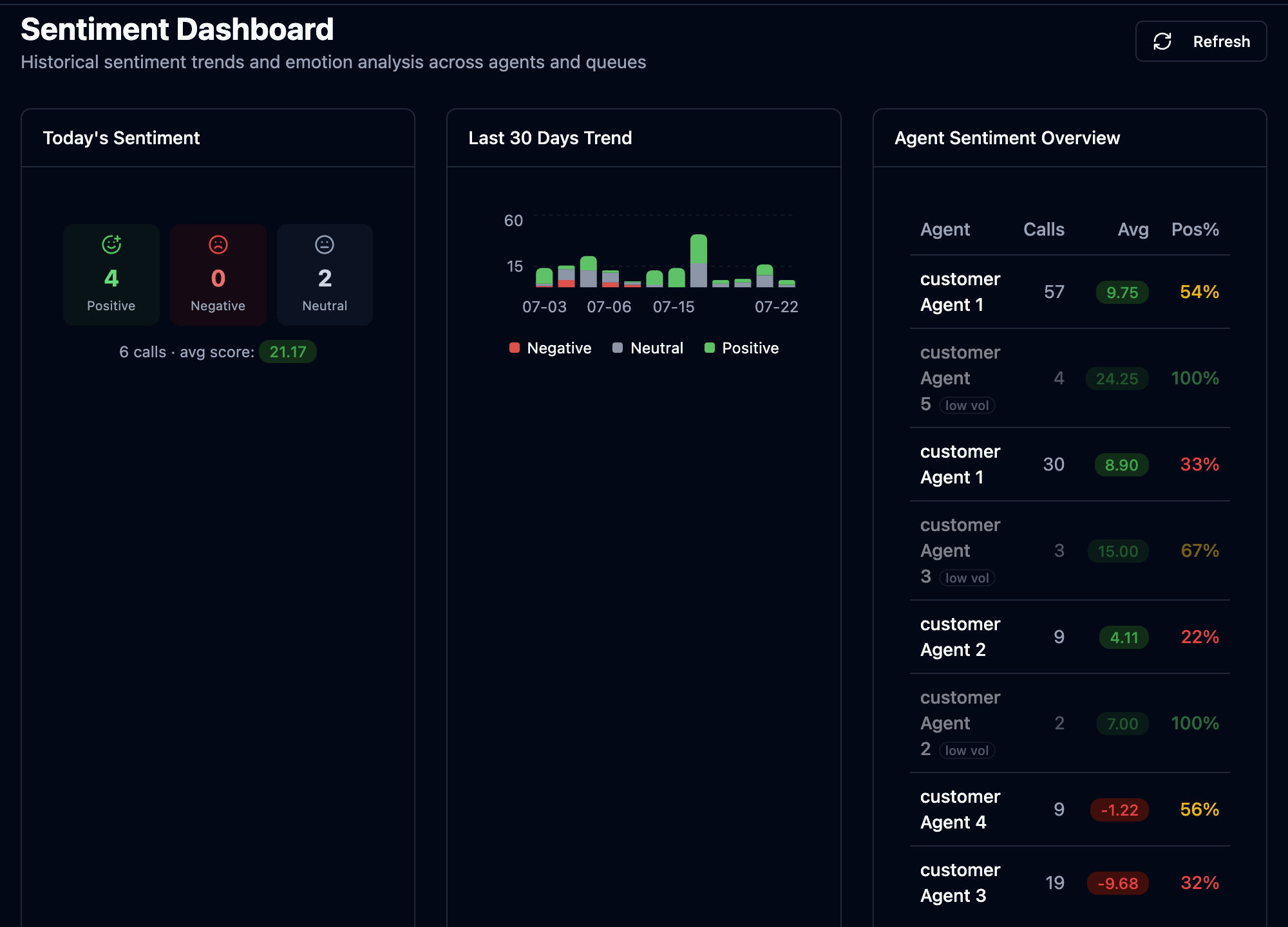 Historical sentiment across agents and queues: today's mix, 30-day trend, emotion breakdown, caller-vs-agent scores, and negative calls needing attention.
5. The Call Review screen
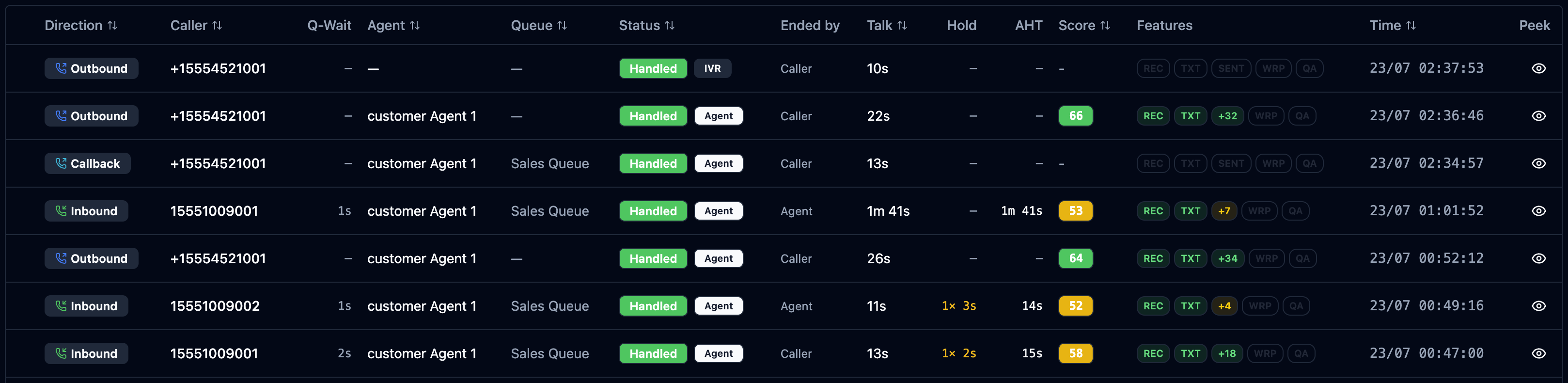 The call history: direction, caller, agent, queue, talk/hold/AHT, score, feature chips (REC, TXT, SENT, WRP, QA), time, and a Peek eye for a quick preview. An erased caller shows as "[ERASED]" after a DSAR request.
Call Records → (a call) → Review brings everything together on one screen:
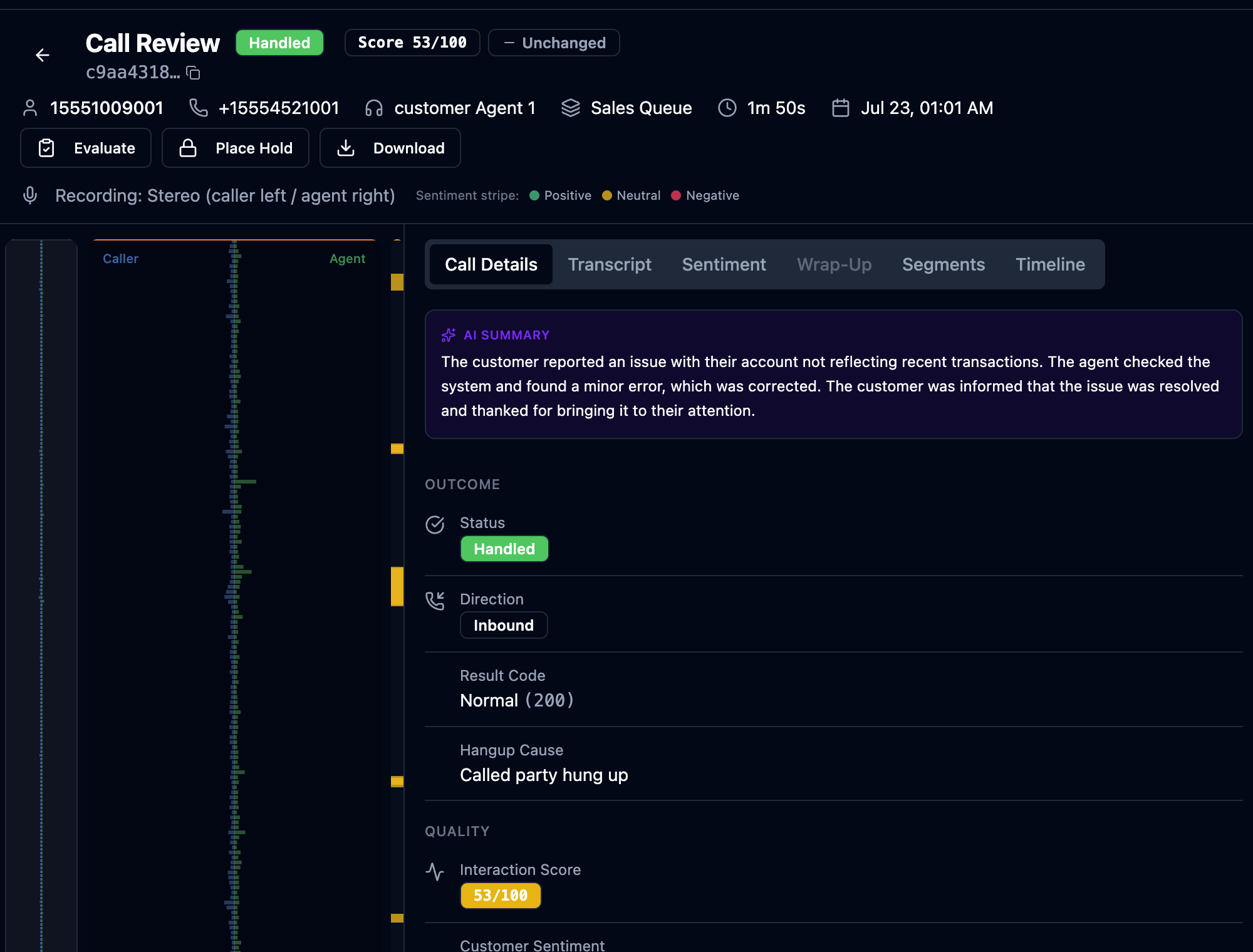 Stereo waveform (caller left, agent right), the vertical sentiment stripe, scores, and the Call Details / Transcript / Sentiment / Wrap-Up / Segments / Timeline tabs.
- Waveform — the stereo recording; caller and agent on separate channels. Click to seek; scroll to pan; wheel to zoom.
- Sentiment Stripe — per-segment colors aligned to the waveform.
- Right panel tabs:
- Call Details — caller, agent, queue, direction, times, duration.
- Transcript — the post-call transcript; click a line to seek the audio.
- Sentiment — the summary scores above.
- Wrap-Up — the agent's post-call notes.
- Segments — which agent owned which part of the call.
- Timeline (Call Journey) — the full chronological story of the call.
- Player — play/pause, skip, speed (0.5×–2×), volume, skip-silence.
- Actions — Evaluate (open a QA scorecard, see Quality), Place Hold (legal hold, see Compliance), Download.
6. Call Journey (interaction timeline)
The Timeline tab tells the call's story as a sequence of events: Call started → IVR → Queue → Offered to agent → Whisper → Talk → Hold → Resume → Transfer → Disconnected, with durations for each stage (queue wait, talk time, hold time, after-call work). It's the fastest way to understand "what actually happened on this call."
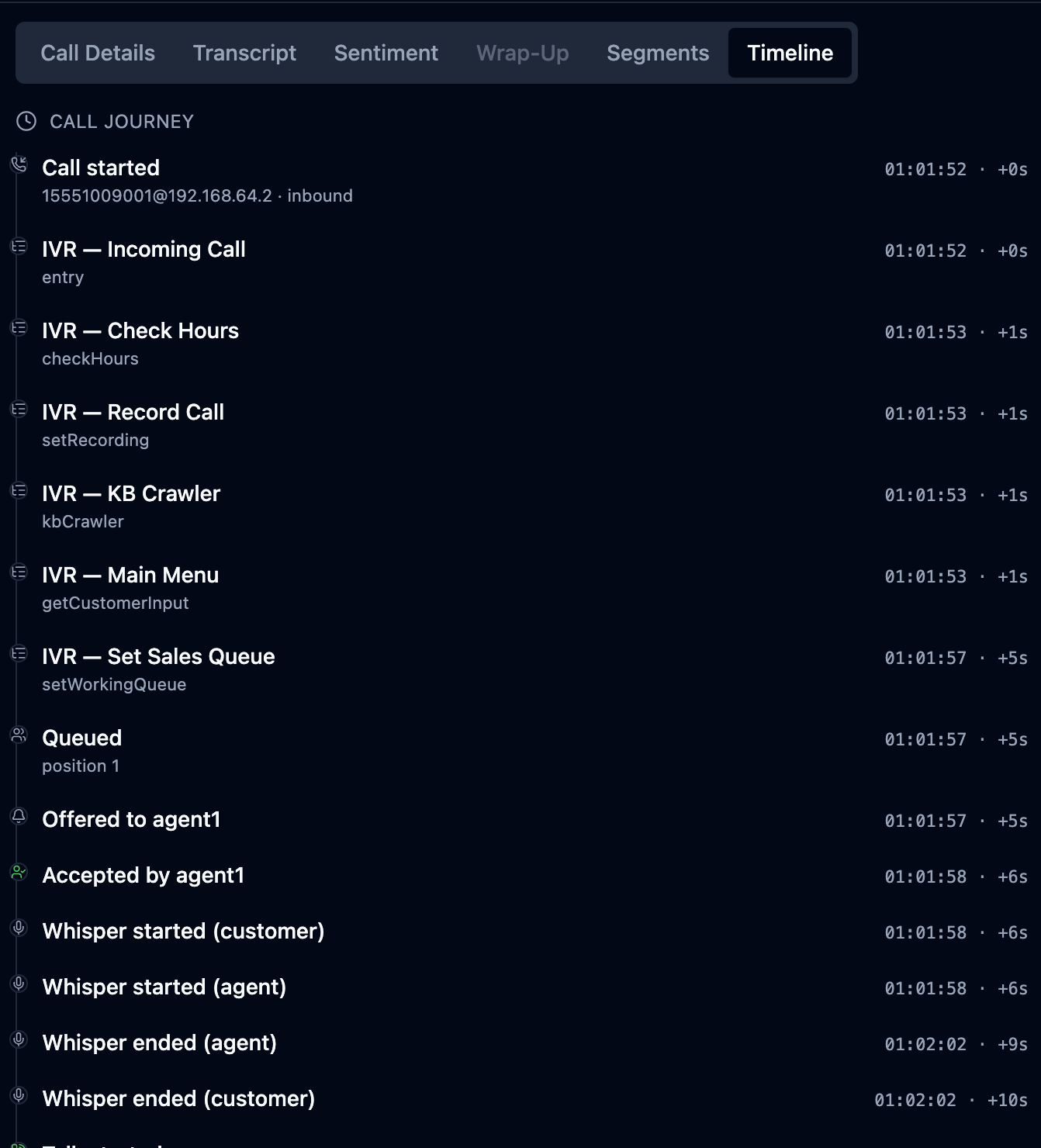 The Timeline (Call Journey) tab, in full: each step carries a clock time and an elapsed +offset — Call started → the IVR blocks it walked (Incoming Call, Check Hours, Record Call, Main Menu, Set Sales Queue, Set Wrap-Up Form) → Queued → Offered to / Accepted by the agent → Whisper started/ended → Talk started → Agent assigned → Left queue → Call ended. It mirrors, event by event, exactly the path the call took.
This isn't a summary — it's the exact path the call took through your IVR flow, block by block. Every step (Check Hours, Record Call, Main Menu, Set Queue…) is its own event, captured to the millisecond and kept in precise order — steps that land in the same second still stay correctly sequenced. So the whole flow, and exactly when each thing happened, is always at your fingertips: you can prove what the caller heard and pressed, spot where time was lost, and reconstruct any call without listening to a second of audio.
7. Transcript & Summary Search
Transcript & Summary Search (Analytics → Transcript & Summary Search) searches across every recorded conversation — every transcript and every AI call summary — by meaning or exact words. It's the fast way to answer "how many callers mentioned a competitor last week?" or "find me the unhappy customers" without opening calls one by one.
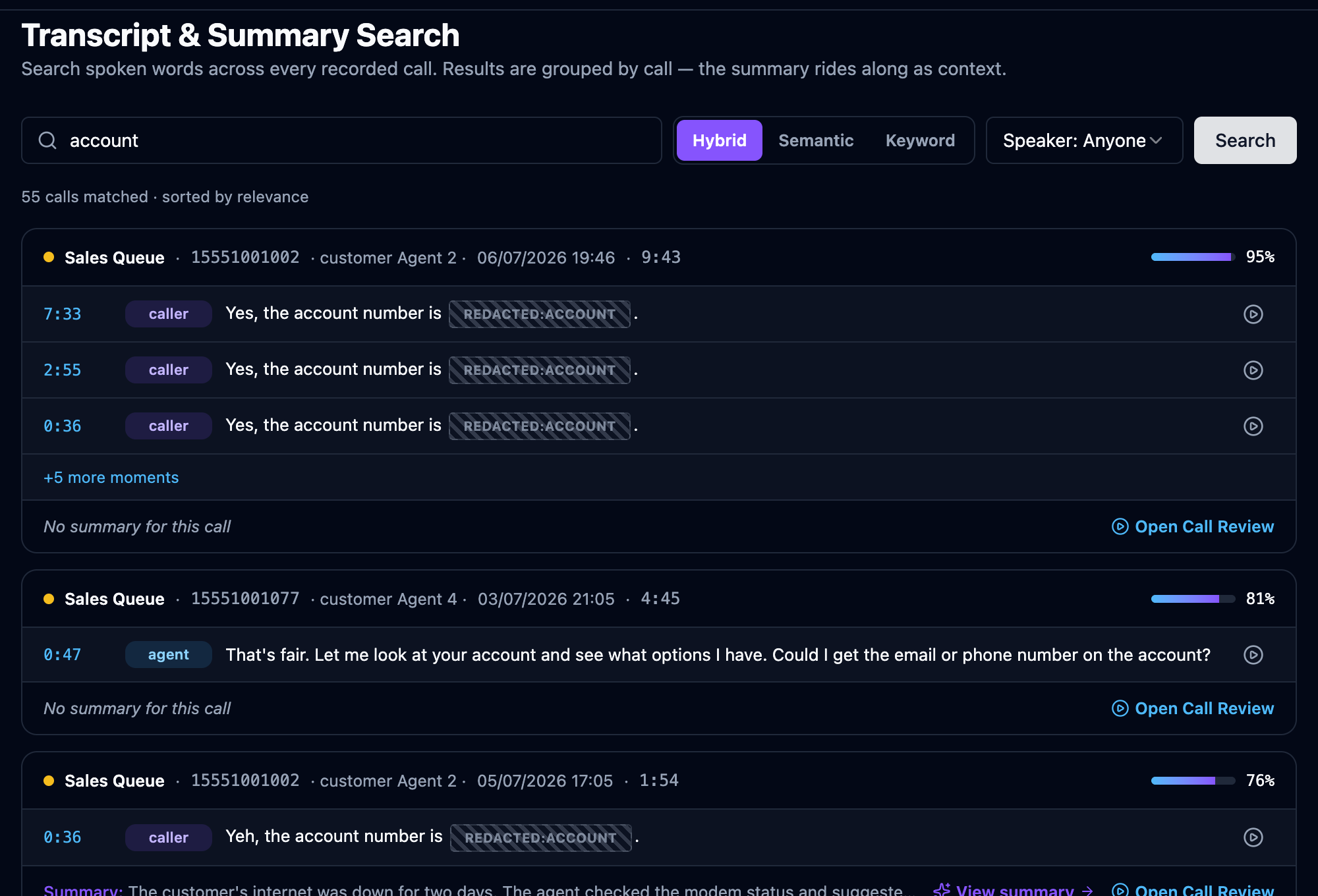 A search for "account" in Hybrid mode — results are grouped by call: one card per conversation showing its relevance %, the matched moments (with timestamps you can play — note the REDACTED:ACCOUNT masking), and the call's AI summary as context with a View summary link. Sorted best-match first.
- Query — type it in plain language (e.g. "cancel my account, refund, competitor offer").
- Mode — this is the key control, and it offers two kinds of search plus a
blend:
- Keyword — classic exact-word / phrase matching. Use it when you want the literal words ("chargeback", a product name, a policy phrase).
- Semantic — vector / meaning-based matching. It finds calls that mean the same thing even if they use different words — searching "unhappy customer" also surfaces "frustrated", "wants to cancel", "very disappointed".
- Hybrid (default) — blends both: exact-word matches and meaning matches, ranked together. The best everyday choice.
- Speaker — Anyone by default, or narrow to just the Agent or the Caller. Results are scoped to your team (your hierarchy branch), like the rest of Orbit.
Results are grouped by call, not by isolated line: each card is one conversation, showing a relevance % (how strongly it matched), the matched moments inside it (click a timestamp to play that instant), and the call's AI summary as context. Open Call Review jumps to the full call — transcript, recording and sentiment — and View summary opens it on the Call Summaries page. Search reads the post-call transcript and summary corpus, so a call appears here once its transcript (and, if enabled, its summary) has finished processing.
Transcript & Summary Search is part of the conversation-analytics (premium) tier and needs post-call transcription enabled; summaries additionally need the Call Summary premium feature. If the menu item is hidden, your plan or permissions don't include it.