Quality Assurance (QA)
QA is how you measure and improve agent performance: design scorecards, score calls against them — by hand, by sampling plan, or automatically on every call — let agents see and dispute their scores, and keep evaluators consistent with calibration. Supervisors and QA leads run the program; agents see their own results.
In the app: all under the Quality menu — Scorecards, Evaluations, Sampling Plans, Agent Insights, My Evaluations, and Calibration.
Sampling Plans and Agent Insights are permission-gated
(Quality sampling and Quality insights in Users → Security Profiles). Both
are enabled by default for Supervisor and Admin profiles.
Build a scorecard
A Scorecard is a reusable template of things you grade on a call. It contains sections and weighted criteria.
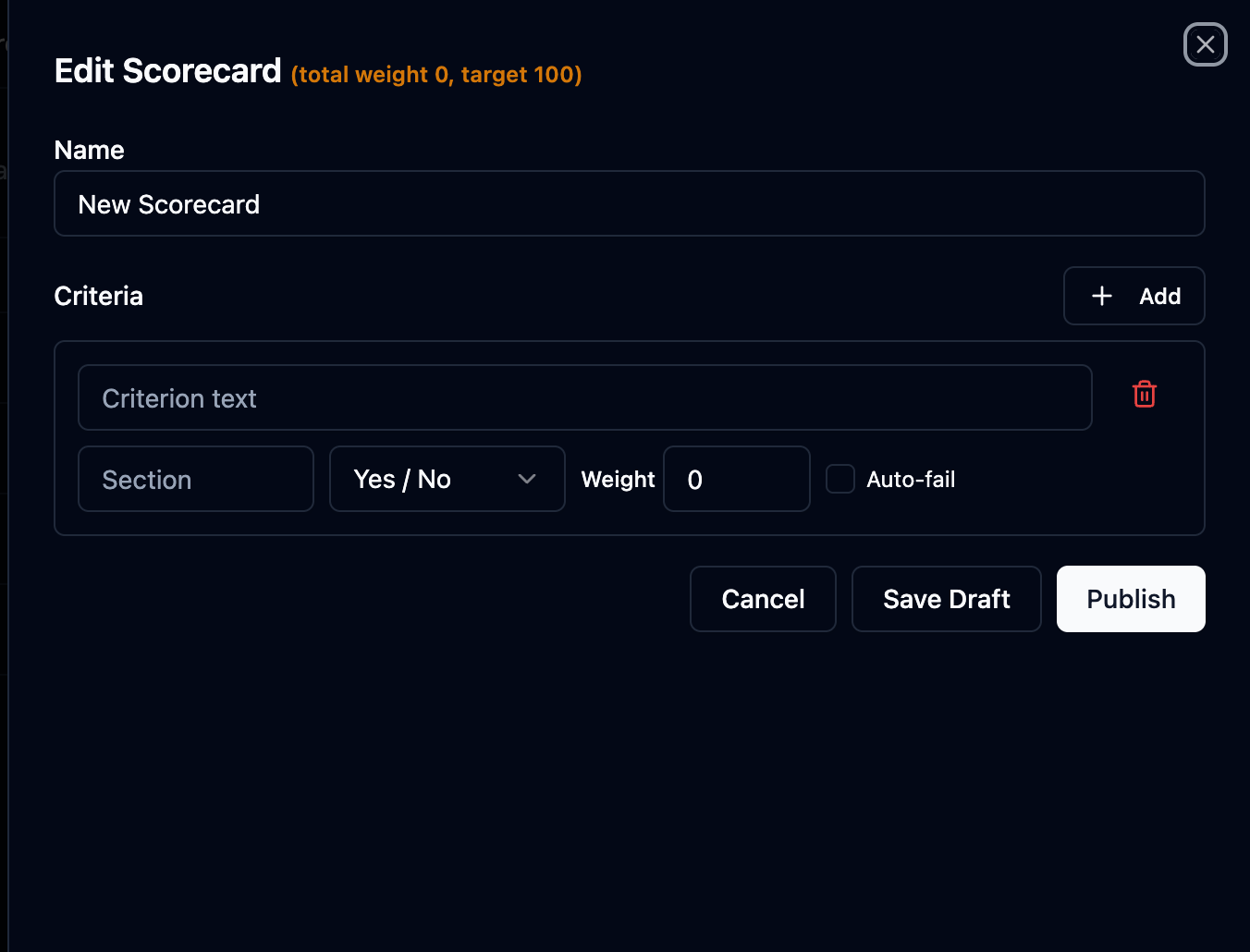
Each criterion has a question (e.g. "Did the agent verify the caller's identity?"), an answer type (yes/no, 1–5 scale, or N/A), a weight, an optional auto-fail flag (failing that one criterion fails the whole evaluation, e.g. a compliance breach), and optional auto-rules that pre-fill the answer deterministically from call data.
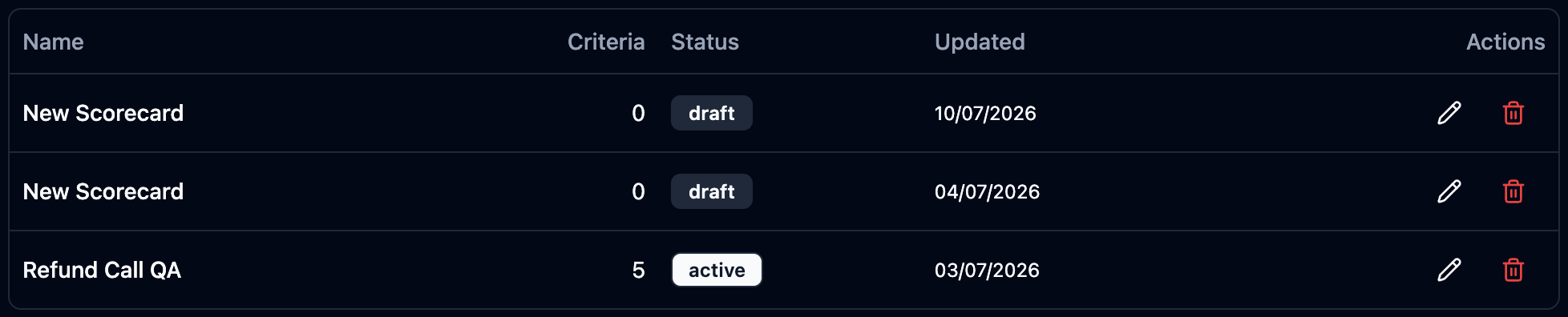
To create one: Quality → Scorecards → New Scorecard — name it, add criteria with answer types and weights, then Save.
When you change a published scorecard, past evaluations keep the version they were scored against — historical results stay accurate and comparable.
Read the Evaluations list
Quality → Evaluations is the QA home page.
-
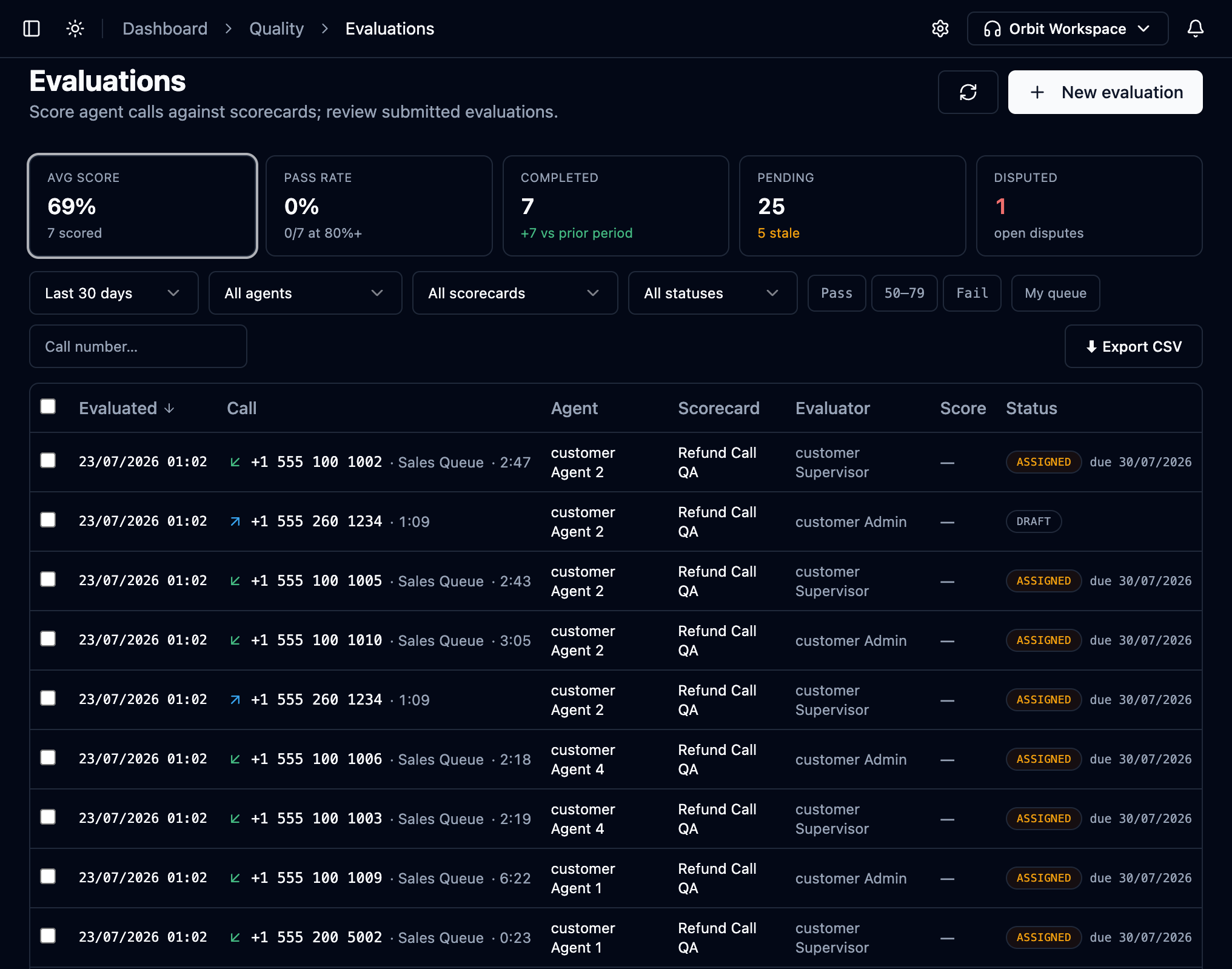
The summary tiles show the program at a glance — average score, pass rate (share of completed evaluations at 80%+), completed, pending, and open disputes. Click a tile to filter the list to exactly those evaluations; click it again to clear.

-
Filter by period, agent, scorecard, or status, or search by call number. The Pass / 50–79 / Fail chips filter by score band; My queue shows only evaluations assigned to you.

-
Each row shows the call, agent, scorecard, evaluator, score and status. ASSIGNED rows (created by a sampling plan) carry a due date — it turns red once overdue. A draft that hasn't been touched for a week shows a stale badge.
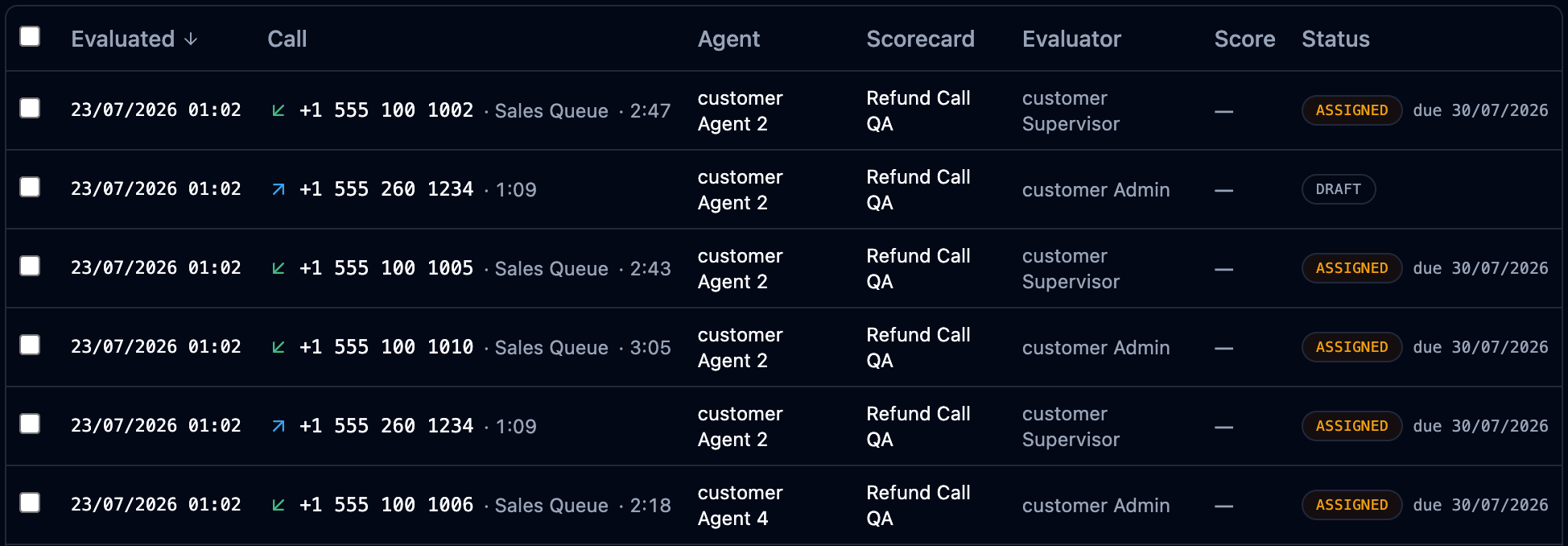
An evaluation moves through states: assigned → draft → submitted → acknowledged / disputed → resolved.
Start an evaluation by hand
-
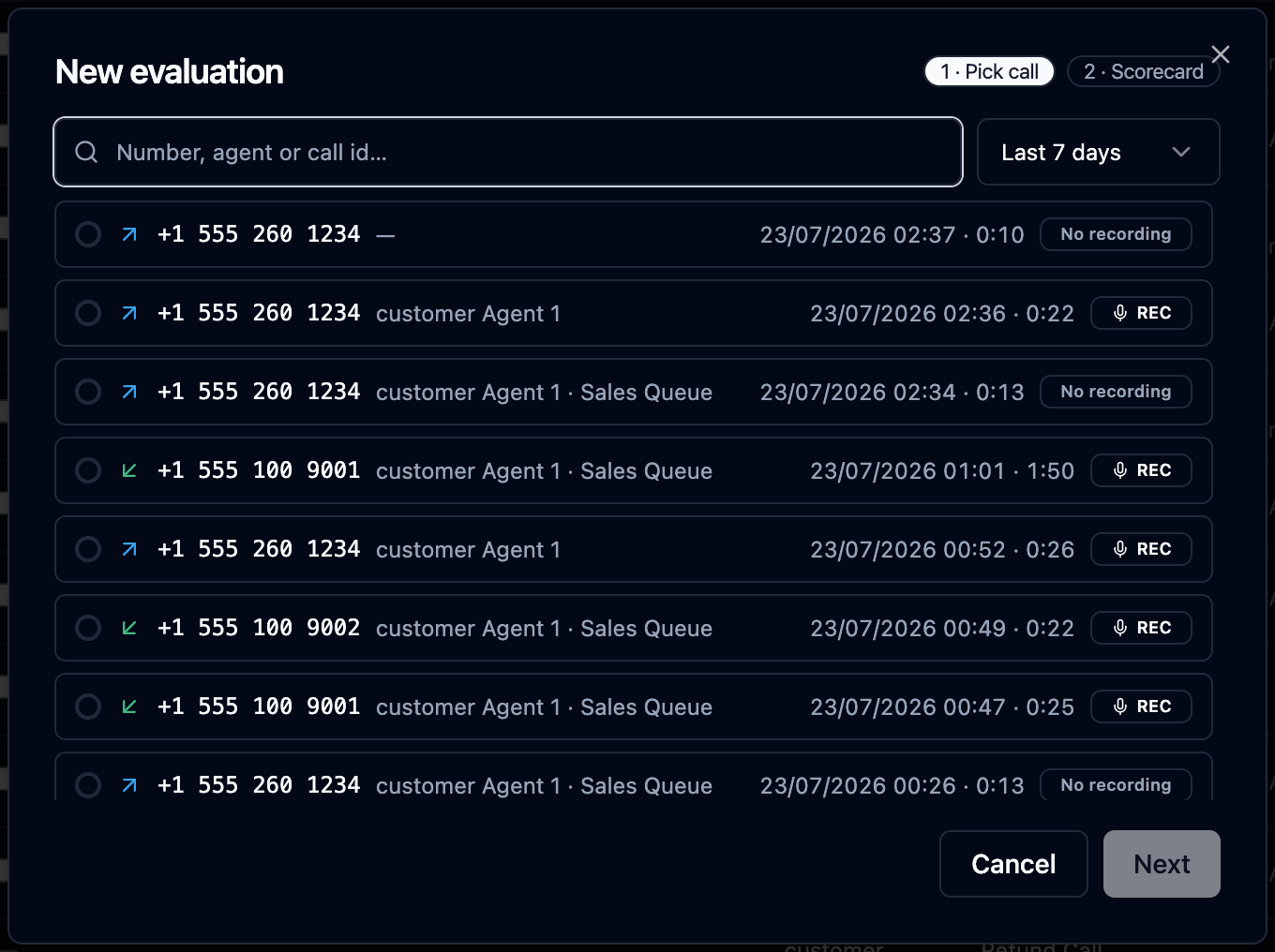
Click New evaluation.
-
Pick the call — search by number, agent or call id; the REC badge marks calls with a recording.
-
Click Next, pick the scorecard, and Create.
If that call already has an evaluation on the same scorecard, Orbit doesn't create a duplicate — it opens the existing one.
You can also start from a call in Call Review with its Evaluate button.
Score a call in the drawer
Opening an evaluation shows everything in one place: the recording player (with speed control and a leg switch for transferred calls), the transcript — each line plays its own audio snippet — and the scorecard criteria.
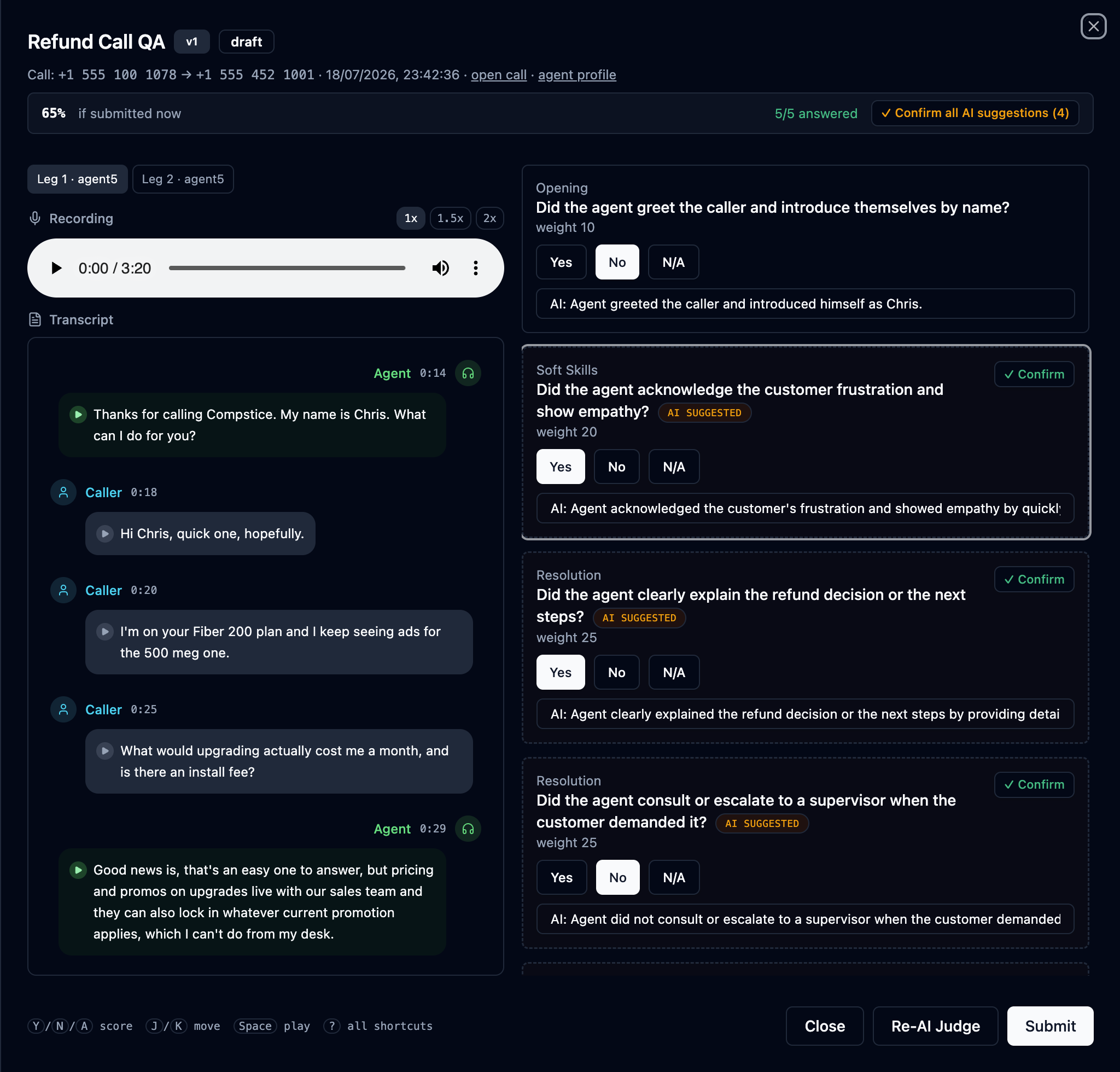
The strip at the top tracks your progress: the projected score if submitted now, how many criteria are answered, and a brief Saved ✓ flash after every answer — there is no save button; every click is stored immediately.

Let the AI Judge pre-score
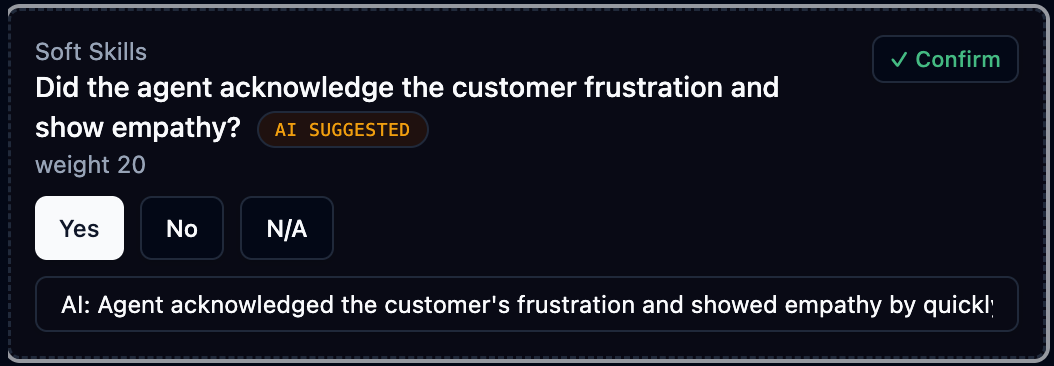
Press Re-AI Judge (or arrive from an Auto QA flow, see below) and every criterion is pre-answered from the transcript, tagged AI SUGGESTED, with the model's rationale in the note field. Confirm accepts one suggestion; Confirm all AI suggestions accepts the rest in one click. You can override any answer before submitting — the AI assists, a human decides.
Score with the keyboard
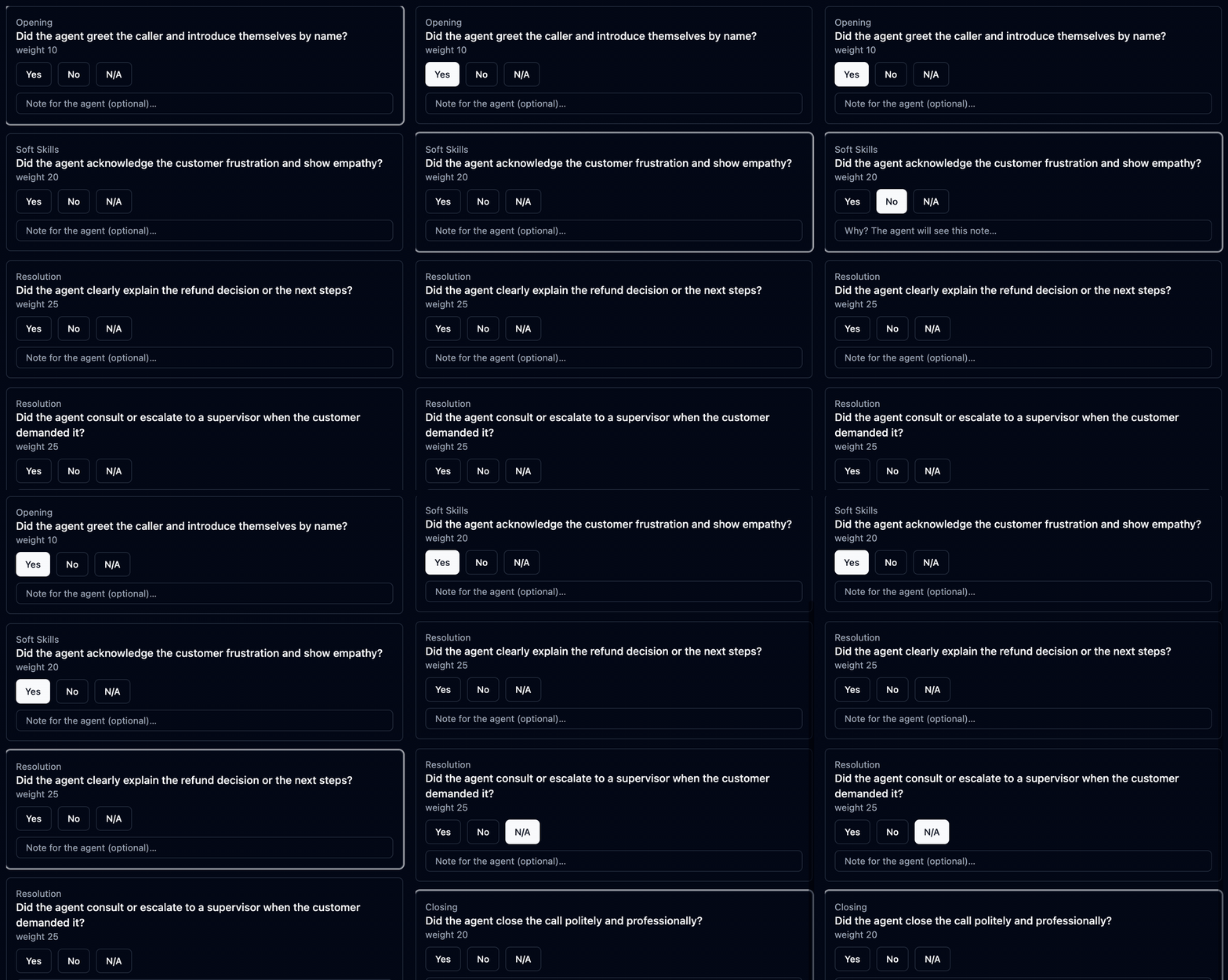
The drawer is fully keyboard-driven — score a call without touching the mouse:
| Keys | Action |
|---|---|
| Y / N / A | Answer the highlighted criterion (Yes / No / N.A.) and jump to the next unanswered one |
| 1–5 | Answer a scale criterion |
| J / K | Move down / up the criteria |
| Space | Play / pause the recording |
| ? | Show all shortcuts |

When done, Submit — Orbit computes the total score, applies any auto-fail, and notifies the agent.
Automate coverage with Sampling Plans
A Sampling Plan turns evaluation from "whenever someone remembers" into a program: "5 random calls per agent per week, scored on this scorecard, split across these evaluators."

To create one: Quality → Sampling Plans → New plan. The banner at the top always reads your plan back as one sentence.
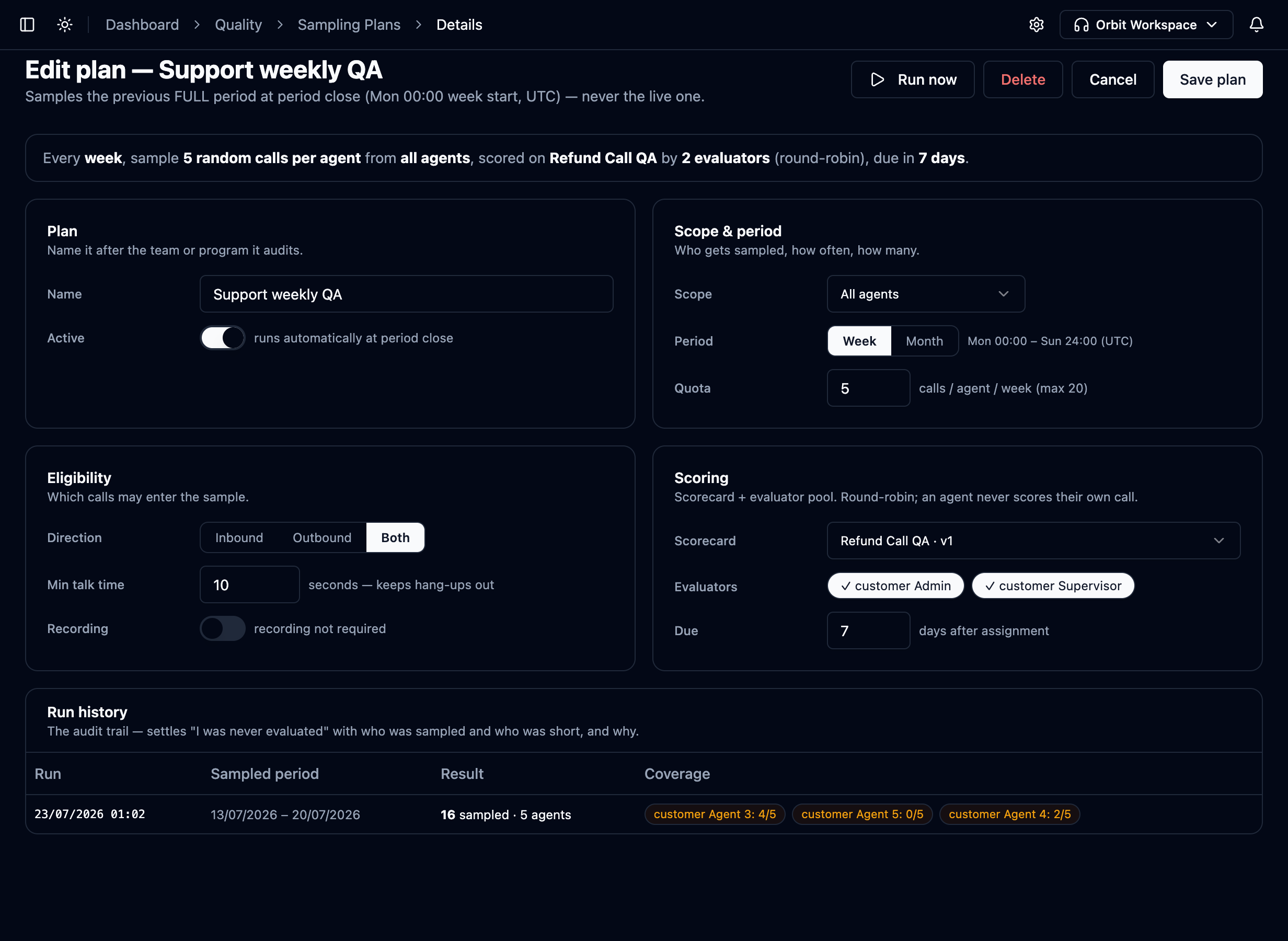
- Scope & period — who gets sampled (all agents, queues, or picked agents), weekly or monthly, and the per-agent quota.
- Eligibility — direction, minimum talk time (keeps hang-ups out of the sample), and whether a recording is required.
- Scoring — the scorecard, the evaluator pool, and the due window. Work is split round-robin across evaluators, and an agent is never assigned their own call.
An active plan runs by itself when the period closes, always sampling the previous full period — never the live one. Each period is sampled once, no matter how many times you press Run now, so duplicates can't happen. Sampled calls appear in Evaluations as ASSIGNED with a due date, and the evaluator is notified; their first answer turns the assignment into a normal draft.
Check the run history
Every run is recorded under the editor: when it ran, which period it sampled, how many calls, and — importantly — who came up short.

The coverage column settles that conversation: "customer Agent 5: 0/5" means the agent produced no eligible calls in that period — and that fact is logged, not lost.
Auto-evaluate every call on a flow
For lines where you want every call scored — not a sample — drop the Auto QA block into the call flow (Routing → Call Flows). Find it in the block palette:
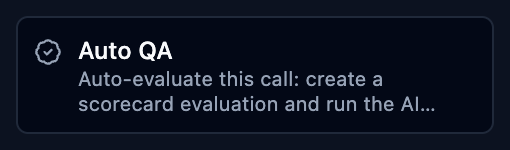
When a call passes through the block, Orbit waits for the post-call transcript and creates the evaluation automatically.
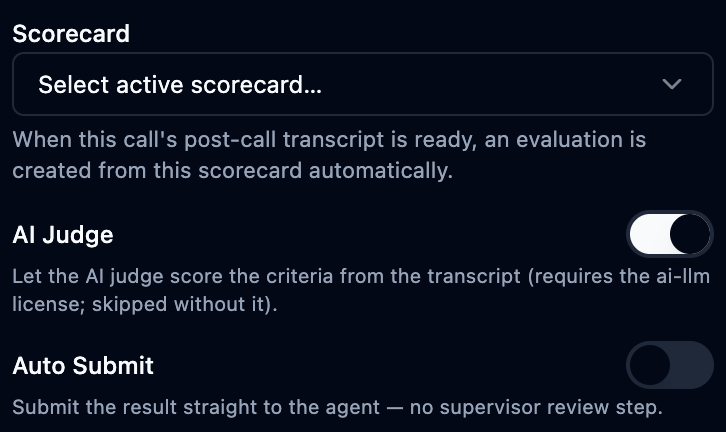
- Scorecard — which template to score against (must be active).
- AI Judge (default on) — the AI answers the criteria from the transcript.
- Auto Submit (default off) — submit the result straight to the agent with no supervisor review step.
With Auto Submit on, the AI's answers become the agent's official score the moment they're ready. Leave it off to keep the supervisor confirm-and-submit step, and spot-check regularly if you turn it on.
Auto QA and Sampling complement each other: Auto QA gives full coverage on critical flows, Sampling gives fair periodic review everywhere else. The one-evaluation-per-call-and-scorecard rule applies to both, so they never double-score a call.
Reassign, delete or export in bulk
Tick evaluations in the list to get the bulk bar:

- Reassign — hand the selected assignments/drafts to another evaluator.
- Delete drafts — removes selected items that are still drafts or unstarted assignments. Submitted evaluations are never deleted this way.
- Export / Export CSV — downloads a spreadsheet-safe CSV. The export always contains every row matching the current filters, not just the visible page.
Coach with Agent Insights
Quality → Agent Insights turns evaluations into coaching material. The roster ranks agents by evaluation volume, average score, pass rate and trend:
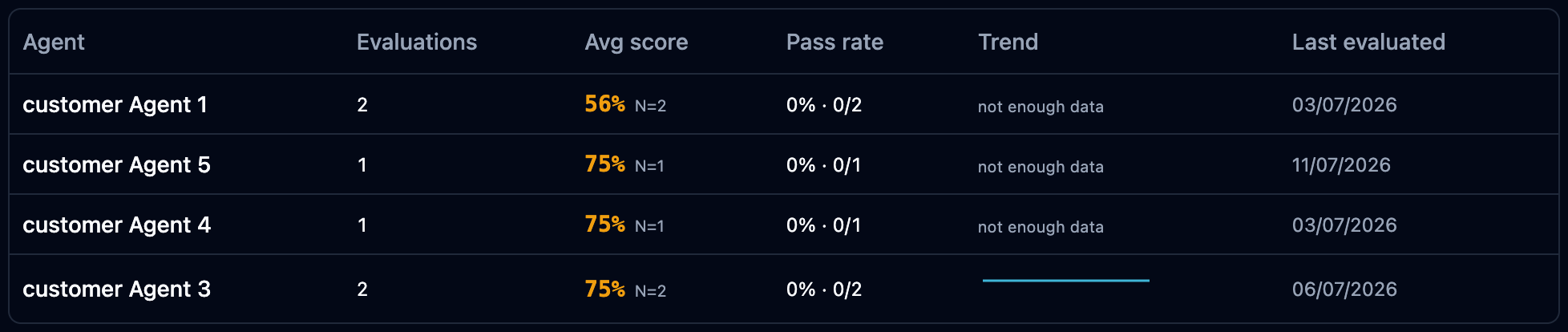
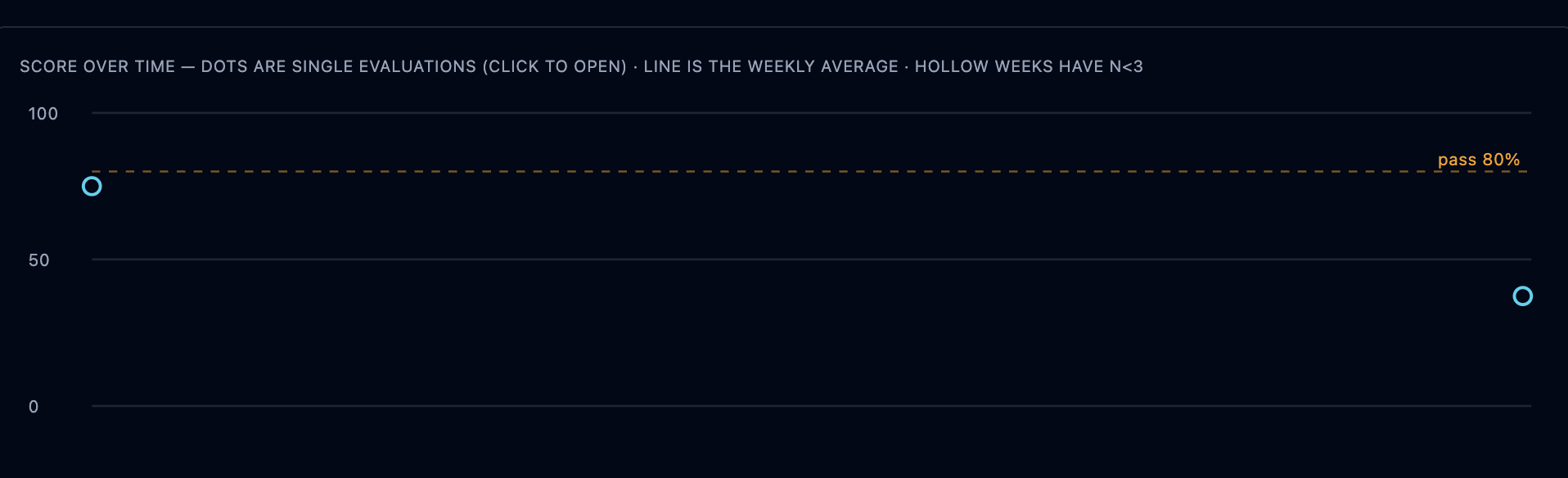
Open an agent for their profile — a score-over-time chart (dots are single evaluations, click one to open it; the line is the weekly average; hollow weeks have fewer than 3 evaluations):
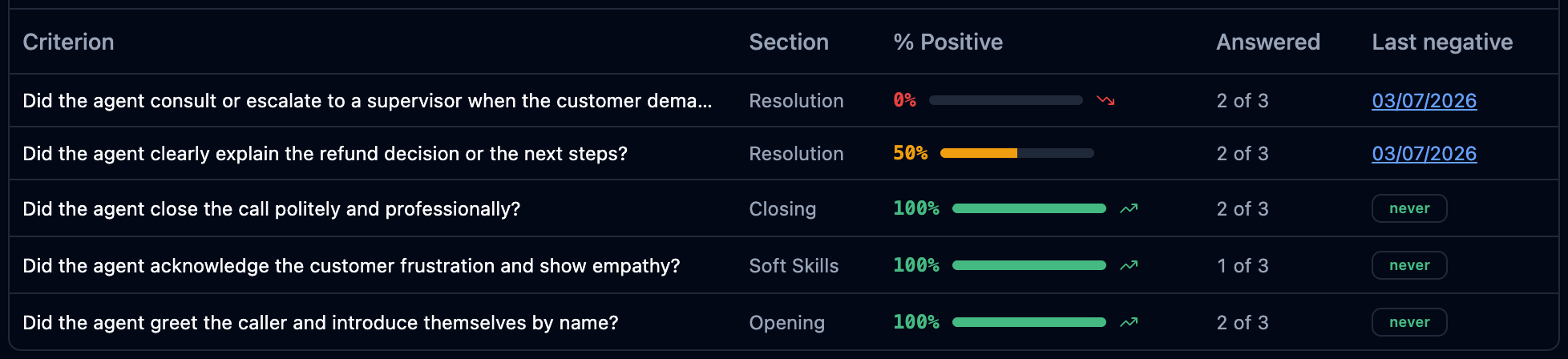
…and their weakest criteria first — each row shows how often the criterion failed and the most recent example, which is exactly the clip to bring to a coaching session:
Review your scores (agent)
Agents see evaluations of their own calls under Quality → My Evaluations — never anyone else's. A banner counts the evaluations still awaiting acknowledgement.
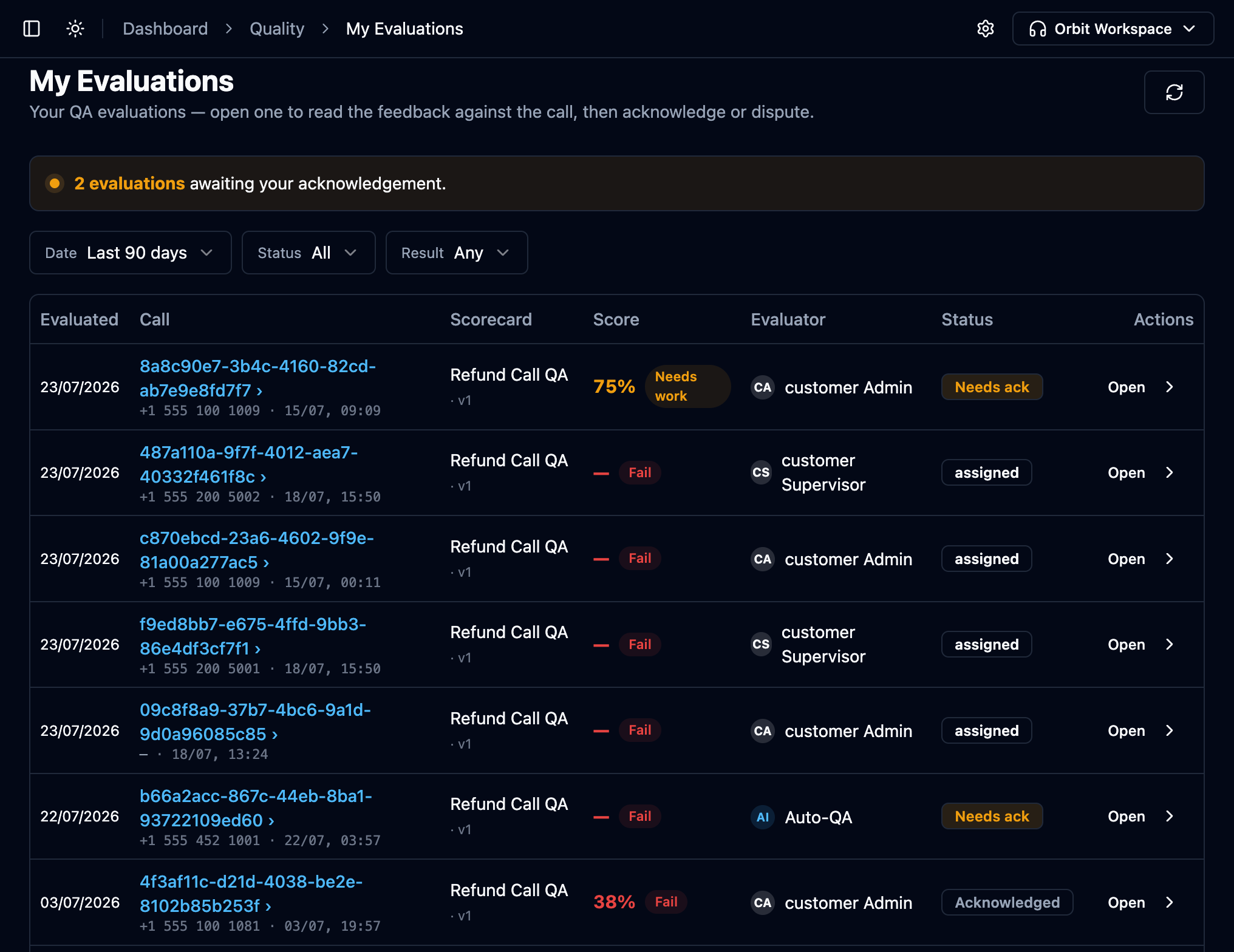
Open a row to read the feedback in context: the score per section, the evaluator's comments — and the call itself, under strict privacy rules that are printed right on the page:

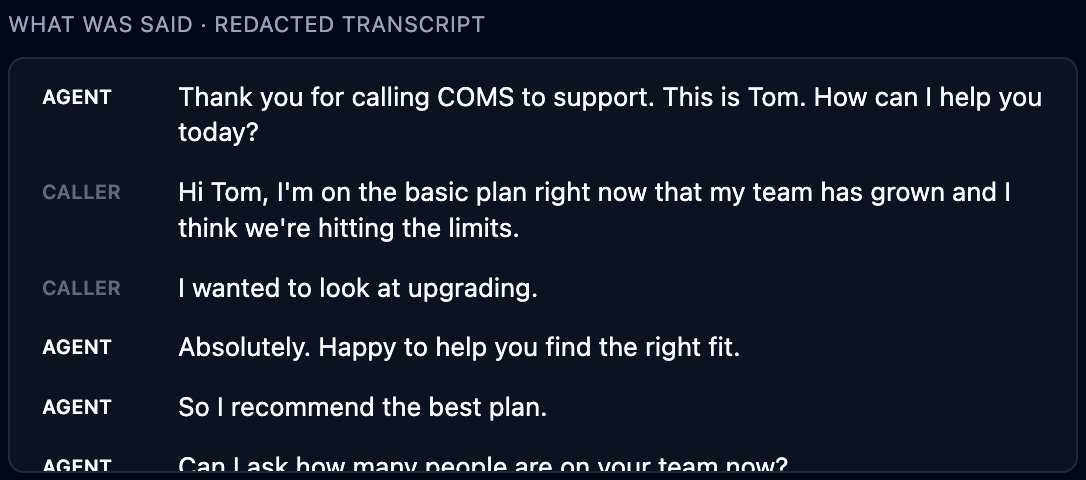
The transcript is shown redacted — personal and payment data (card numbers, addresses, verification details) appear as masked bars, for the agent's own call just like everywhere else in Orbit:
From here the agent has exactly two moves: Acknowledge or Dispute.
Listen to the recording — how access works
Recording access in My Evaluations is deliberately narrow, and the workflow itself is the key to it:
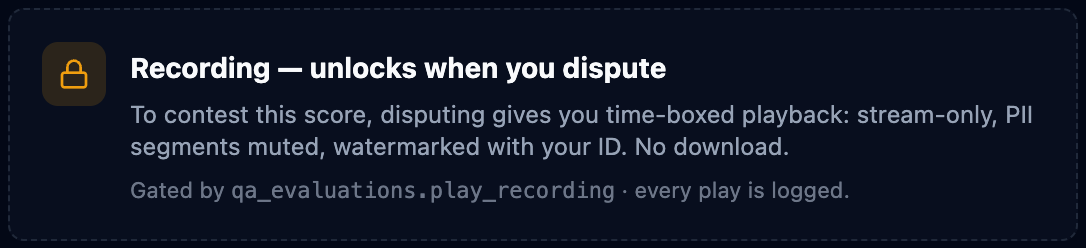
- Locked by default. An agent reading their score cannot replay the call just to browse it.
- Disputing unlocks it — contesting a score is the one legitimate reason an agent needs to re-listen. Playback is time-boxed to the dispute window, stream-only (never a file), watermarked with the agent's identity, has no download or export path, and every single play is written to the Access Log.
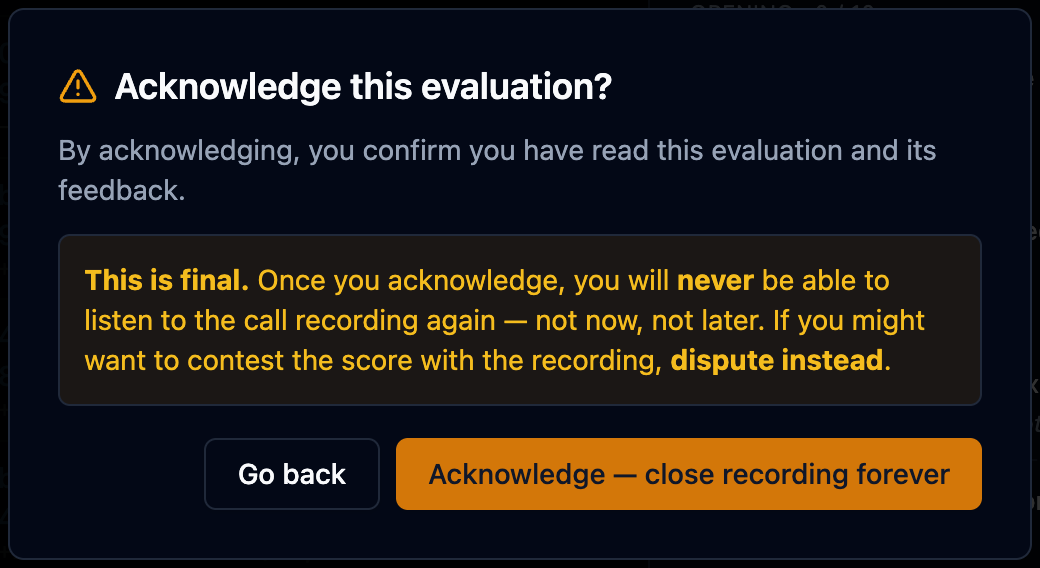
- Acknowledging closes it forever. Accepting the score permanently seals the recording for that agent — and Orbit warns exactly that before you confirm:
All of this additionally sits behind the qa_evaluations.play_recording
permission (Users → Security Profiles). Profiles without it never get playback at
all — the evaluation then shows its feedback and redacted transcript only.
There is no admin override to re-open a recording for an agent after they acknowledge. If the agent might want to contest with the audio, they must dispute first.
Dispute a score (agent)
-
Open the evaluation and press Dispute.
-
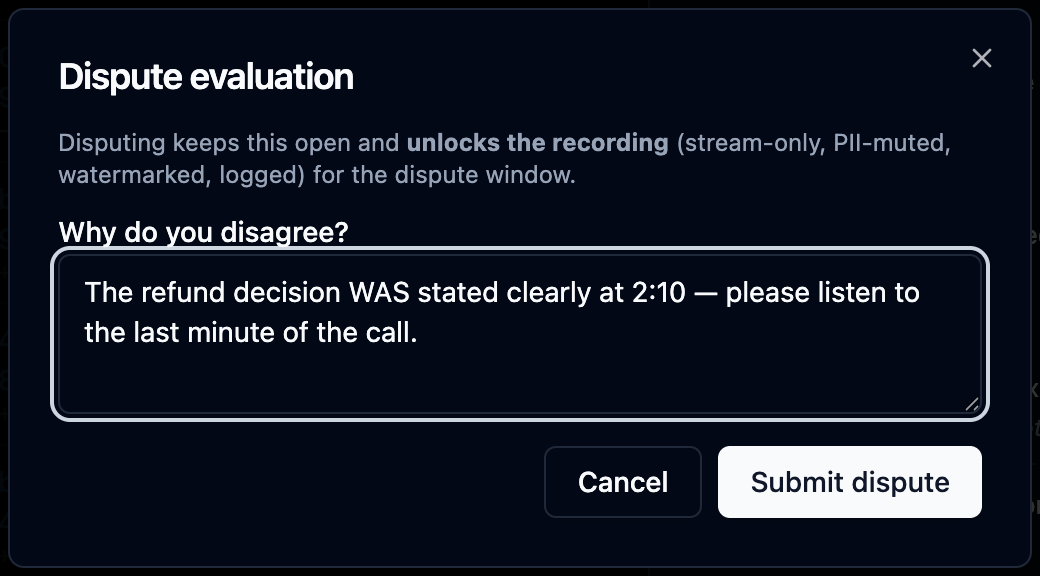
Give a concrete reason — this becomes the first entry of a permanent record:
-
On submit, the evaluation flips to Disputed and the recording unlocks for the dispute — stream-only, watermarked, logged:
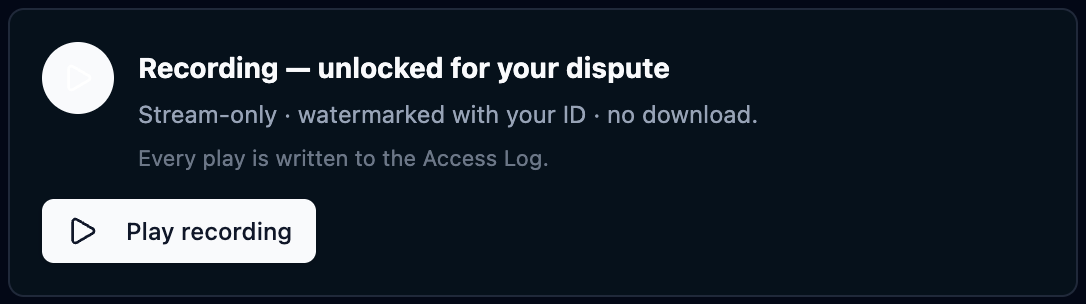
When the supervisor closes the dispute, playback access ends with it.
Resolve a dispute (supervisor)
Disputed evaluations are flagged in the Evaluations list. Open one — the Dispute panel shows the agent's reason, and the supervisor answers with a comment and a verdict:
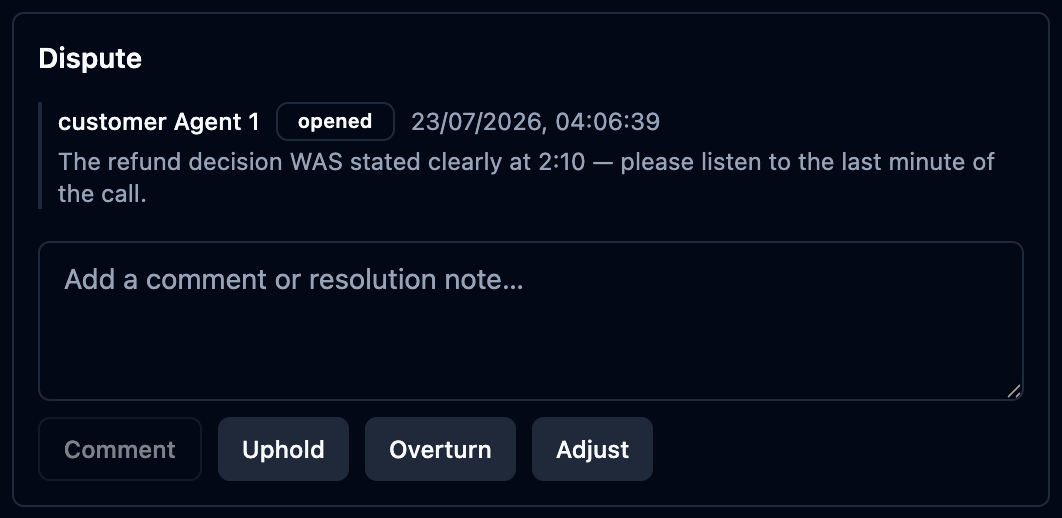
- Uphold — the original score stands.
- Overturn — the agent's objection is accepted.
- Adjust — the supervisor corrects specific answers and the score.
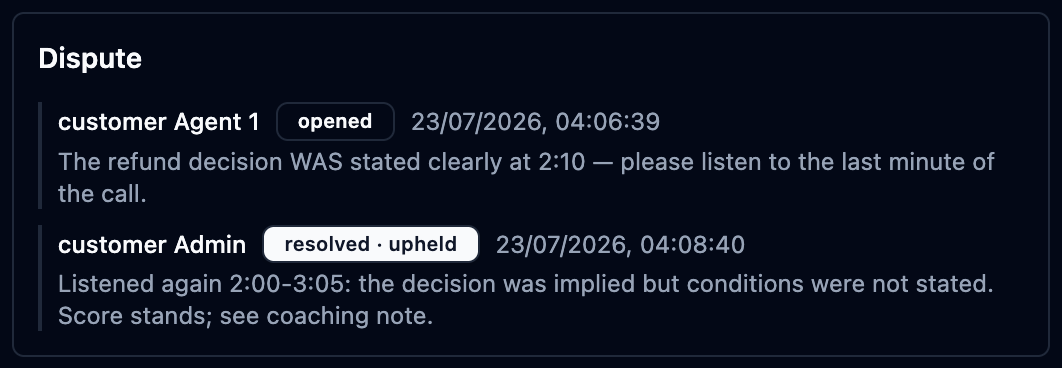
Every step lands in an append-only thread on the evaluation — who opened it, who ruled, and why — so the outcome is documented, not an unappealable verdict:
Keep evaluators consistent with Calibration
In a calibration session, multiple supervisors independently score the same call; Orbit compares their answers to surface disagreement — evaluators who are systematically harsh or lenient, and the specific criteria people interpret differently.
To run one: Quality → Calibration → New session → choose the call and the evaluators → each scores independently → review the agreement report.
Let Orbit tidy up
Housekeeping runs by itself — nothing to configure:
- A draft you started but left for a week triggers a one-time reminder notification ("Unfinished evaluation").
- A draft that was never touched at all (no human answer, no note) is quietly removed after two weeks. Anything with real work in it is never auto-deleted.
- New sampling assignments, finished AI judgements and published results each notify the right person — the notification's Open button lands directly on the evaluation.
A typical QA cycle
- Design a scorecard.
- Set up a Sampling Plan for fair routine coverage, and an Auto QA block on flows that need every call scored.
- Evaluators work their My queue, letting the AI Judge pre-fill and confirming with the keyboard.
- Agents acknowledge or dispute results in My Evaluations.
- Coach from Agent Insights — weakest criteria first.
- Periodically calibrate evaluators on a shared call.