Attendant Console
The Attendant Console is Orbit's switchboard: one screen where an operator watches the company's public numbers, sees exactly who is waiting on each of them, and puts callers through to the right person. It is the receptionist's tool, not an agent's — a receptionist answers for the whole company, so this screen is built around a directory and a transfer, not around a queue and a wrap-up code.
In the app: Attendant in the sidebar, or go straight to /attendant. It opens
full-screen — no sidebar, no breadcrumb.


Attendant is a separate product, not part of the base plan. The menu item appears only when
your account is entitled to Attendant Console and your security profile grants
attendant_console.view. Operating the board — picking up and transferring — needs
attendant_console.operate; curating the numbers needs attendant_console.manage. If you
can see the console but every PICK UP is refused, you have view without operate.
Attendant is licensed per named operator. What consumes a seat is a user whose
security profile carries attendant_console.operate — not merely having the console
in the menu. A supervisor with attendant_console.view watches the board without
using a seat.
So the seat count answers to your profiles: creating a user on an operator
profile, or moving a user onto one, is refused once the seats are full
("Attendant Console operator seats are full (8/8)"), and adding
attendant_console.operate to a profile is checked the same way — every user on
that profile becomes an operator at once. Removing the permission always works and
frees a seat, even when the count is already over.
What the three zones are for
The console never hides a decision behind a click, because the operator makes those decisions while somebody is on the line:
| Zone | What lives there | Why it is permanent |
|---|---|---|
| Left | The public numbers this board watches, plus the other operators covering it | You must see a second line lighting up while you are on the first |
| Centre | Who is waiting on the selected number, and the company directory | Choosing which caller and who to reach are the two live decisions |
| Right | The active call, and context for the person you are about to transfer to | Transfer targets are judged, not just picked |
Watch the public numbers
Each number the board watches shows its own waiting count, in the order your administrator set. The colour bar is that number's identity — operators learn it faster than they read the label.
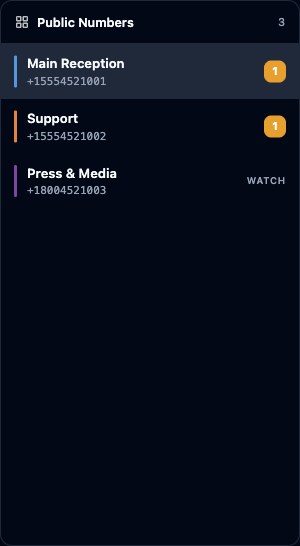
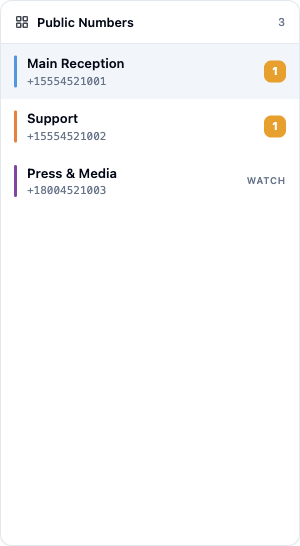
- A number with callers shows an amber count.
- A number with none shows WATCH — it is being monitored, it just has nobody on it.
- Selecting a number fills the centre board with that number's callers.
A number does not need a queue behind it. A small office's main line can be watched with no ACD at all — the operator simply sees the calls arrive.
Pick the caller you want
This is the part no other switchboard gives you. The board lists who is waiting, so the operator chooses rather than accepting whatever the queue hands over.
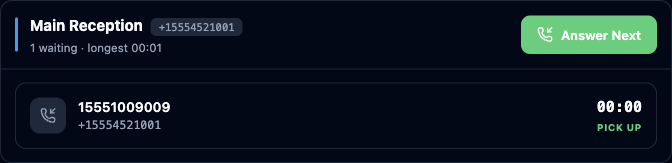
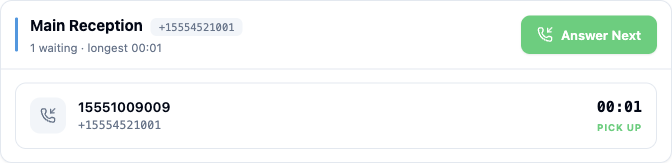
- Read the row: caller number, the number they dialled, and how long they have waited.
- Click PICK UP on that row to take that caller.
- Or press Enter / click Answer Next to take the longest waiter without choosing.
Enter answers the next caller and ⌘K / Ctrl+K jumps to the directory search — an operator's hands can stay on the keyboard between calls.
What happens when you pick up
Picking up reserves that caller for you and rings your phone. The reservation is a lease, not a promise:
- If you answer, the caller is yours.
- If you don't, the lease expires and the caller returns to their original queue position — they are not punished for your hesitation, and they do not go to the back of the line.
- If you have never signed a device in, the pick is refused up front ("no device") rather than reserving a caller for a phone that cannot ring.
How the call reaches you depends on the queue's answer mode:
| Answer mode | What the operator experiences |
|---|---|
| Auto (default) | The call opens on the headset by itself — no accept step |
| Ring | An INCOMING card appears and you press ANSWER |
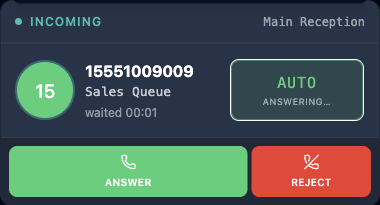
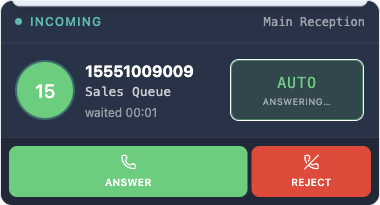
Once connected, the call card is the operator's cockpit: Mute, Hold, To Waiting (park the caller back on the board), hang up — and the caller's avatar doubles as the drag handle for transfers.
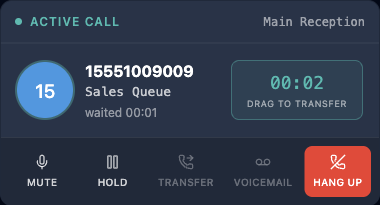
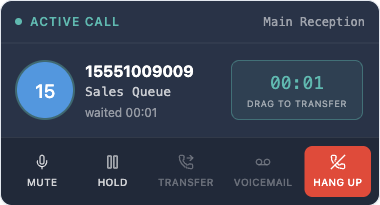
That is deliberate. An operator who switches theme mid-shift should not have the call they are currently on change appearance under their hands.
Find the right person
The directory is the company, not the contact centre: employees, partners, extensions and departments, filtered by the chips across the top.
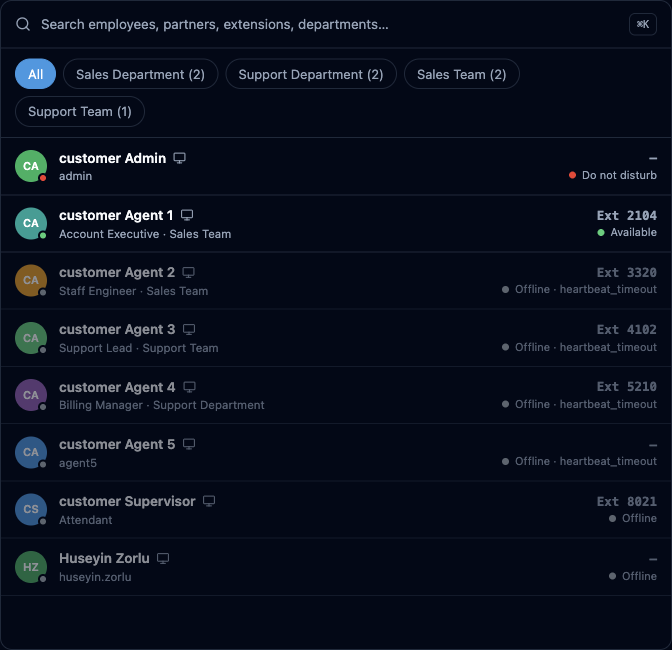
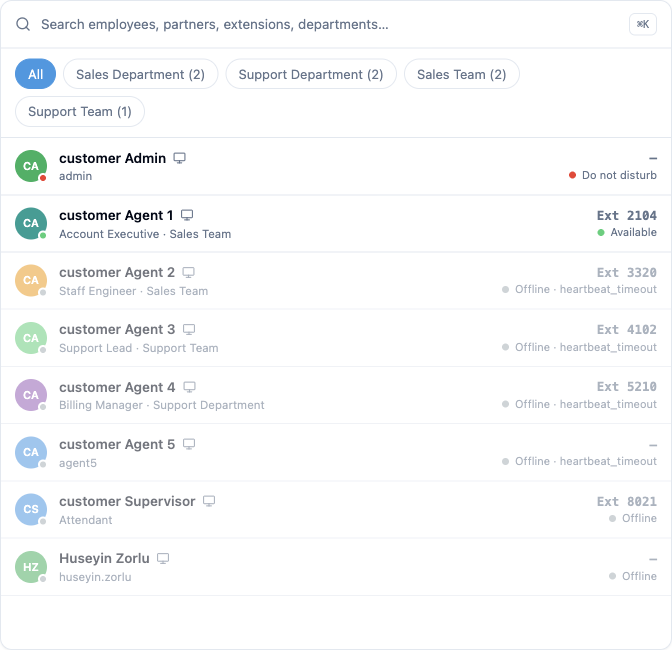
Each row carries what an operator needs before transferring:
- Presence, live — a colleague going Ready turns green here with no refresh.
- Extension — the number a transfer goes to (and one the operator can dial from their own softphone when calling, not transferring, is the right move).
- Why they are unavailable when the reason matters: Do not disturb, Offline · heartbeat_timeout, and so on.
Transferring to someone who is not there is the switchboard's classic failure. The console shows the answer at the moment of decision, so "let me put you through to Ahmet" is a statement, not a hope.
The colors are guidance, not gates: every directory row accepts a drop, including a colleague on Do not disturb or already on a call. That is deliberate — an operator who has spoken to the caller may legitimately push a call through to someone on DND ("the CEO said interrupt me for this"). What protects the caller is not a blocked drop but the recall safety net below: the caller waits in the queue's hold while the colleague rings, and if they don't answer, the call comes straight back to the board with the reason and attempt count — nothing is ever lost into a dead extension. There is no camp-on queue per target; the park-and-return loop plays that role.
One division of labour to know: the board answers calls; the softphone places them. The console is built around incoming traffic — answering, transferring, parking, recalling. To place a fresh outbound call yourself, use your softphone in My Workspace like any agent, then return to the board.
Message before you transfer (Consult Chat)
Select a directory person and a Chat button appears alongside the transfer option. Click it while your caller is on the line and the conversation opens attached to that call: the colleague sees a CALL badge and a first line naming the caller, so they instantly know why you're writing — "Mrs Walker on line 1, asking for you, OK to transfer?". With no call up, the same button starts a plain direct message. The thread opens in the chat dock, on top of the console — your board never leaves the screen. (Needs the Messaging module — attendant-console accounts have it.)
Transfer by dragging
Drag the caller's avatar from the call card onto a directory row. That is the transfer. It is a blind transfer with a safety net: you don't stay on the line to announce the caller — the recall mechanism below catches any transfer that doesn't connect.
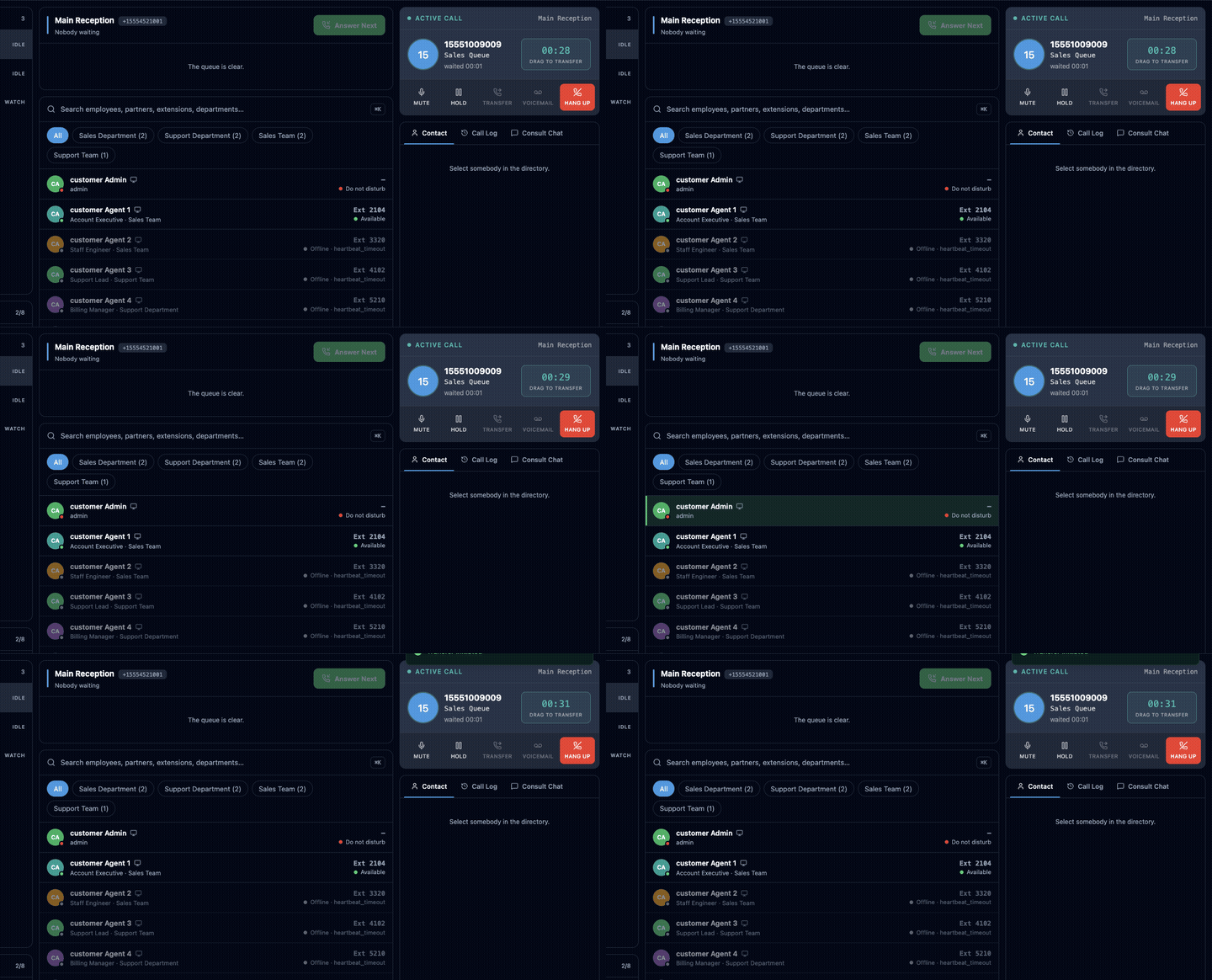
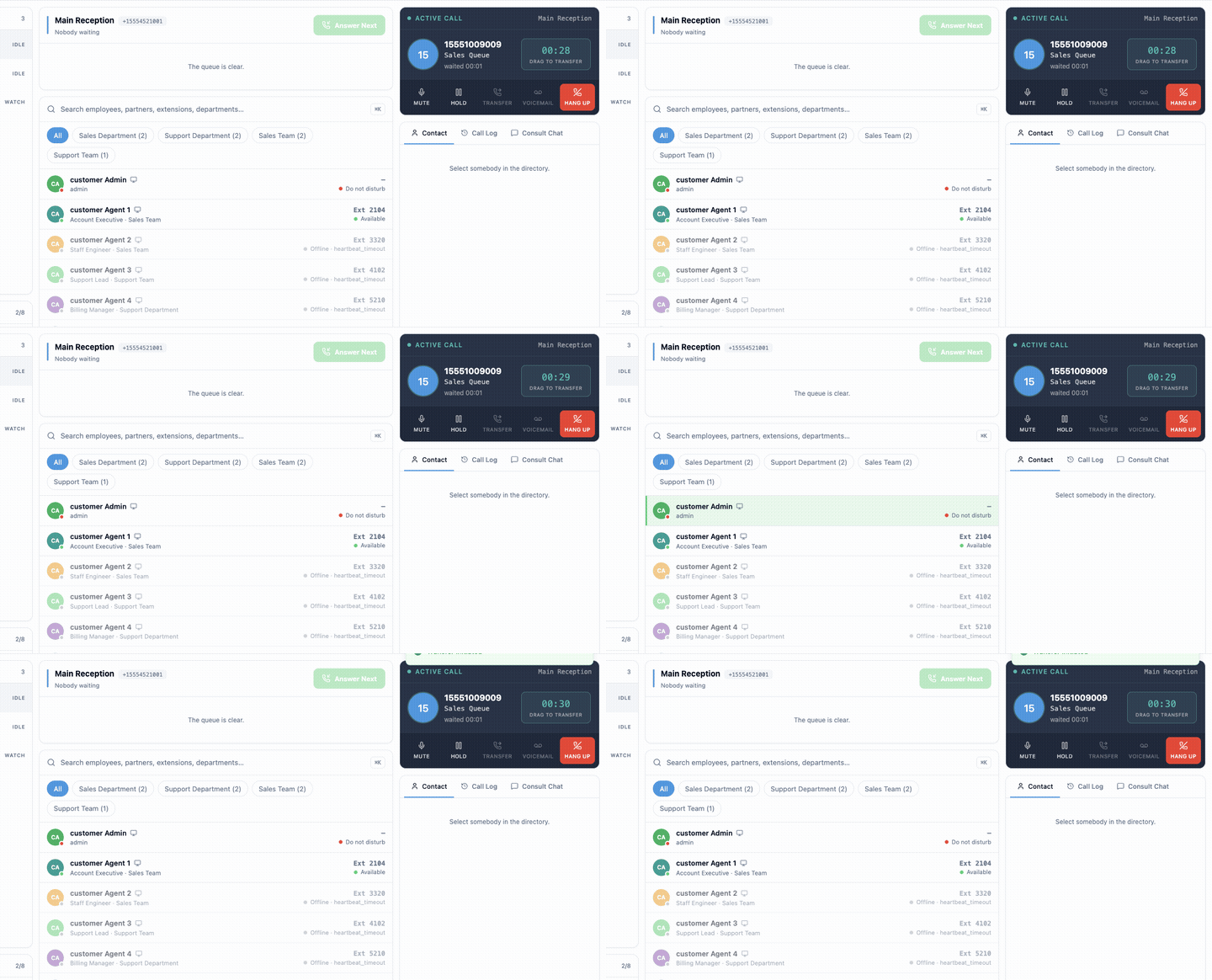
The receiving agent gets a normal incoming call and answers it in their own softphone:
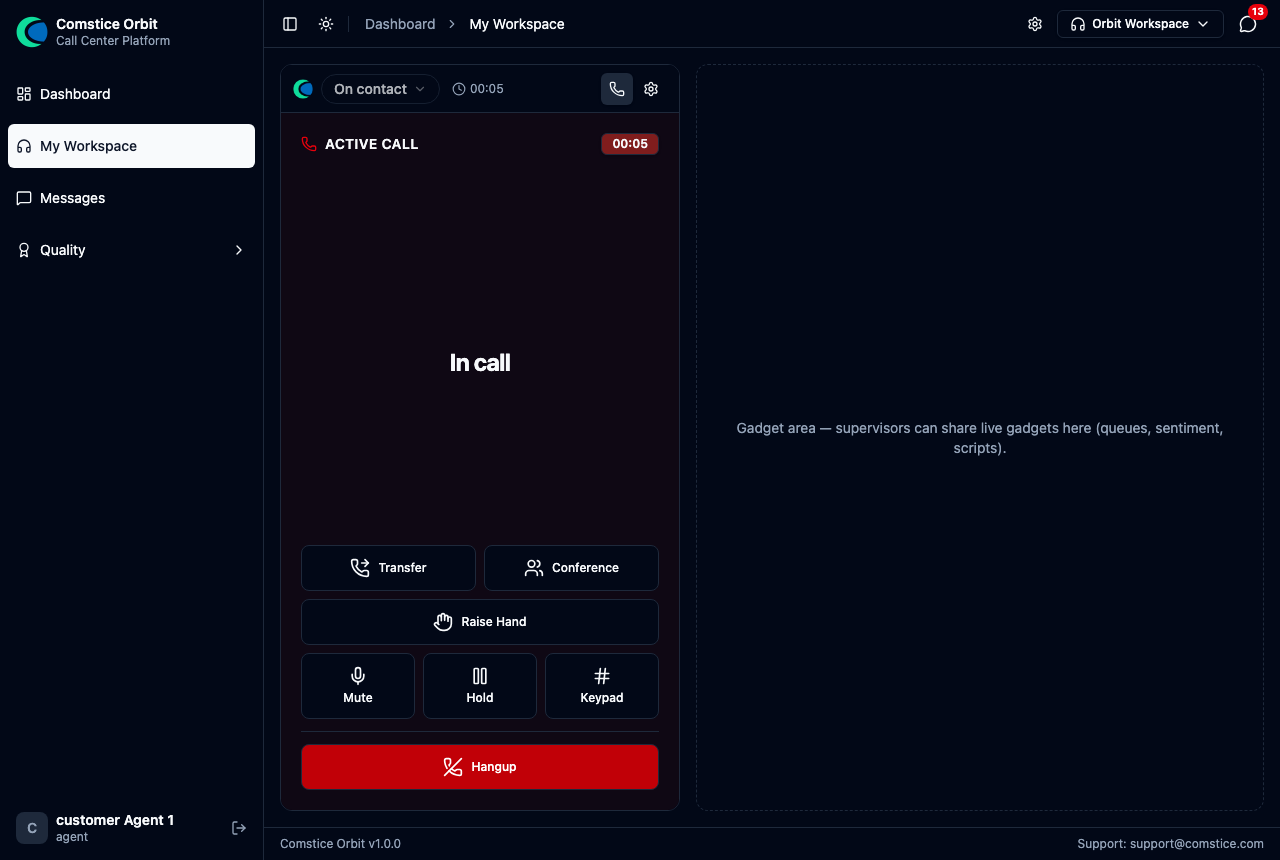
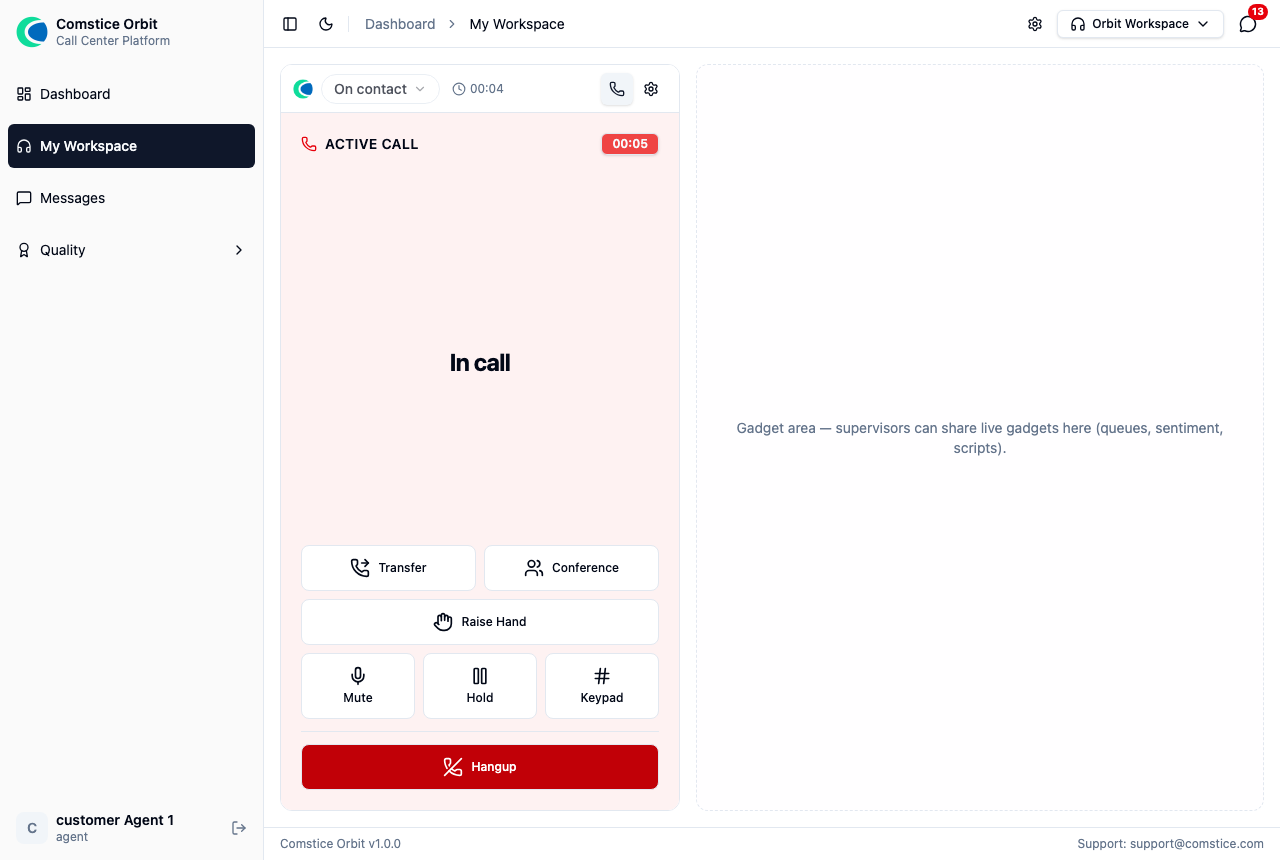
The operator's card clears the moment the transfer is dispatched — they are free for the next caller without waiting to see whether the agent picked up.
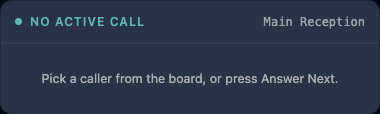
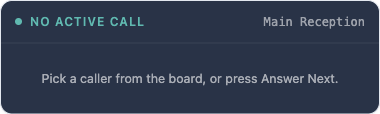
After the drag — where the caller actually is
Dispatching a transfer frees the operator, but the caller does not vanish into the phone system. The board keeps telling their story:
- While the target rings, the caller sits on the waiting queue's card with the whole context an operator needs at a glance: the caller, who they are for, who sent them, and a live RINGING badge with the running wait timer.
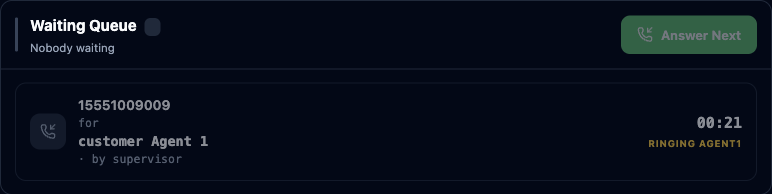
- If the target answers, the call bridges and the card clears — done.
- If the target does not answer, the caller is neither lost nor sent to the back of a line: they land on the broken-transfers queue with a red card that names exactly what happened. The recall is offered to you first — the operator who made the transfer knows the story — and after the overflow window (45 s by default) it opens up so any operator can take them back with PICK UP.
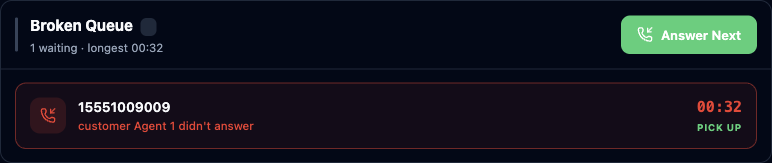
The timer on a caller's card measures from their first entry to the board, not from their latest hop. A caller who waited 32 seconds through a failed transfer shows 00:32, not zero — the plumbing never hides anyone's real wait.
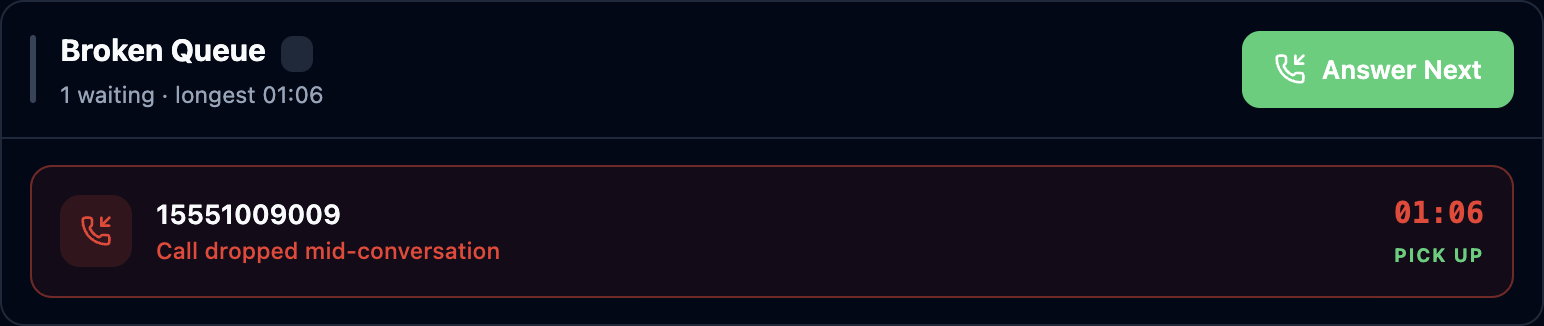
The broken-transfers queue is not only for transfers that never connected. Point the agent-disconnect recovery flow at it, and a call that drops mid-conversation — the agent's browser dies, their network goes — comes back too: the caller hears a short "reconnecting you" announcement and lands on the board with a red card saying exactly that, their total time still counting from the very first hello.
Park a caller
TO WAITING on the call card parks the active caller back on the waiting queue: the operator is freed immediately and the caller appears as a normal waiting row with PICK UP — for "let me find out and come back to you" moments that should not hold the operator's line.
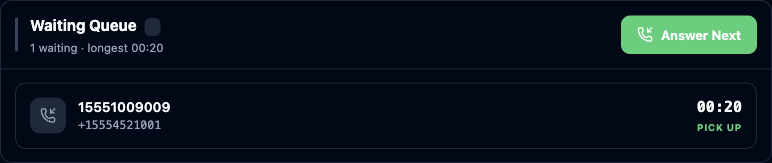
The parked caller keeps their original wait clock too, and any operator covering the board — not just the one who parked — can pick them back up.
The console asks the server to transfer to a person, not to a phone number it looked up in
the browser. The server re-resolves the target and re-checks attendant_console.operate
before dialling, so a stale directory row or a tampered request cannot put a caller through to
somewhere it shouldn't.
Ready, Not Ready and your phone
The top bar carries the operator's own state, separate from the board's counters:
- Ready / Not Ready — whether the board may reserve callers for you. Not Ready keeps the screen (you still see everything) without ringing you.
- Phone ready — the device state. "No phone — click to connect" means nothing can ring yet; the console will refuse a pick rather than trap a caller.
- attendants online tells you how many colleagues are covering the same board, so you know whether stepping away leaves it unmanned.
Set up the board (administrators)
Two screens make a working board: the queues the operators own, and the board that watches them.
First, wire the queues (Routing → Queues — this is the step that makes a line "switchboard-owned" rather than agent-routed):
- Open (or create) the queue and set Ring strategy to Attendant (switchboard). Callers in this queue are never pushed to agents — they wait on the operators' board and are taken by claim.
- Choosing that strategy reveals two companion fields: Waiting queue — where send to waiting and in-flight transfers park the caller — and Return (broken) queue — where a failed transfer returns the caller, marked with the reason. For a small board leave both on This queue; for the three-queue layout below, point them at your dedicated Waiting and Broken queues.
- Set the queue's Wrap-Up to 0 so operators are free the moment they hand a caller off.
Then build the board. Settings → Attendant Board is where the operator's
left column is decided. It needs attendant_console.manage.
- Add Number — pick the phone number the board should watch.
- Attach a queue if callers should wait in an ACD line, or choose No queue — watch only for a line the operator simply monitors.
- Give it a colour — operators navigate by colour, so pick distinct ones.
- Set the sort order: the order the numbers are read down the operator's column.
Until a number is added, the console has nothing to watch. That is the first thing to check when an operator reports "I see nothing".
A board layout that works: three queues
A layout proven in practice gives the board three lines with three distinct jobs:
| Queue | Job |
|---|---|
| Reception | The public number callers actually dial — the operator answers from here |
| Waiting | Where transfers ring their target and parked callers sit |
| Broken | Where unanswered transfers land, red-carded, for any operator to rescue |
A quiet reception simply reads "The queue is clear" — the operator sees at a glance that nothing is being missed:
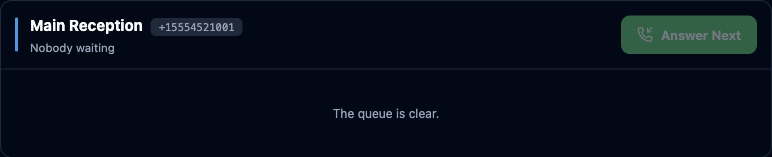
Give the three queues strongly different colours; the red broken-transfer cards then stand out on a board an operator reads in half a second.
How a queue delivers to the board
Behind the ring strategy, each attendant queue carries three delivery behaviours. They ship with these values — if your board needs different timings, ask your account team to tune them for the queue:
| Behaviour | What it does | Value |
|---|---|---|
| Delivery mode | pull = board only · push = ACD only · hybrid = board first, then ACD | hybrid |
| Push after | In hybrid, how long the operators get the caller to themselves before agents are offered the call | 20 s |
| Answer mode | auto = opens on the headset · ring = the operator presses ANSWER | auto |
| Recall overflow | How long an unanswered transfer comes back to the operator who made it before it drops to every board | 45 s |
The operator who transferred the call knows the story — "I tried Ahmet, he didn't pick up". Giving them the recall first saves the caller from explaining twice. After the overflow window it lands on everybody's board, because a caller must not be held hostage to one operator's coffee break.