Getting Started with Orbit
Welcome to Comstice Orbit — a cloud contact center platform. This chapter gives you the big picture: what Orbit is, who uses it, how to sign in to your company's workspace, and a tour of the screen. If you have never seen Orbit before, start here.
1. What is Orbit?
Orbit is a complete call center in your browser. It connects your phone carrier (the SIP trunk that delivers calls) to your agents (who answer calls in a web softphone — no desk phone required), and adds everything a modern contact center needs on top:
- Call routing & IVR — decide where each call goes ("Press 1 for Sales").
- Queues & ACD (Automatic Call Distribution) — hold callers and distribute them fairly to agents.
- Live supervision — listen in, coach, or join an agent's call in real time.
- Recording, transcription & sentiment — every call can be recorded, transcribed, and scored for customer sentiment.
- Quality & compliance — evaluate calls, set recording retention, place legal holds, and track who accessed what.
You don't install anything. You open a web address, sign in, and work.
Throughout this guide, every screen is explained as What it is → Who uses it → How to do it. Technical terms are defined the first time they appear.
3. Who uses Orbit? (Roles)
Orbit is multi-tenant: many companies share the same platform, but each company only ever sees its own data. There are five kinds of users, from the top of the tree down:
| Role | Who they are | What they do |
|---|---|---|
| Platform Admin | The Orbit operator (Comstice). | Manages every company on the platform, plans, licensing, and cluster health. |
| Reseller / Service Provider Admin | A partner who resells Orbit. | Manages the customer companies they signed up. Cannot see other resellers' customers. |
| Customer Admin | An administrator at a call center. | Sets up queues, call flows, users, trunks, and reports for their company only. |
| Supervisor | A team lead. | Monitors live calls, coaches agents, runs quality evaluations. |
| Agent | A person who answers calls. | Uses the softphone, sets their status, fills in wrap-up notes. |
What you can see and click is controlled by your Security Profile (your set of permissions). Two people in the same company can see completely different menus. See Organization & Access.
4. Signing in — every company has its own URL
This is important: each company logs in at its own web address. Orbit reads the company ("tenant") from the address itself.
| You are… | Your sign-in address looks like | Orbit detects |
|---|---|---|
| A customer named Acme | acme-orbit.comstice.com or acme.orbit.comstice.com | tenant = acme |
| A platform operator | orbit.comstice.com | no tenant — platform login |
When you open your company's address, the login screen shows your company name (e.g. "acme — Tenant Login") so you know you're in the right place.
To sign in:
- Open your company's Orbit address in a browser (Chrome recommended).
- Confirm the company name shown on the login screen is yours.
- Enter your username and password (given to you by your admin).
- Select Sign in.
Orbit runs entirely in the browser — no installer, no VPN client. Anyone taking calls just needs a headset plugged in and the microphone permission allowed — the first-shift walkthrough covers it.
After login, Orbit loads only the menus your role allows.
Your company administrator creates your account and gives you the address and credentials. Password resets are administrator-driven by design — there is no reset-it-myself link on the sign-in page, so a forgotten password can never be hijacked through an e-mail loop. Ask your admin: resetting you takes them a few seconds (Org & Access §4). Agents can't self-register inside an existing workspace either — same door, same admin.
5. A tour of the screen
Once you sign in, the layout is the same on every page — a sidebar on the left, a header across the top, the main content in the middle, and (if you can take calls) a call bar along the bottom with your live call controls that follows you as you navigate — see Handling Calls.
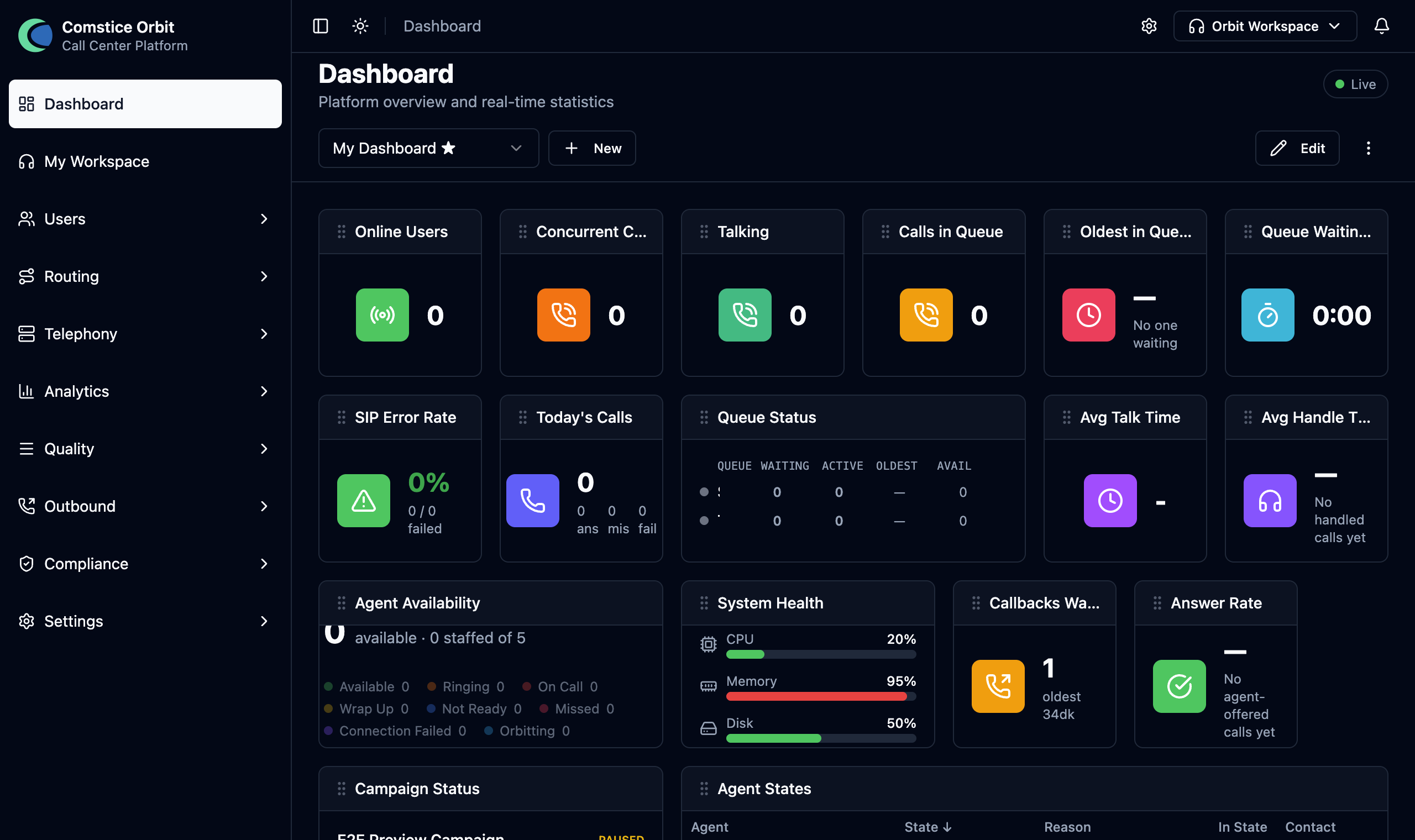
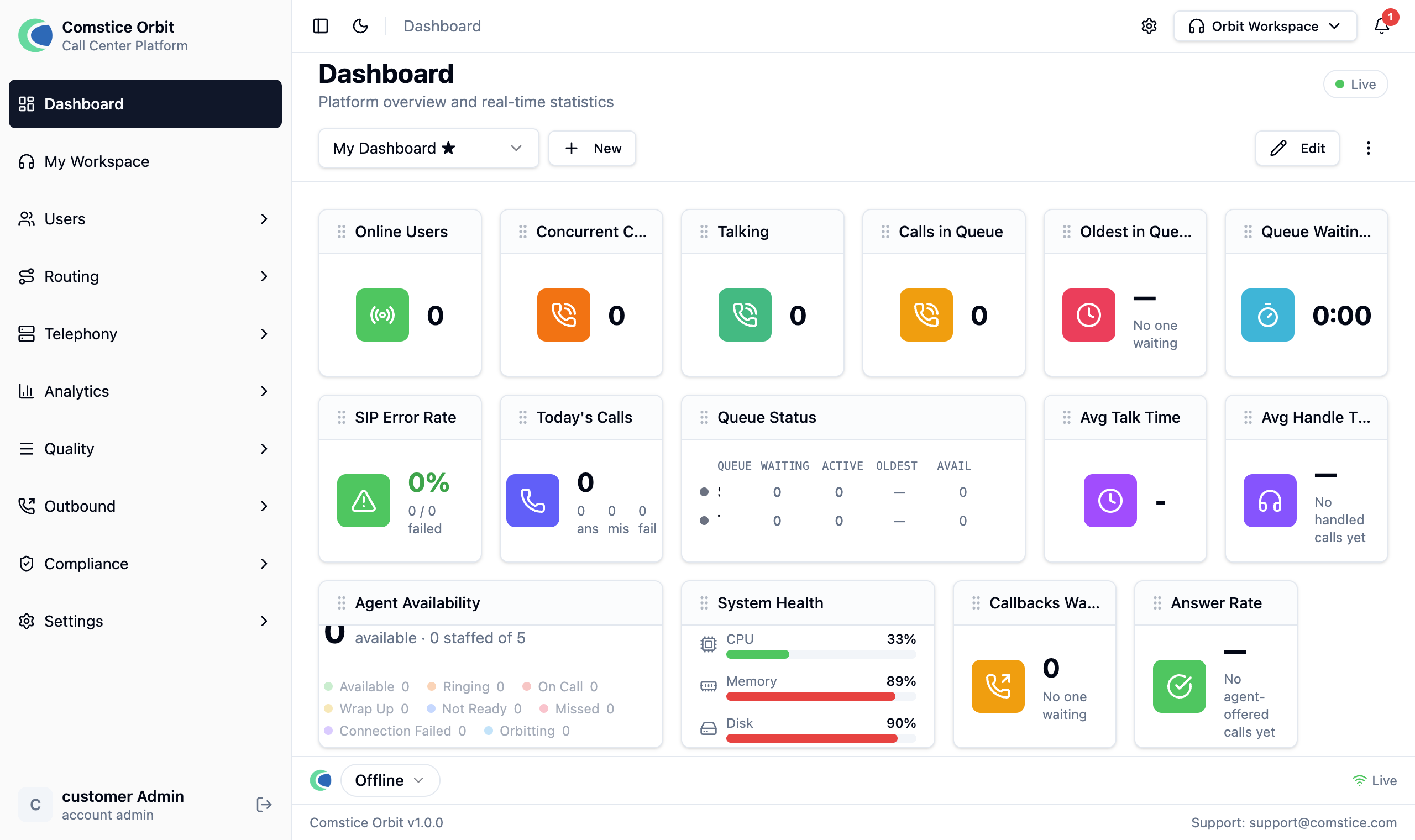
The sidebar (left) — your menus
Your menus, grouped and expandable: Dashboard, My Workspace, Attendant, Messages, Users, Routing, Telephony, Analytics, Quality, Outbound, Compliance, Settings. Only items you have permission for appear (and licensed modules like Attendant or Messages only when your account carries them), so your sidebar may be shorter than a colleague's.
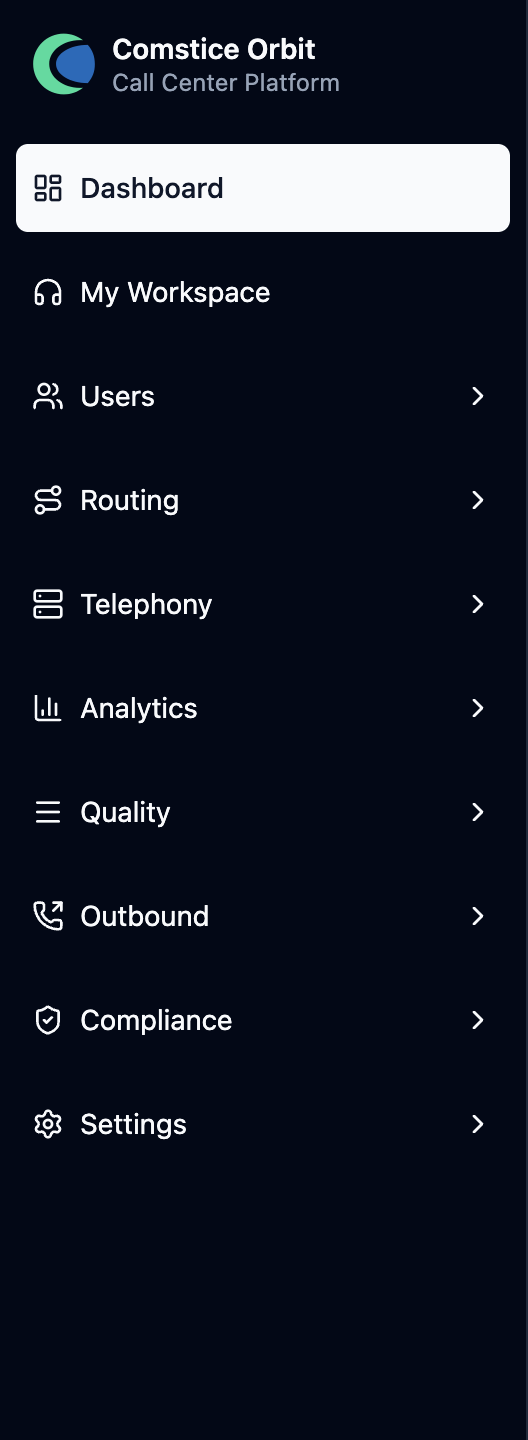
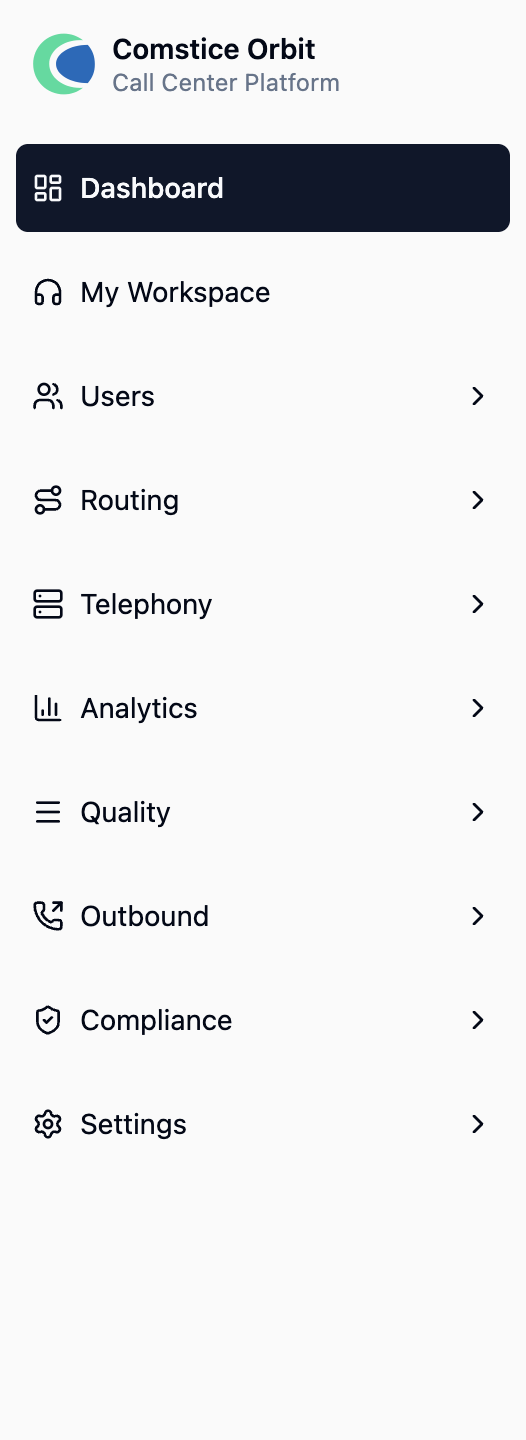
This guide is organized by topic, not by menu. To jump from a screen you're on to the chapter that explains it, use the Where to find it menu map in the Reference chapter.
The header (top) — context & controls


- Breadcrumb — where you are (e.g. Dashboard → Users → Edit).
- Notifications 🔔 and the theme toggle 🌙 (light/dark).
- Workspaces switcher (agents) — flip between the in-app softphone and the pop-out softphone (see Handling Calls).
6. Where to go next
Other roles:
- I'm an agent → Handling Calls; your own evaluations are in QA — My Evaluations; team chat is Messaging.
- I'm a receptionist / switchboard operator → Attendant Console.