Reference & Glossary
A quick-lookup chapter: the dashboard, metrics definitions, a permission cheat-sheet, and a glossary of every term used in this guide.
1. The Dashboard (your real-time floor view)
The Dashboard (the home screen, /) is a customizable grid of widgets — the
screen a supervisor lives in. Widgets are scoped: a supervisor's queue/agent
widgets show only their own queues and team; an agent sees only their own stats.
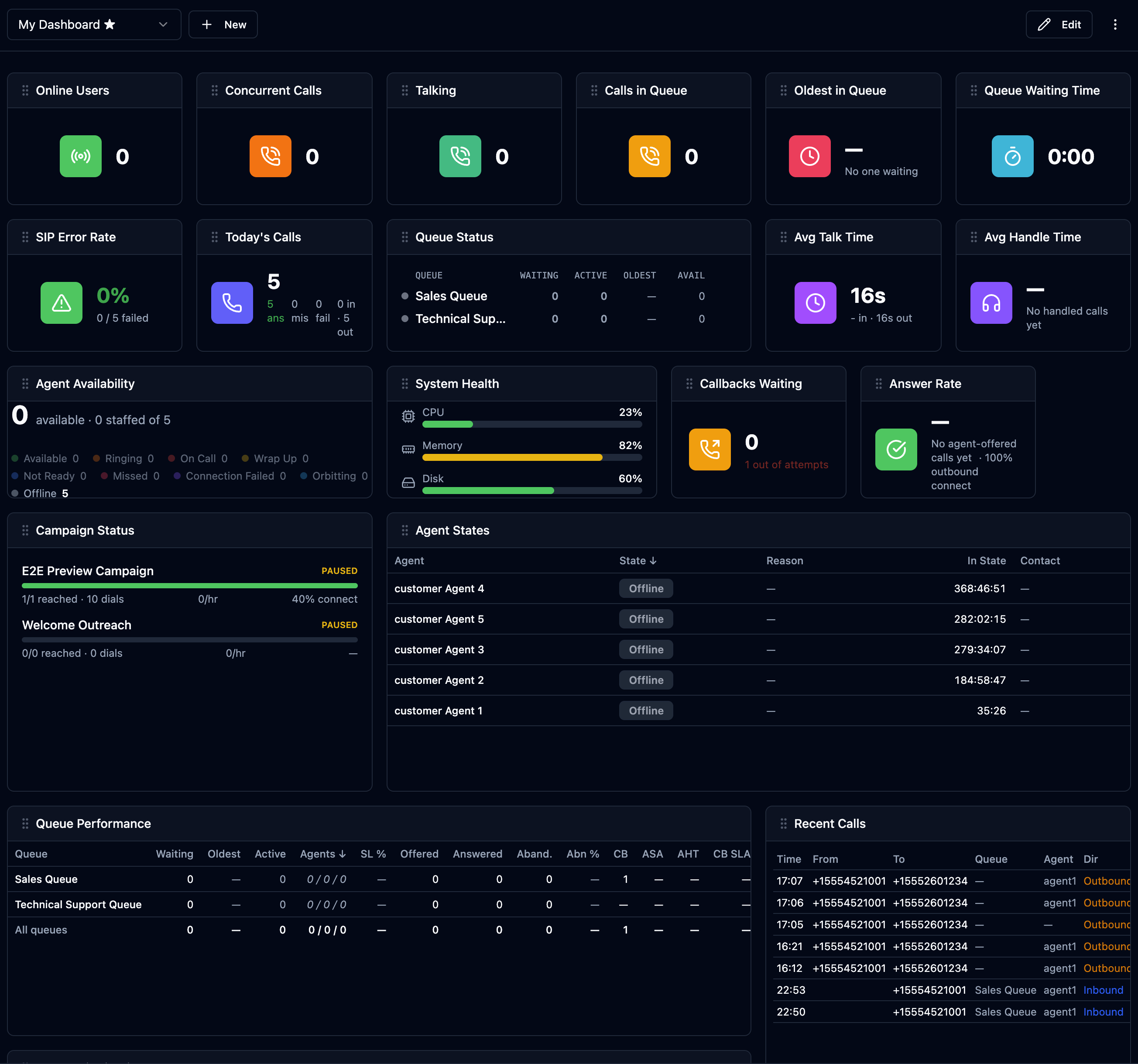
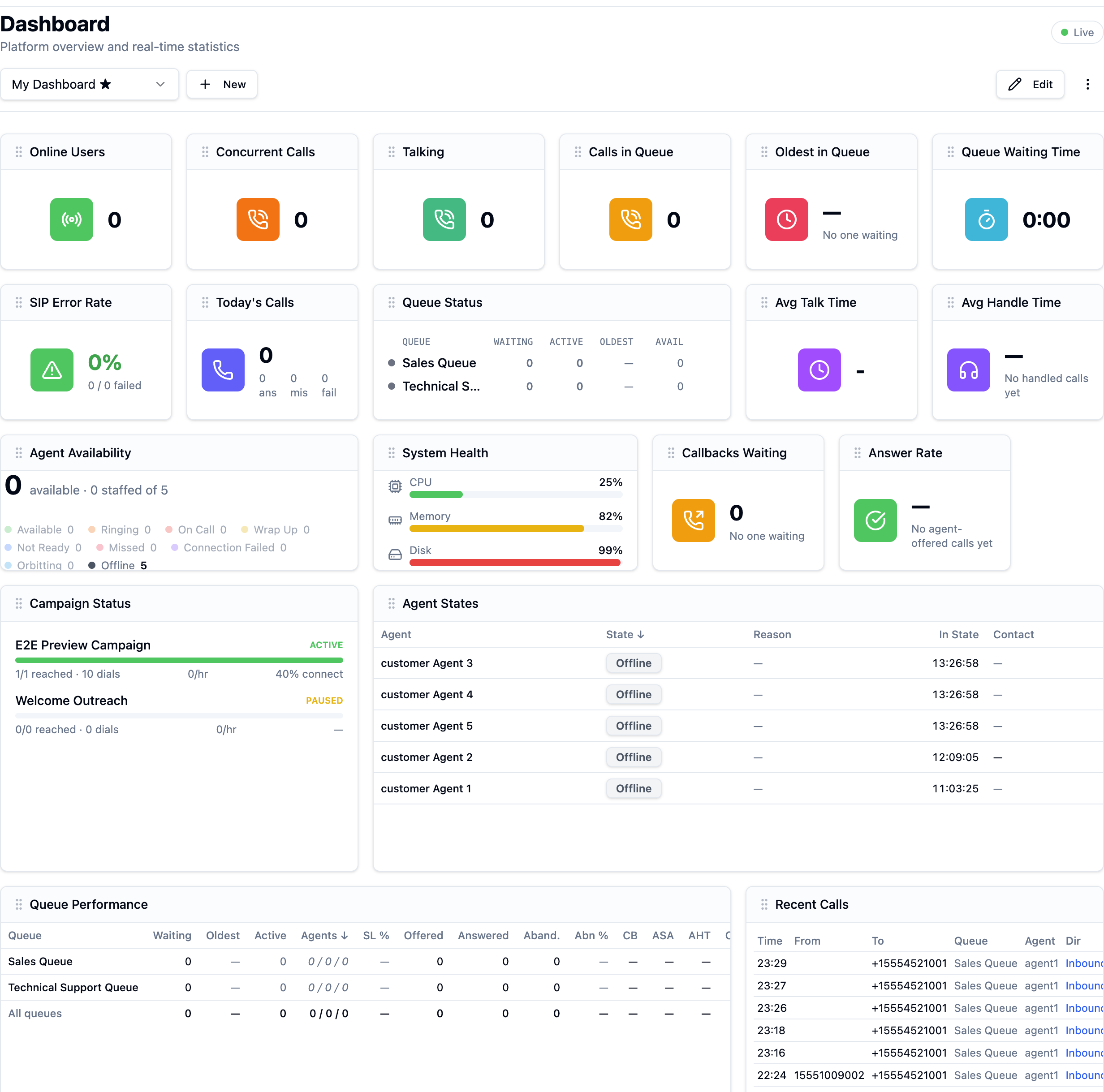
To customize: click Edit → Add Widget, pick from the catalog, drag to rearrange (the layout is responsive), then Done. Removed widgets can be re-added; some sentiment widgets need real-time transcription enabled.
Per-widget filters & thresholds (Edit mode)
In Edit mode each widget grows a small toolbar in its header — this is how you filter and tune widgets individually:
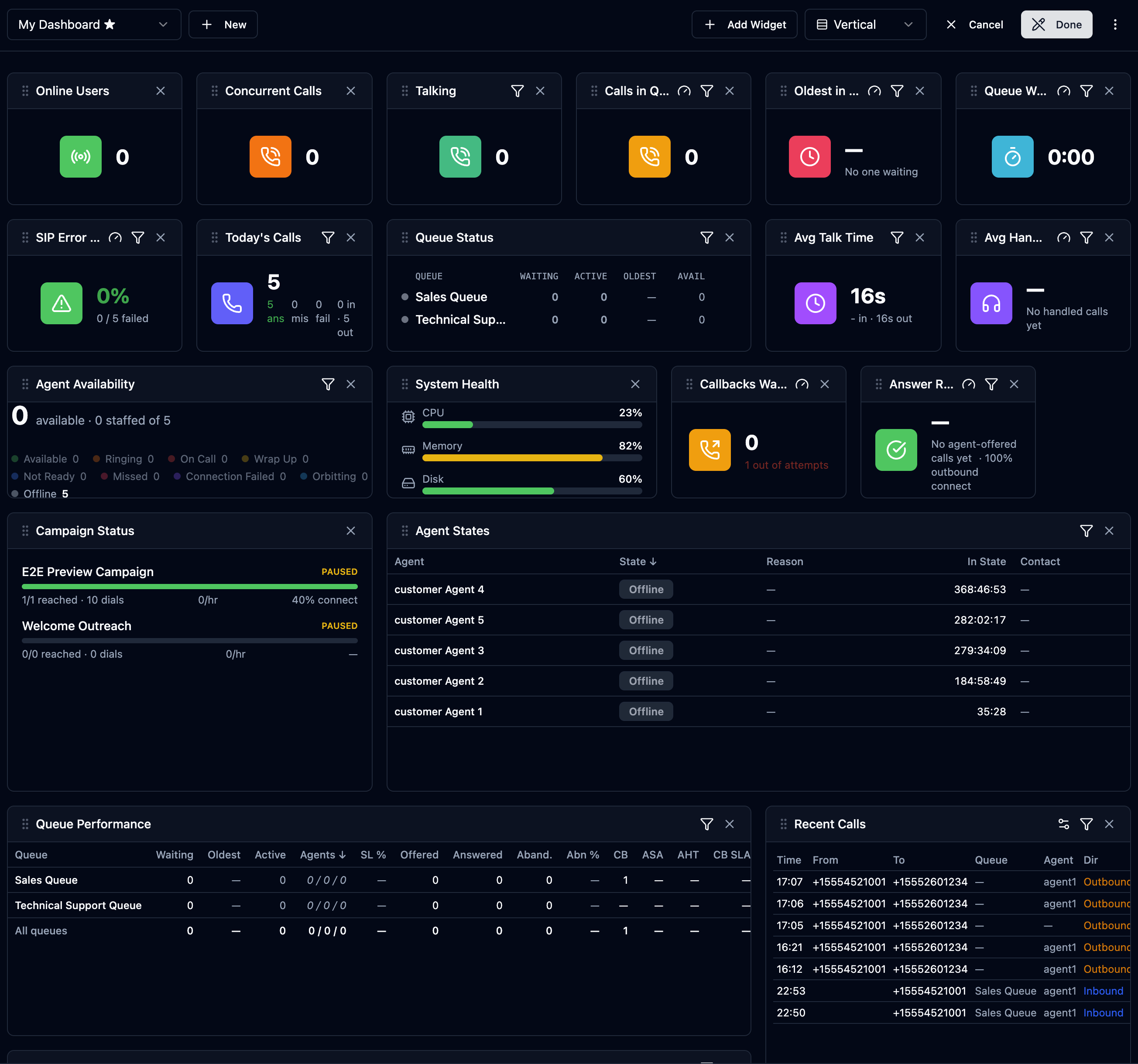
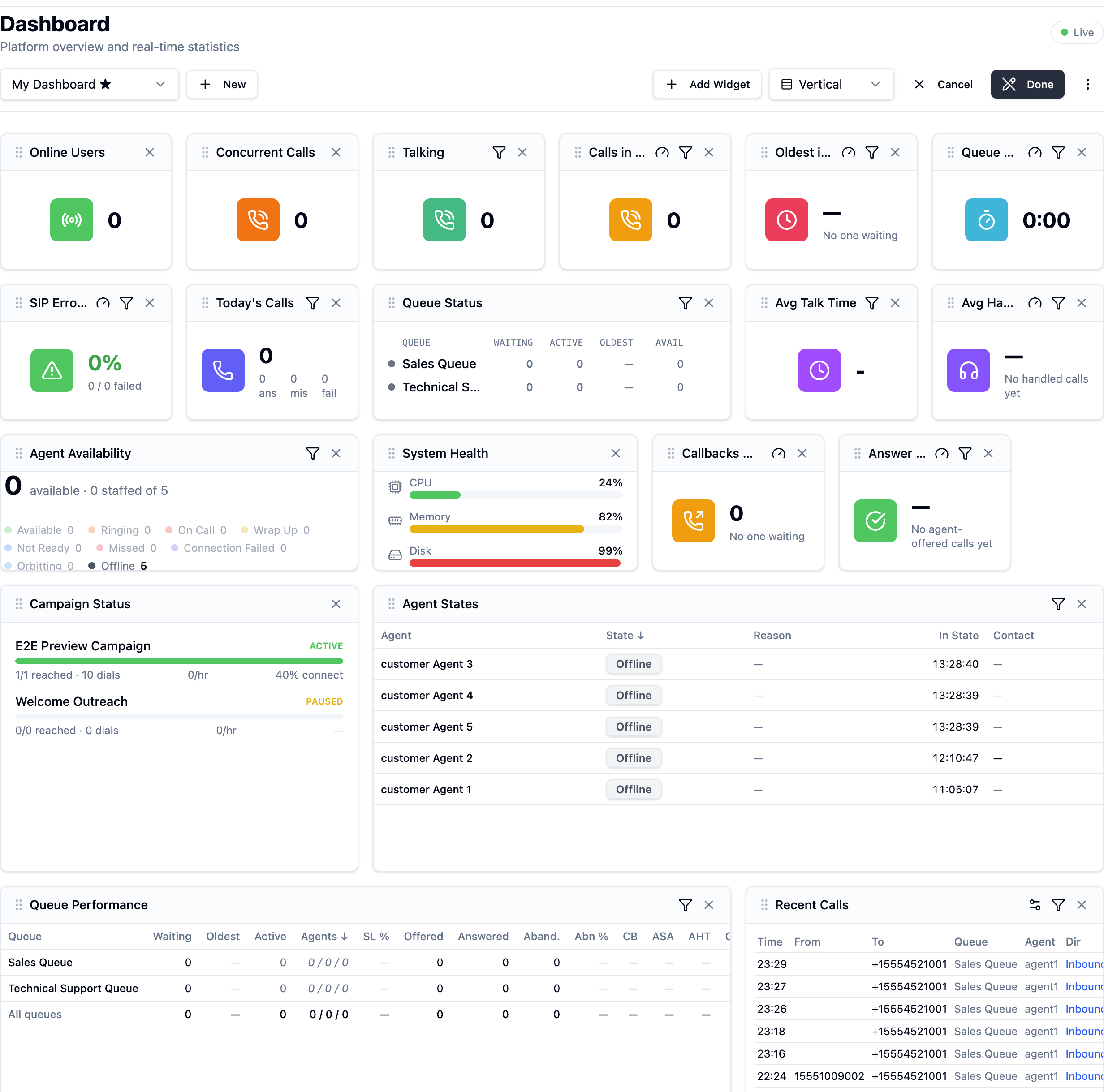
Edit mode. Every widget shows a funnel (filter) icon, many show a gauge (threshold) icon, and an × to remove it. The top bar adds Add Widget and a layout toggle (Vertical).
- Filter (funnel) icon — scope this one widget to a specific queue or agent (or a subset), independently of the rest of the board. So you can put a "Calls in Queue" tile for Sales next to one for Support, or an "Answer Rate" filtered to a single team.
- Threshold (gauge) icon — set the alert thresholds for a KPI tile (e.g. turn Answer Rate red below a target, or flag Oldest-in-Queue over N seconds).
- × (remove) — take the widget off the board (re-add it later from Add Widget).
Filters are per-widget and per-dashboard, so you can build several saved dashboards (the My Dashboard ▾ switcher) — e.g. one scoped to Sales, one to Support — and flip between them.
Widget catalog
Statistics (live KPI tiles)
| Widget | What it shows |
|---|---|
| Online Users | Agents currently signed in. |
| Today's Calls | Total calls today (answered / missed / failed). |
| Answer Rate | % of offered calls that were answered (no time bound). Not the same as Service Level — see the metrics definitions. |
| Active Calls | Calls in progress right now. |
| Avg Duration | Average call length. |
| Avg Handle Time | AHT = talk + hold + wrap-up. |
| Calls in Queue | Callers waiting right now. |
| Oldest in Queue | Longest current wait — watch this for SLA risk. |
| Queue Waiting Time | Current average wait. |
| Queue Status | Per-queue board: waiting count, agents, and an SLA indicator. |
| System Health / SIP Error Rate / Call Limit | Platform health tiles (more for admins). |
Charts
| Widget | What it shows |
|---|---|
| Today's Sentiment / Sentiment by Agent / Emotion Breakdown / Caller vs Agent | Sentiment views (need real-time transcription). |
| Monthly Trend / Daily Call Trend / Hourly Distribution | Volume trends over time. |
| Call Direction / Registration Trend | Inbound vs outbound mix; SIP registration trend. |
Tables
| Widget | What it shows |
|---|---|
| Top Users | Agent leaderboard by weighted sentiment/volume. |
| Recent Calls | The latest calls. |
| Negative Calls | Calls needing attention (needs real-time transcription). |
| Online by Domain | Online users per tenant/domain. |
Sharing dashboards
A dashboard doesn't have to stay yours. The dashboard switcher (My Dashboard ▾) groups what you can open into My Dashboards, Shared with me (marked ✏️ if you may edit, 👁️ if view-only) and Public.
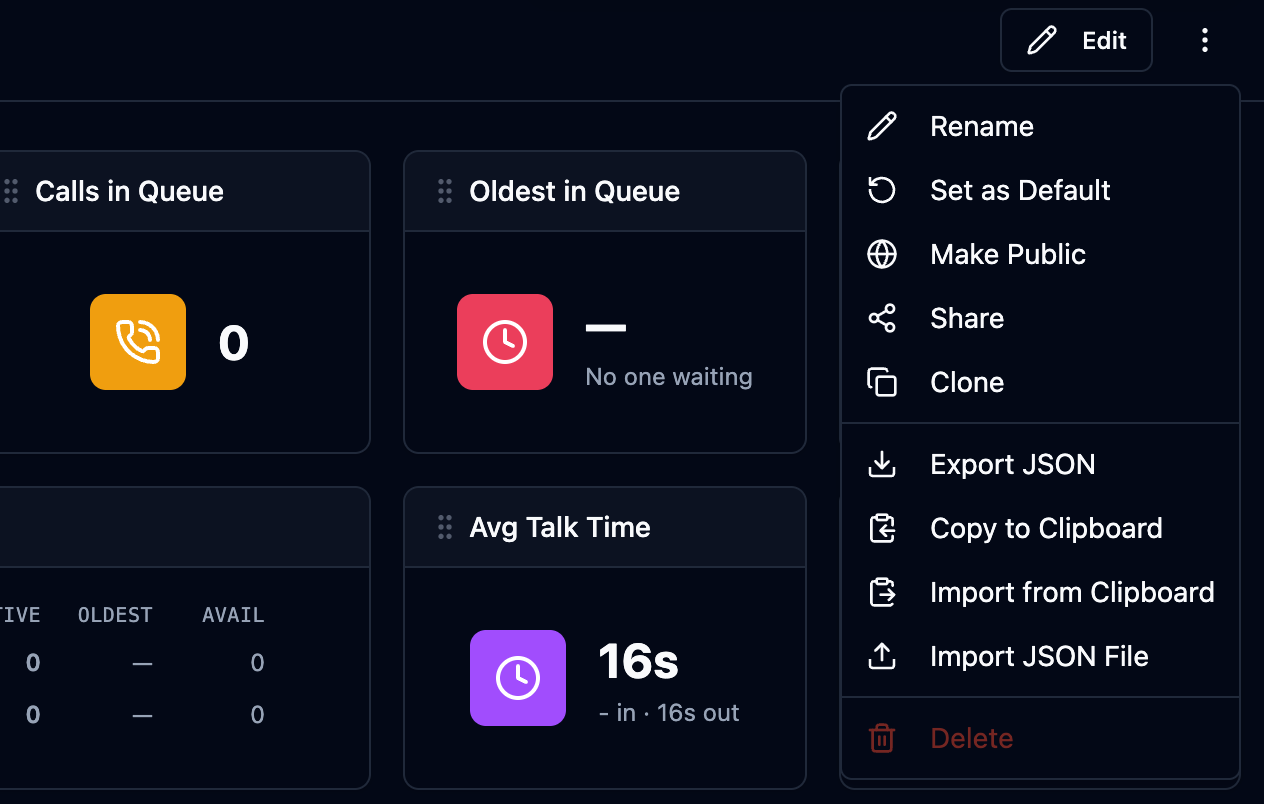
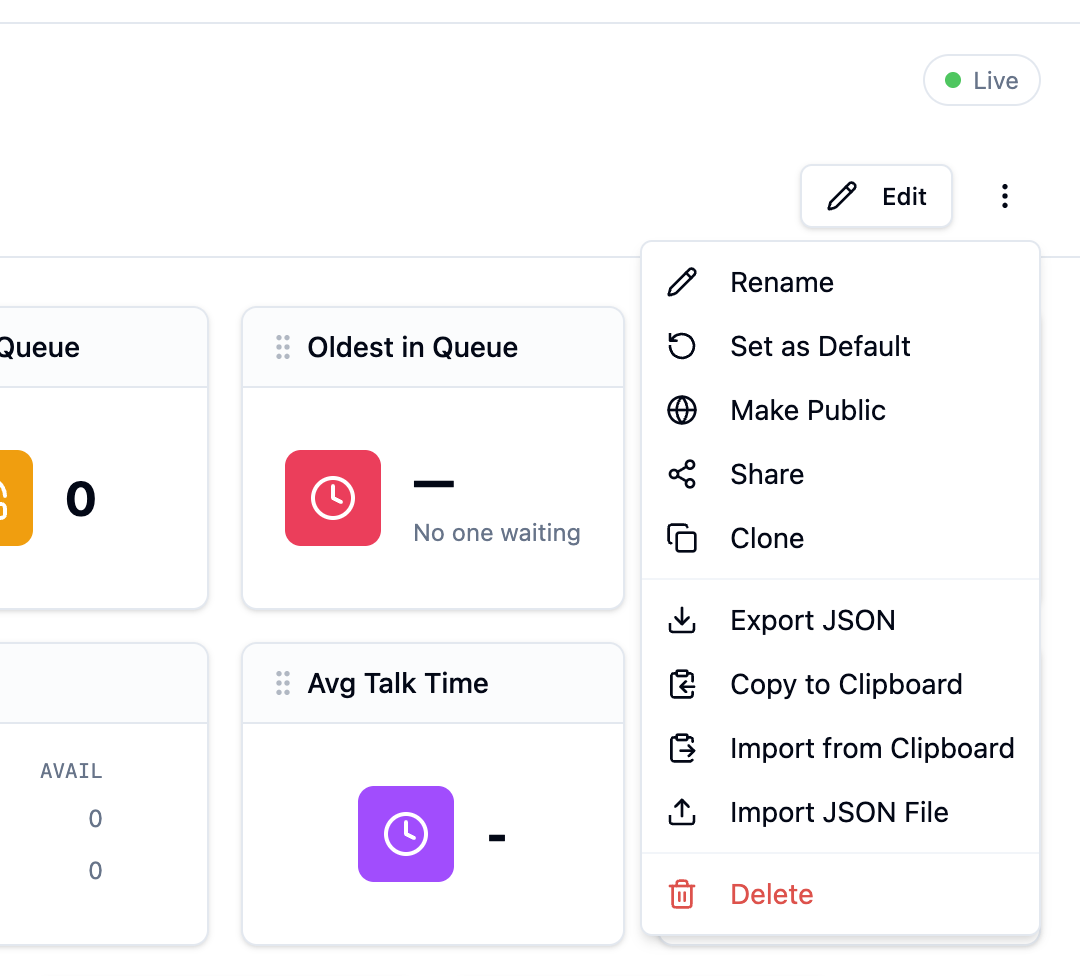
As a dashboard's owner, the ⋮ menu gives you:
-
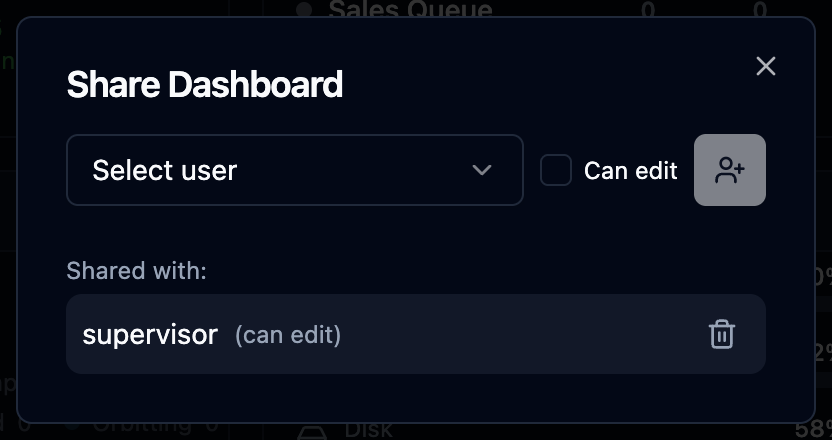
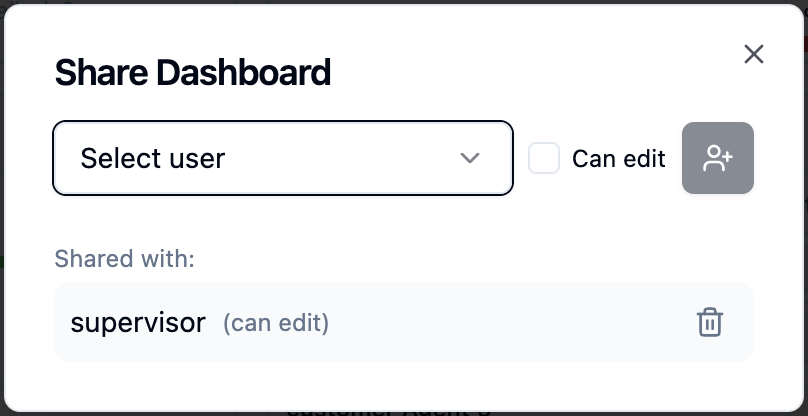
Share — pick a user, tick Can edit if they may change it, add. The dialog lists who has access (can edit / view only) and lets you remove anyone.
-
Make Public / Make Private — a public dashboard appears in every colleague's Public group. Public means "visible to signed-in users of your account" — there is no anonymous web link.
-
Set as Default, Rename, Clone, Export JSON / Copy to Clipboard (move a dashboard between accounts or share it out-of-band).
Who can see which widgets
Sharing a dashboard does not bypass widget security — each widget re-checks the viewer's rights:
- Permission — widget grants live in Users → Security Profiles, in the Dashboard Widgets group of the permission matrix (per-widget on/off, plus a Max dashboard widgets cap per profile).
- License — a widget whose product isn't licensed on the account renders as License required for everyone, admins included.
So a shared dashboard can legitimately look different per person: a widget you see may show Not permitted to a colleague whose profile lacks that grant.
2. Metrics definitions
Know what each number means. Contact-center metrics split into two families, and mixing them up is the most common reporting mistake:
- Real-time metrics are current counts and state — "how many callers are waiting right now." They go up and down live.
- Historical metrics are rates calculated over a period — "what % did we answer in time today." They're averages/percentages, not live counts.
Real-time metrics (current counts & state)
| Metric | What it means | In Orbit |
|---|---|---|
| Contacts / Calls in Queue | Callers waiting in the queue, not yet connected to an agent. | Calls in Queue tile; Queue Status waiting count. |
| Oldest in Queue | Age of the longest-waiting caller right now — the number to watch for SLA risk. | Oldest in Queue tile. |
| Available agents | Agents whose status is Available and who can take an inbound call now. | See the note below on Online Users — it's not the same thing. |
| Agents on contact | Agents currently handling a call (connected / hold / wrap-up). | Approximated by Active Calls (a call count, not an agent count). |
| Current average wait (live) | The average wait of the callers in the queue right now — each waiter's time-so-far, averaged at this instant (it refreshes every few seconds and ticks up between refreshes). It is a now number, not the period metric ASA: the moment the queue empties it reads 0. | Queue Waiting Time tile (across several queues the tile shows the worst queue's figure). |
Online Users counts everyone signed in — including agents on Break, in wrap-up, or on a call. It is not the count of agents ready to take a new call. When you're deciding whether to staff up, read the Agent States roster (Ch. 2) for the true Available count, not Online Users.
Historical metrics (rates over a period)
| Metric | Definition & formula | In Orbit |
|---|---|---|
| Service Level (X s) | % of contacts answered within X seconds (X is a configurable threshold, e.g. "Service Level 20" = % answered in under 20 s). The denominator is everything offered to the queue — callers who abandoned are counted, however briefly they waited, so a wave of quick hang-ups pulls the figure down. | Live. Each queue has a service-level target (default 80 % within 20 s); the Queue Status widget shows the resulting SLA % and breach alerts. The target is set on the queue form — Answer within / Service level target / Max abandon rate fields. |
| Answer Rate | % of offered calls that were answered, with no time bound. | Answer Rate tile. Useful, but it is not Service Level — a call answered after 5 minutes still counts as answered here. |
| Abandonment rate | % of callers who hung up while waiting in queue, before reaching an agent. Formula: (abandoned ÷ queued) × 100. | No dedicated tile; track via Call Records filtered to abandoned. |
| Average Handle Time (AHT) | Average total handling time per call = talk + hold + wrap-up (ACW). | Avg Handle Time tile. |
| Average interaction (talk) time | Average time the agent was actually talking to the customer — excludes hold and wrap-up. | Not a separate tile; don't confuse it with Avg Duration. |
| Average Duration | Average total call length end to end. | Avg Duration tile. Longer than talk time because it includes IVR, queue, hold, and wrap-up. |
| Occupancy | Of an agent's signed-in time (every state from Available through Not Ready — everything except Offline), the % spent on contacts (talk + wrap-up). Formula: (talk + wrap-up) ÷ logged-in × 100. | On the Agent Performance page (Analytics → Agent Performance) — occupancy and state durations per agent over a period. |
| Adherence | % of time an agent followed their schedule — a workforce-management (WFM) measure, produced by a scheduling system. | Orbit reports agent time from its own state data (see Occupancy and the Agent Performance page); schedule adherence itself comes from your WFM tool. |
Avg Duration (whole call) ≠ AHT (talk + hold + wrap-up) ≠ interaction time (talk only). They get bigger in that order. When someone asks "how long are our calls," ask which they mean.
Counting vocabulary. When you filter Call Records, these are the words to use consistently: queued (entered a queue), answered / handled (connected to and handled by an agent), abandoned (hung up in queue before an agent), missed (offered to a specific agent whose offer rang out — an agent-side event: the caller doesn't leave, the call is re-offered to the next agent, and the agent who missed it is parked in the sticky Missed state until they recover it — see Handling Calls).
- In the queue metrics (Service Level, abandonment), offered is every inbound caller who entered the queue. Outbound calls are counted separately and never touch service level or abandonment.
- Behind the Answer Rate tile, offered is inbound calls minus the ones the IVR handled on its own — self-service is not something an agent failed to answer.
Both are the right denominator for their own question, but they are different numbers, so never carry one screen's "offered" into the other's formula.
4. Glossary
| Term | Meaning |
|---|---|
| Abandonment rate | % of callers who hung up in queue before an agent — (abandoned ÷ queued) × 100. |
| ACD | Automatic Call Distributor — decides which waiting caller goes to which agent. |
| ACW | After Contact Work — Orbit's Wrap-Up; post-call notes time, counted in AHT. |
| Adherence | % of time an agent follows their schedule — a workforce-management (WFM) metric, produced by a scheduling system. |
| Agent | A user who handles calls (has a routing profile). |
| Agent Assist | Live knowledge-base suggestions surfaced to the agent during a call (Recordings & AI, Knowledge Base). |
| AHT | Average Handle Time — talk + hold + wrap-up (ACW). |
| Answer Rate | % of offered calls answered (no time bound) — not the same as Service Level. |
| Application | The handler a phone number points at; runs a call flow. |
| ASA | Average Speed of Answer — average wait before a call is answered, measured over a period (historical). The live Queue Waiting Time tile is a different, instantaneous number — the current waiters' average so far. |
| Attendant Console | The switchboard operator's screen — board-first call pickup and drag-to-transfer (Ch. 14). |
| Barge | Supervisor joins a live call so both parties hear them. |
| Call Flow | The visual script Orbit follows for a call (IVR). |
| Call Journey | The chronological timeline of events in one call. |
| Callback | The caller keeps their queue place without holding — Orbit calls them back when an agent frees up (Queues & ACD §4). |
| Campaign | An outbound dialing job over a contact list (Ch. 11). |
| Carrier / Trunk | Your connection to a phone provider. |
| DID | Direct Inward Dialing — a phone number customers call. |
| Disposition | The outcome an agent (or the dialer) records for an outbound contact — sale, callback, no answer… (Ch. 11 §8). |
| DNC | Do-Not-Call — your account's own suppression ledger of numbers that must never be dialed, checked on every campaign and manual dial (Outbound Campaigns §6). |
| DSAR | Data Subject Access Request — a person's request to see or delete their data. |
| DTMF | The tones from phone keypad presses (touch-tone). |
| Gateway | A network endpoint (IP/port) of a carrier. |
| Intercept (Take Over) | Supervisor takes the call: the agent is dropped and the supervisor continues with the caller. |
| IVR | Interactive Voice Response — the automated menu ("press 1…"). |
| Legal Hold | A freeze that prevents recordings from being deleted. |
| Longest-idle | Distribution that offers a call to the agent idle the longest (the default ring strategy). |
| Programmable Voice | Answering a number from your own HTTPS endpoint instead of a call flow (Programmable Voice). |
| AI agent (persona) | A saved virtual agent — voice, prompt, knowledge and answer sources — that a flow node or a queue can answer with (Agents & Teams §5). |
| Containment | The share of AI-handled calls the assistant finished without passing the caller to a person. |
| Meet-Me room | A permanent conference bridge with its own number and PIN; callers dial in whenever they need it (Meet-Me Conference). |
| Missed | The sticky agent state after a rejected or unanswered offer — no new calls until the agent goes Available again (Ch. 2 §3). |
| Monitor (Listen) | Supervisor listens to a live call silently. |
| Quick Connect | A pre-saved transfer destination the agent picks from a list (Handling Calls §4). |
| RONA | Redirect On No Answer — how long an offer rings an agent before it's pulled back and re-routed. |
| Scorecard | A reusable QA evaluation template of weighted criteria (Ch. 8). |
| Simultaneous ring | Queue ring strategy that rings several agents at once; the first to accept takes the call, the others are released without a missed-call penalty. |
| Occupancy | % of signed-in time spent on contacts — (talk + wrap-up) ÷ logged-in × 100 (shown on the Agent Performance page). |
| PII | Personally Identifiable Information. |
| Queue | A waiting room for calls. |
| Retention | How long recordings/transcripts are kept before deletion. |
| Routing Profile | An agent's queue assignments, priorities, and delays. |
| Security Profile | A named bundle of permissions assigned to a user. |
| Service Level (X s) | % of calls answered within X seconds — the classic SLA measure. |
| Sentiment | A positive/neutral/negative score for spoken segments. |
| SIP | The signaling protocol that sets up phone calls. |
| Tenant | One company on the platform, with its own URL and isolated data. |
| View-As | A platform/reseller admin temporarily seeing Orbit as a customer. |
| Whisper | Audio only the agent hears (coaching, or a pre-connect announcement). |
| Wrap-Up | After-call work — notes/disposition an agent enters post-call. |
5. Where to find it (menu map)
This guide is organized by topic, but the Orbit app groups screens into a few menus. Use this map to jump from a screen you're looking at to the chapter that explains it. Only the menus your permissions allow appear in your sidebar, so your own menu may be shorter than this map.
| App menu | Screen | Explained in |
|---|---|---|
| Dashboard | Dashboard | §1 above |
| My Workspace | Softphone (in-app) | Handling Calls |
| Attendant | Switchboard console | Attendant Console |
| Messages | Internal chat | Messaging |
| Users | Agent States | Agents & Teams |
| Analytics | Live Monitor / Supervisor Monitoring | Handling Calls |
| Call Records / Review / Sentiment Dashboard | Recordings & AI | |
| Shrinkage / Handle Time | Agents & Teams | |
| Quality | Evaluations / My Evaluations / Calibration | Quality Assurance |
| Outbound | Campaigns | Outbound Campaigns |
| Notifications 🔔 | Notifications | §6 below |
6. Notifications — the alert center
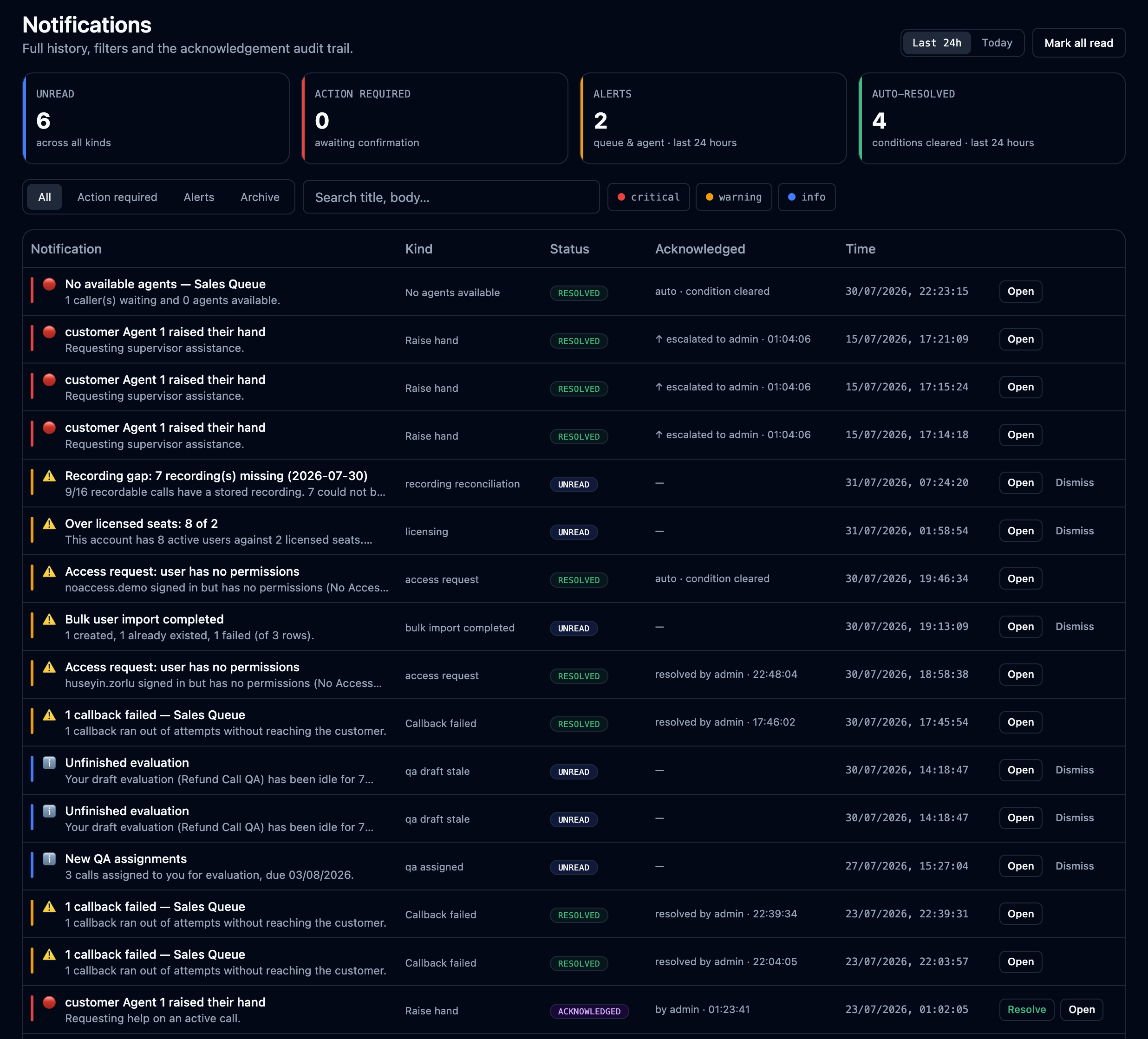
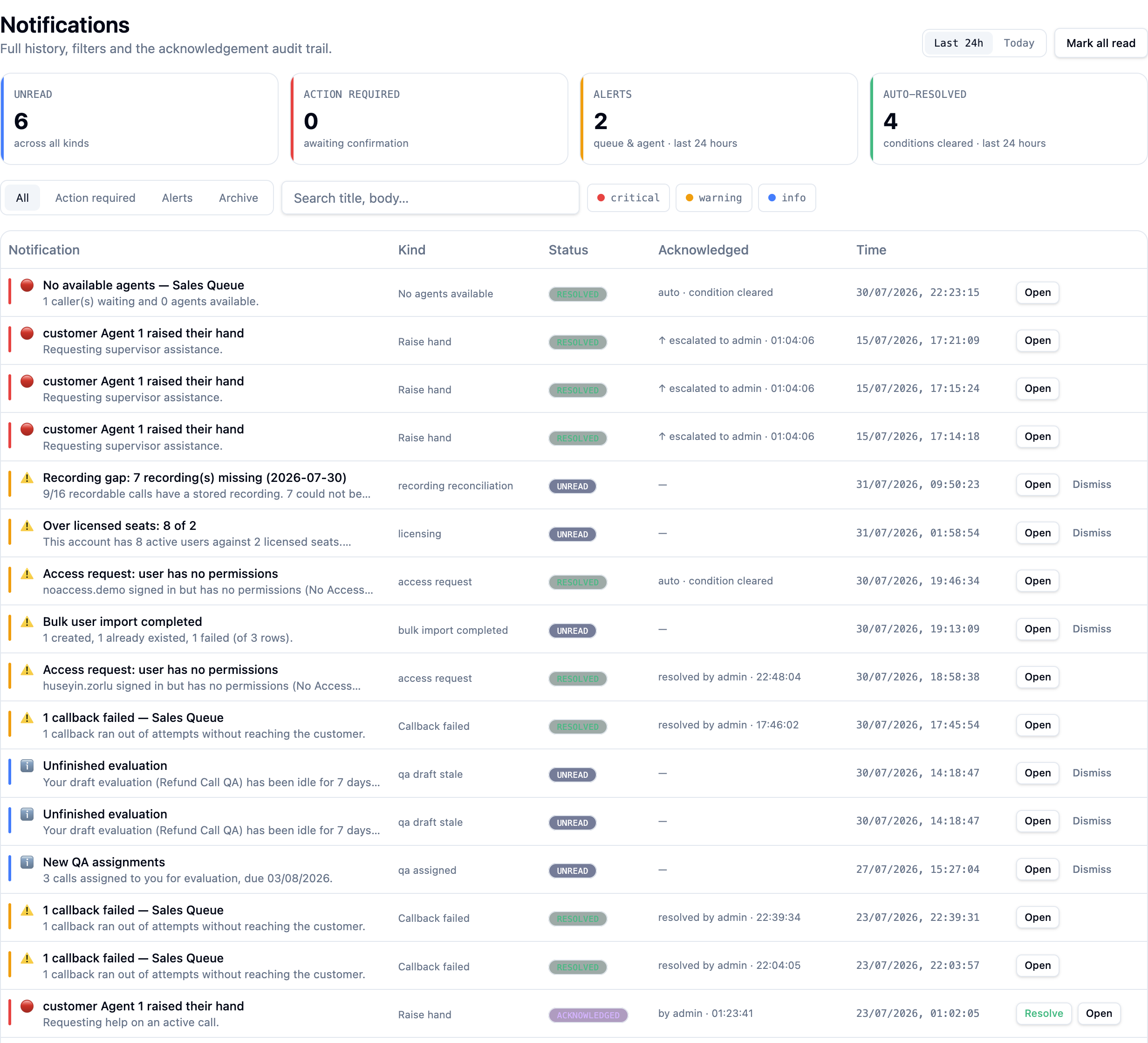
The bell 🔔 in the header is the doorway to Orbit's Notification Center — one place where everything that wants your attention lands: queue SLA alarms, agents with connection trouble, long-held calls, raised hands, callbacks that ran out of attempts, background-job failures, QA assignments, and dated things that are about to break — an SSO signing certificate nearing expiry reaches whoever can replace it, 30, 7 and 1 day out.
The Notifications page
Click the bell (or Notifications in the menu) for the full page:
- A counter strip across the top — Unread, Action required, Alerts, Auto-resolved — each one a click-filter.
- Search and filters over the whole notification history, so "what happened with the Sales Queue last night?" is answerable after the fact — the page doubles as an audit trail of alerts.
- Every notification has an Open button that lands on the right screen for that alert: a queue alarm opens Live Monitor, an agent connectivity problem opens Agent States, a long-hold alarm opens Live Monitor filtered to that call.
Resolving an alert
Condition-based alerts (help requests, SLA breaches, long holds…) carry a Resolve button — pressing it marks the alert handled, and who resolved it shows in the list. If the underlying condition clears on its own, the alert auto-resolves anyway; Resolve is how you say "seen it, on it" to the rest of the floor.
Resolving also silences the repeat: once you manually resolve an alert, the same unchanged condition won't raise a new card for 24 hours. Two things end the silence early — the situation materially changes (say "1 callback exhausted" becomes "2 callbacks exhausted": that's news, so it notifies), or the full day passes with the condition still present (an untreated problem re-reminds daily rather than never). Auto-resolved alerts are different: there the condition genuinely cleared, so if it comes back you get a brand-new alert immediately.
QA notifications
The QA module speaks through the same center:
| Notification | When it fires | Who gets it | Open lands on |
|---|---|---|---|
| Unfinished evaluation | Your draft evaluation sat untouched for 7 days (fires once) | Whoever opened the draft | That evaluation |
| New QA assignments | A sampling plan assigned you calls (count + due date) | The evaluator | Evaluations, filtered to yours |
| Your QA result is ready | An auto-submitted evaluation completed | The evaluated agent | My Evaluations |
| AI evaluation ready | AI Judge finished, awaiting supervisor approval | Supervisors | That evaluation |
An evaluation draft that has real work in it is never silently cleaned up — its owner is reminded instead (the Unfinished evaluation notification). Only never-started, empty drafts are quietly removed after a while.
Notification preferences
Settings → Notification Preferences is where each user tunes the firehose:
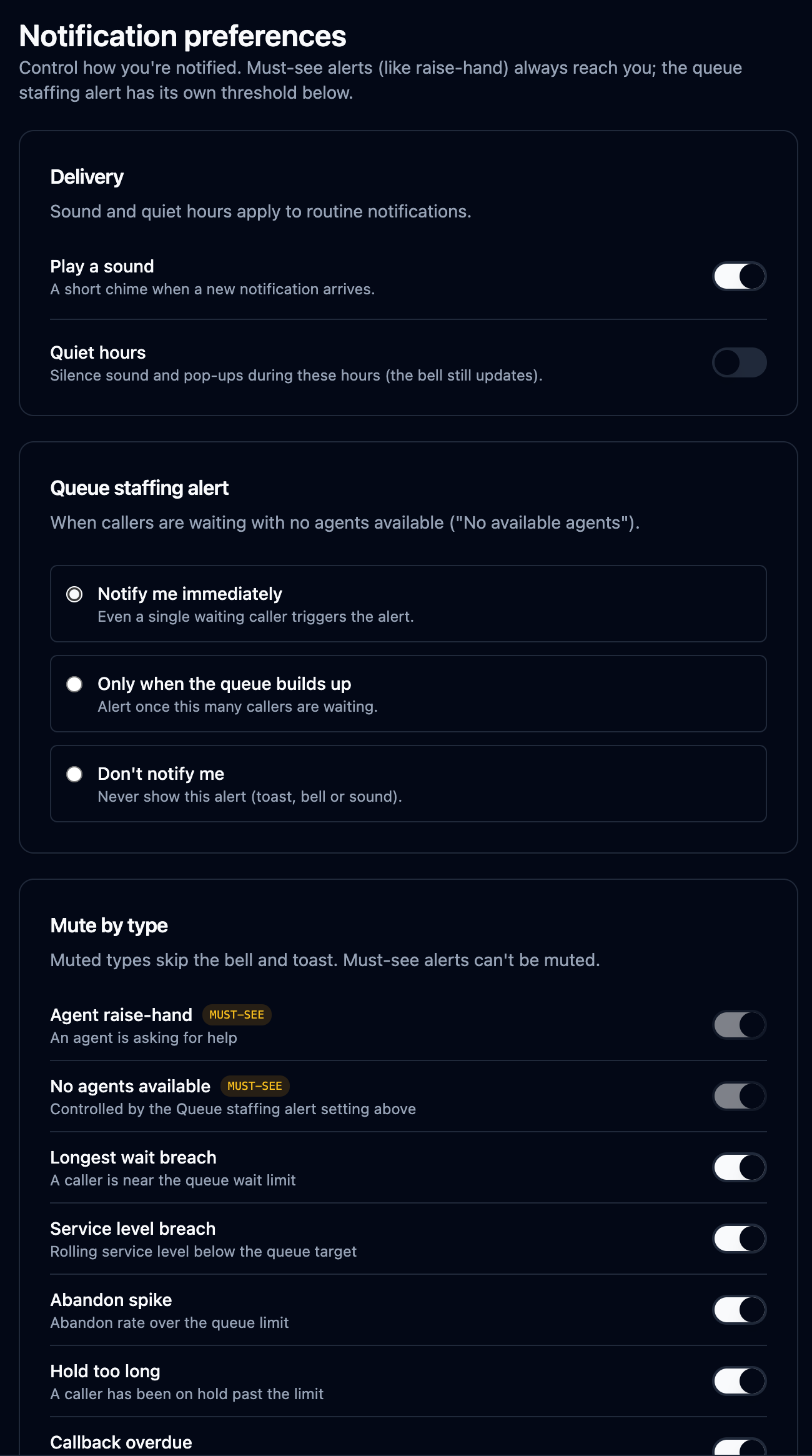
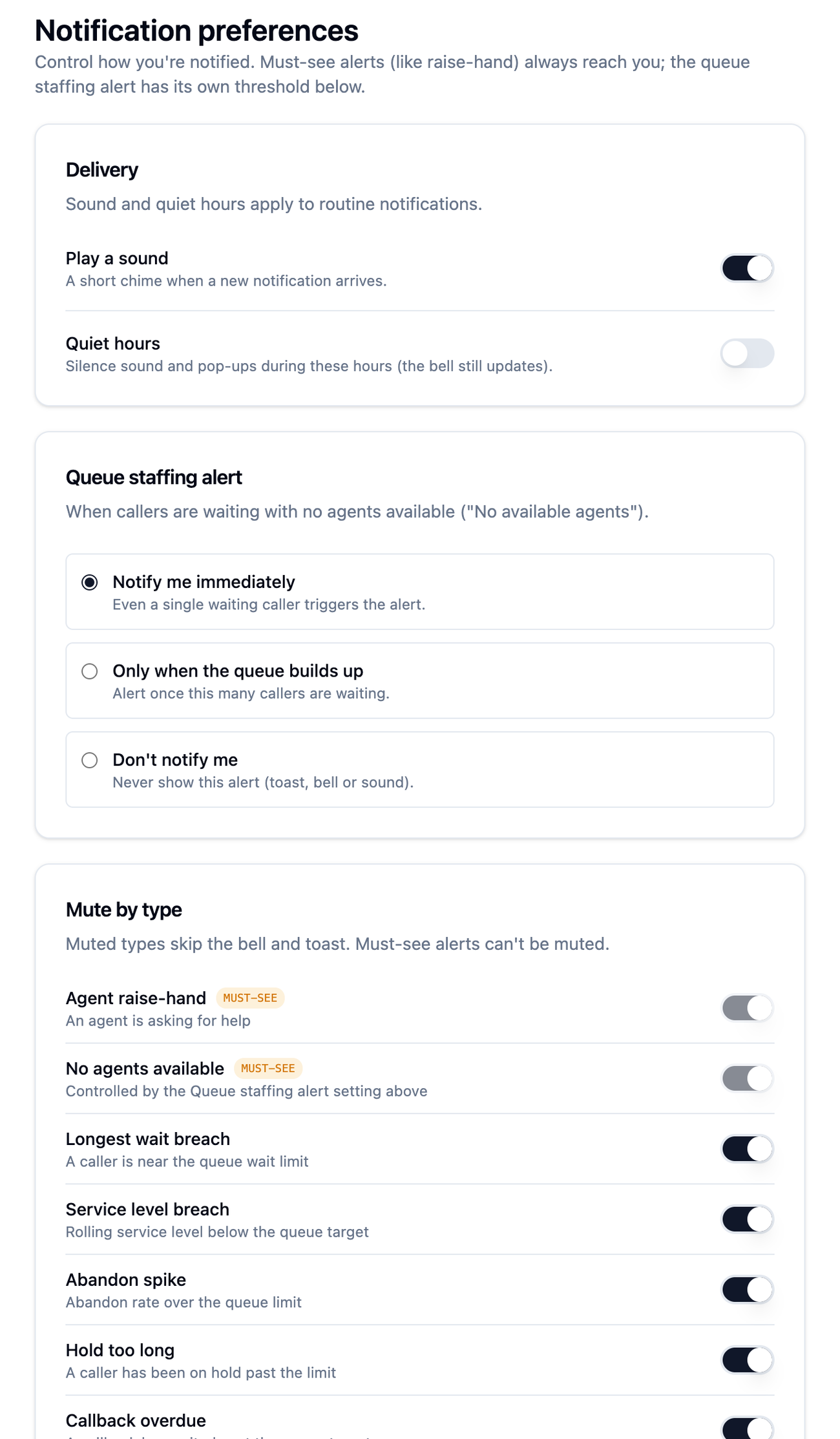
- Mute individual notification types you don't want.
- Quiet hours — a daily window in which non-critical notifications hold.
- Sound on/off for the in-app chime.
- Email — the same alerts can be delivered to your account email, per type.
Preferences are per user — muting something affects your bell, not your colleagues'.