Messaging
Messaging is Orbit's internal chat: direct messages between colleagues, team groups, and one-way broadcasts — inside the same app people already run their calls in. An agent asks a colleague to cover a slot, a supervisor announces the Saturday shift, the attendant hands a caller's context to the person about to take the call.
In the app: Messages in the sidebar (/messages) — plus a floating
chat dock on every other page, so a conversation doesn't force anyone off
the screen they're working on.
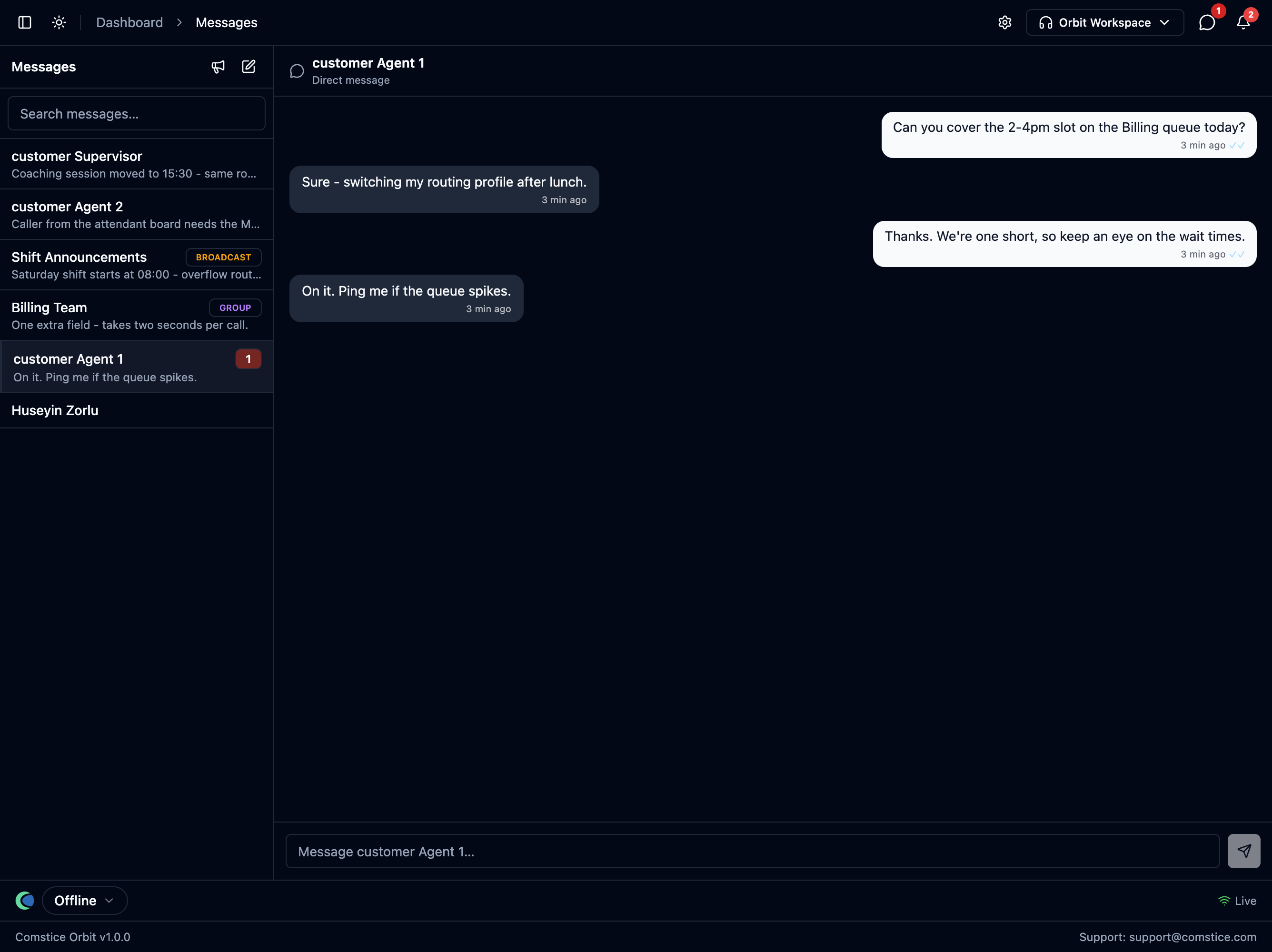
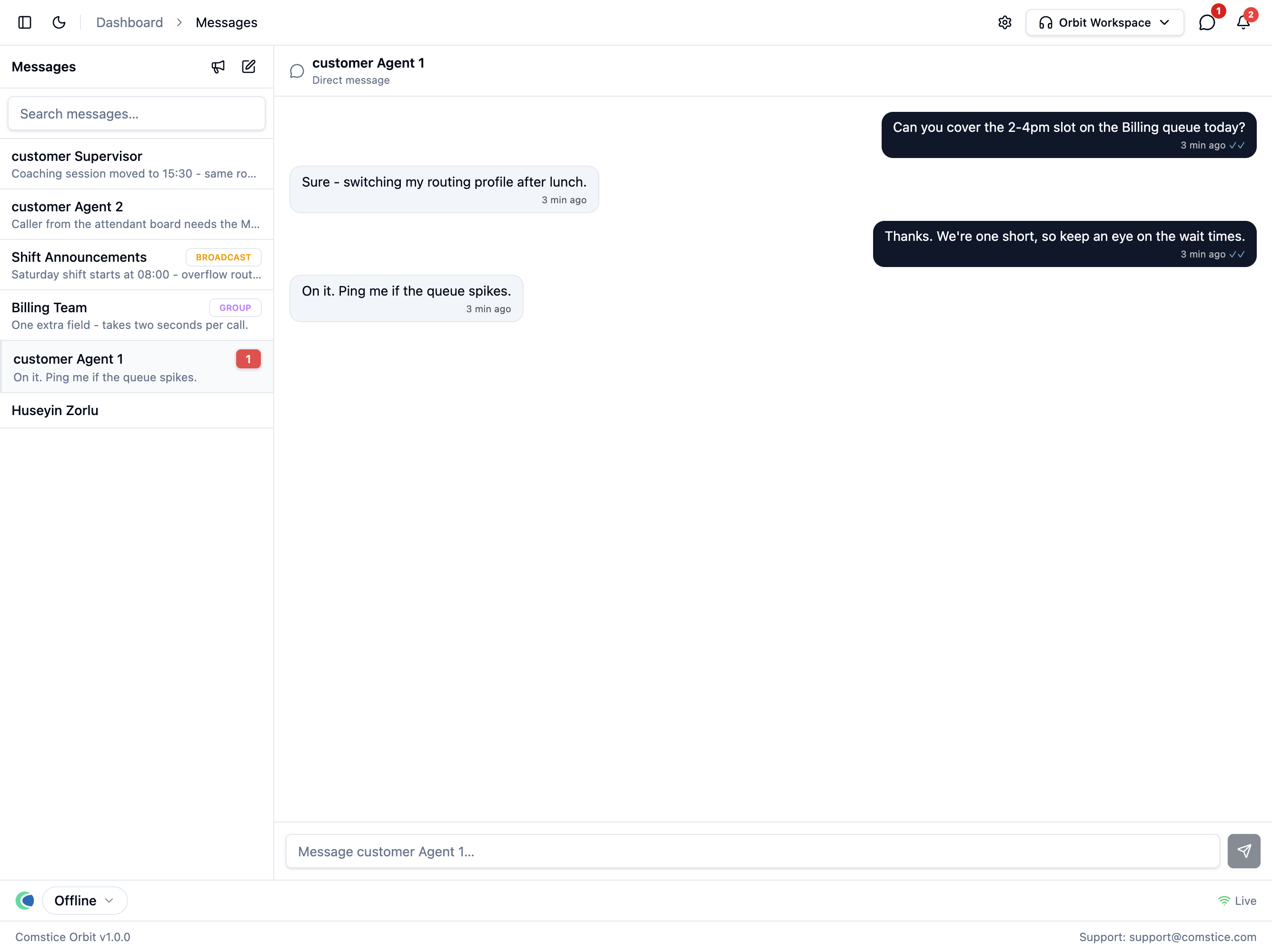
Messaging is a licensed product; accounts entitled to the Attendant Console
are messaging-entitled as well — an operator with a caller on the line must be
able to message the colleague they're about to hand the caller to (the CALL
threads below). The menu item appears when the account has the license and the
user's security profile grants chat.use.
The page and the dock are the same conversations
The full page is for working through messages; the dock is for not leaving the
page you're on. The dock opens from the speech-bubble button in the header —
its red badge counts your unread messages and pending requests; click again to
close it. Both surfaces read the same threads, both update live, and both are
URL-addressable — /messages?thread=<id> opens a conversation on the full page,
?chat=<id> opens the dock on any page, which is exactly what a notification
links to.
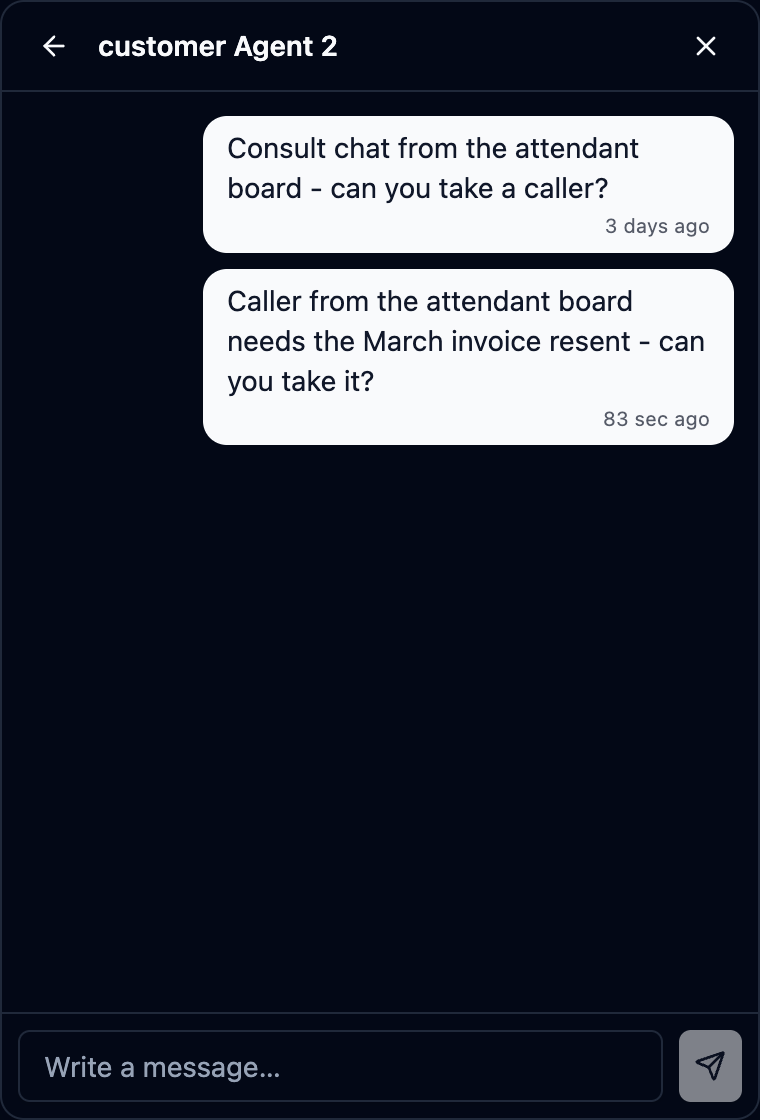
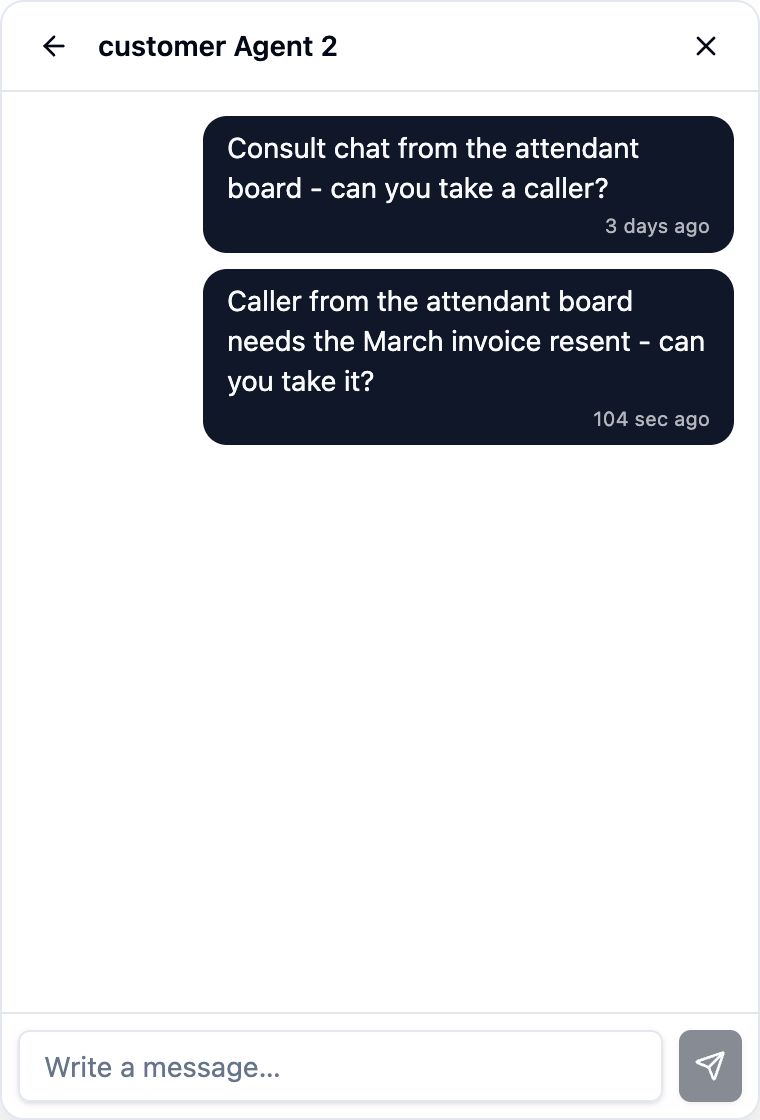
The standalone Orbit Panel window (the pop-out softphone) doesn't carry the dock — it has its own Chat tab built into the panel, a compact view of the same conversations sized for the small window. Same threads, different door.
Read the thread list
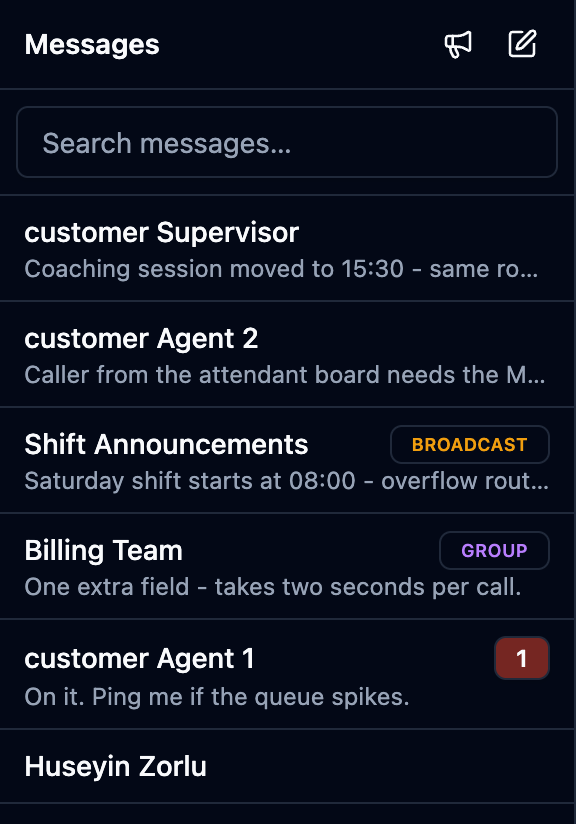
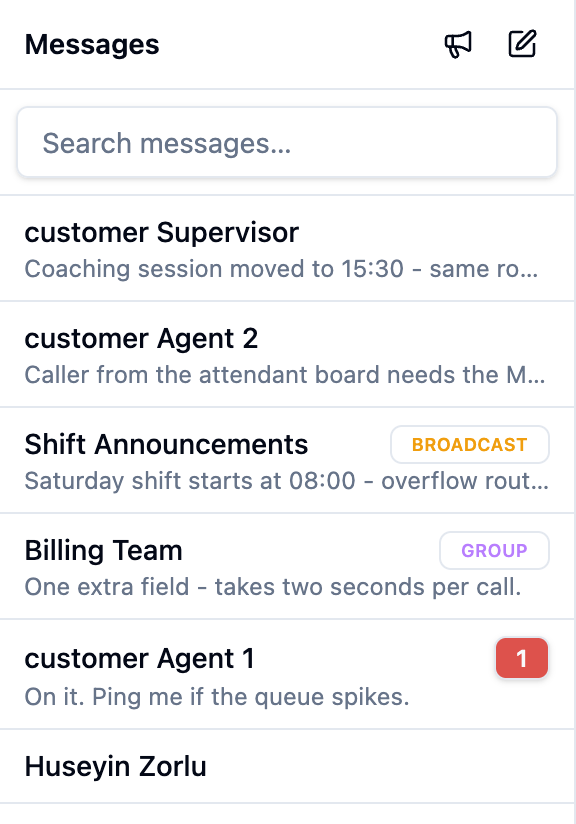
- No badge — a direct message.
- GROUP — everyone in it can post.
- BROADCAST — one-way: the owner posts, members read.
- A red count — unread messages in that conversation.
- CALL — the conversation was opened from the attendant board while a caller was on the line (see Attendant Console); the thread's first line says so, because the recipient must instantly see why this conversation exists.
- Search covers the messages in your own conversations (type at least two characters).
Have a conversation
To start a direct message:
- Click the pencil (New message) button — it sits at the top of the thread list on the Messages page, and in the dock's header.
- A "Search people…" picker lists your colleagues — type a few letters and click the person.
- Type in the composer; Enter sends, Shift+Enter makes a new line.
(To continue an existing conversation, just open the thread and type.)
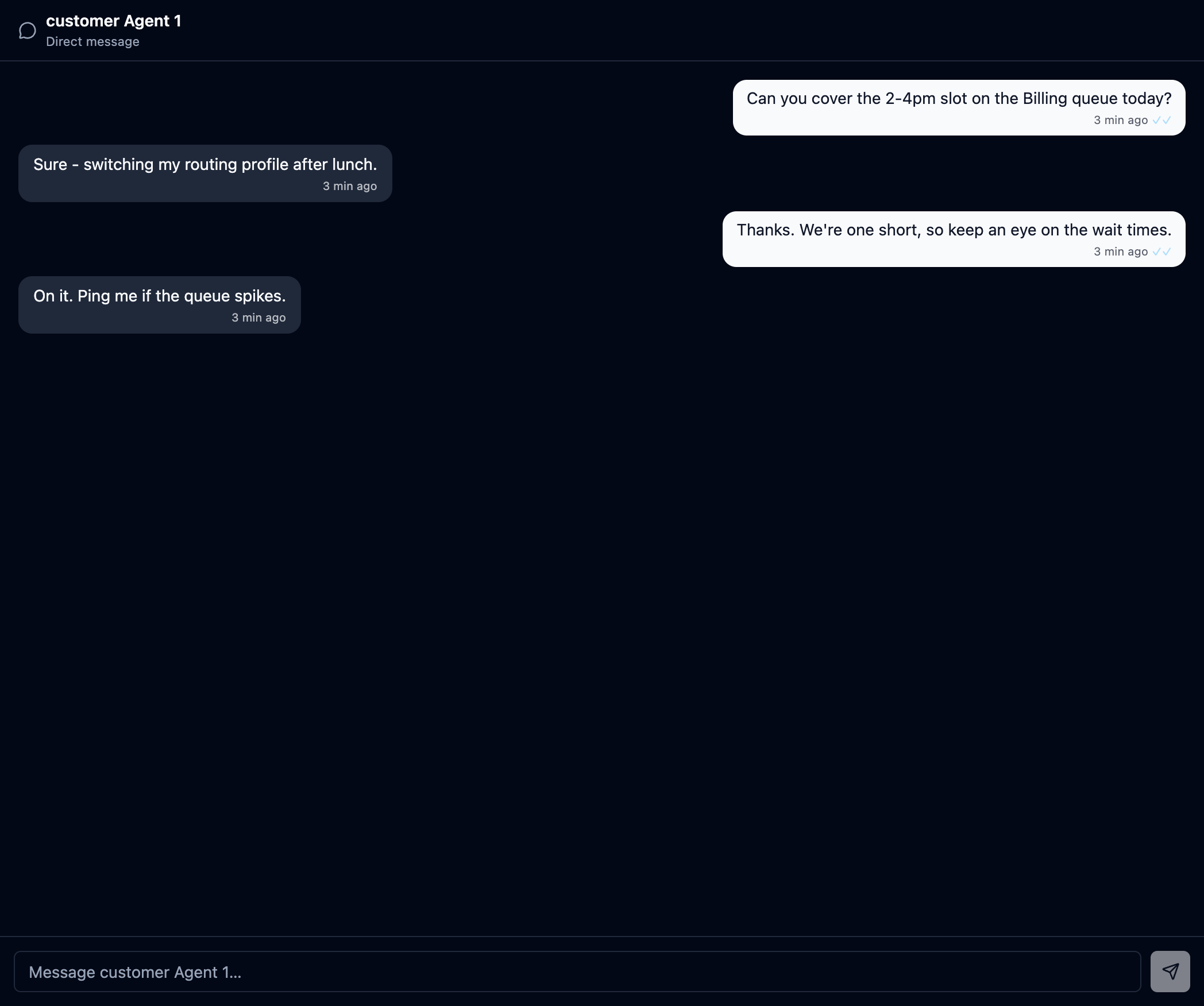
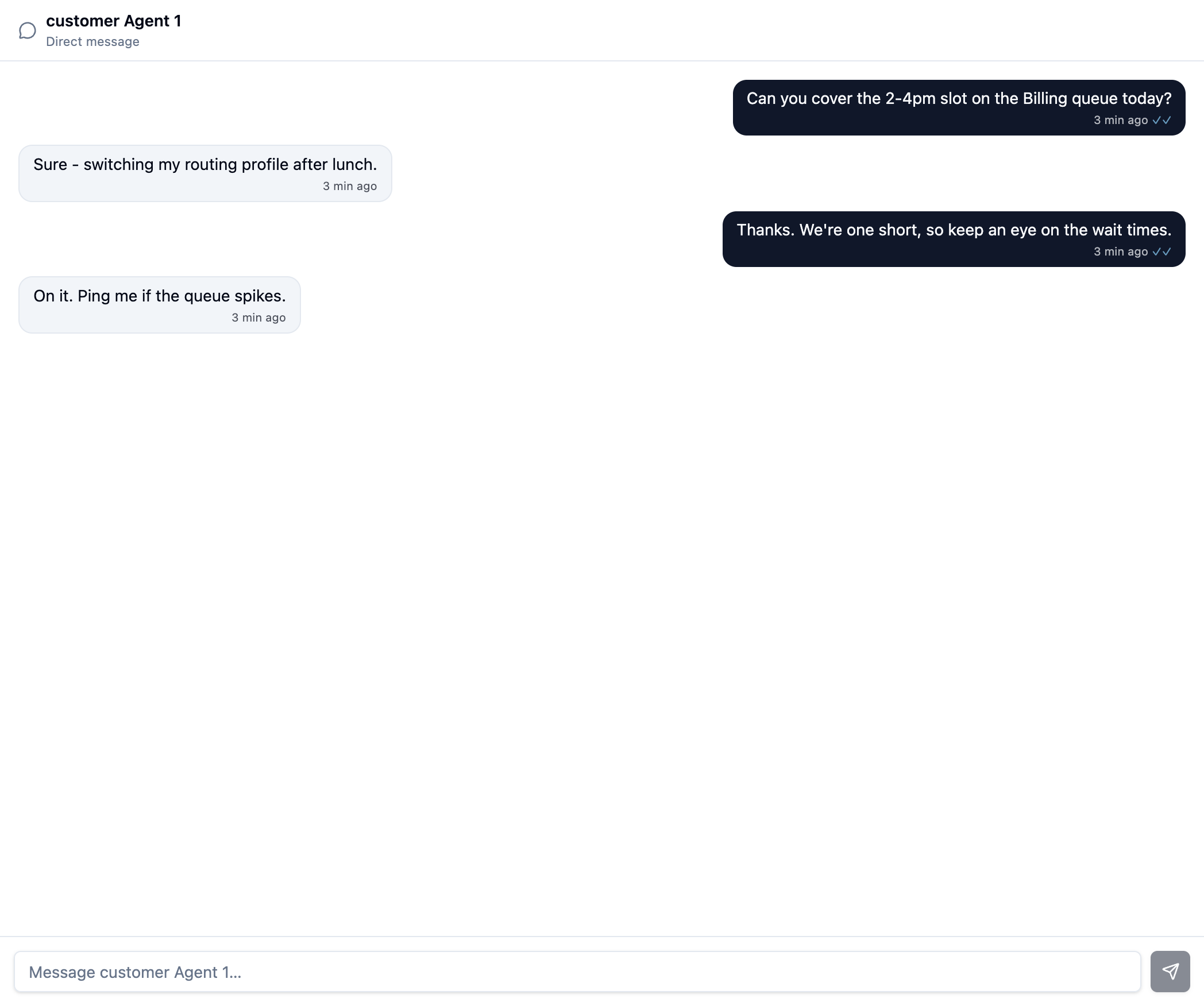
- ✓ — delivered to the server; ✓✓ — read by everyone in the thread.
- In a direct message the other side also sees a typing indicator.
- Messages arrive live. Someone with no Orbit window open gets a notification instead (see the alert center) — nothing is lost by being away.
A message cannot be edited or recalled once it's sent — by anyone, its author included. That is deliberate: like a call recording, chat history is workplace evidence, and a record you can quietly prune is worthless in a dispute. Read twice before Enter; a correction is a new message.
First contact can require approval
By default anyone in the account can message anyone. If the account policy is set to Request approval (an account-level setting your administrator controls), the first message to someone new arrives as a request they explicitly accept or decline:
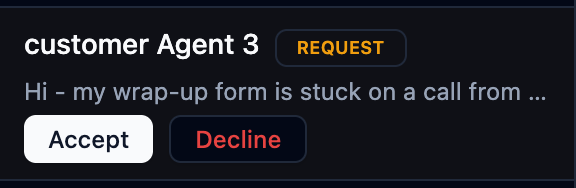
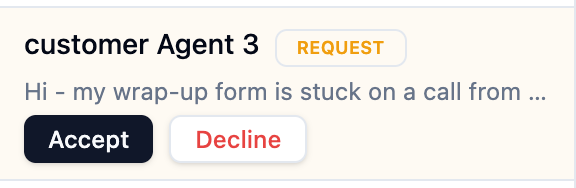
- The requester sees their message as sent, but can only send a couple more until the recipient accepts — a cold-contact can't flood an inbox from the pending state.
- Accept turns it into a normal conversation; Decline closes the door — the sender cannot keep messaging.
- Attendants and supervisors are exempt (the
chat.priority_contactpermission): an operator with a live caller can't wait for an approval. Out of the box that permission sits on the Admin and Supervisor profile templates — the Agent template deliberately goes through the approval gate. - Changing the policy never touches existing conversations.
Groups and broadcasts
Users with chat.broadcast get the megaphone button, which opens the
New group form:
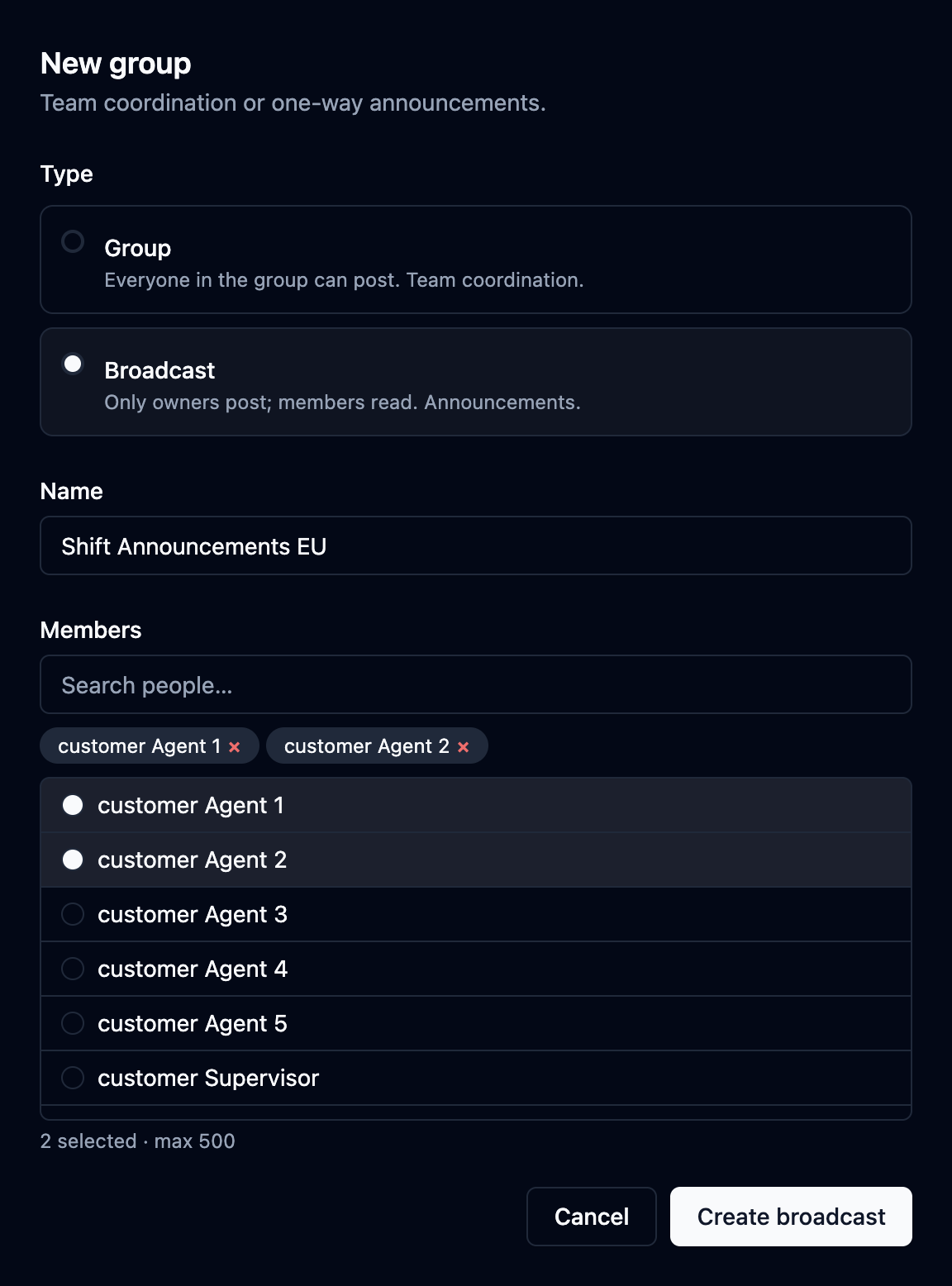
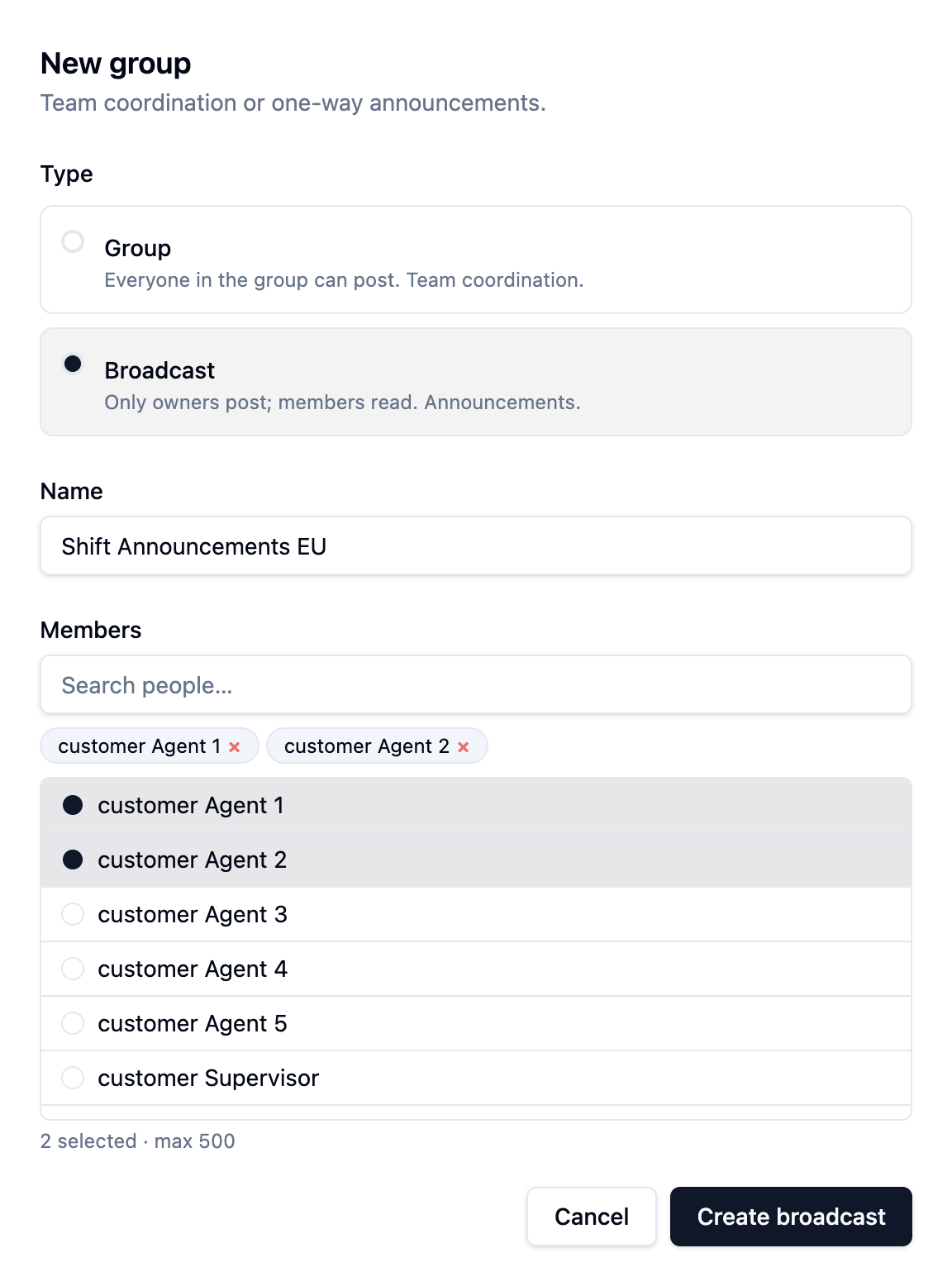
The Type choice is the whole design decision:
| Type | Who can post | Use it for |
|---|---|---|
| Group | Every member | Team coordination — a queue's agents, a project |
| Broadcast | Only the owner | Announcements — shift changes, incident notices |
A group holds up to 500 members. In a broadcast, members see the conversation read-only — the composer says "Only owners can post in a broadcast".
Every group and broadcast has exactly one owner — the person who created it. Ownership is fixed to the creator by design: an announcement channel and the accountability for it stay with one named person, who is the only one who can post in a broadcast and the only one who can add members. Plan the creator accordingly — the person who should run the channel is the person who creates it.
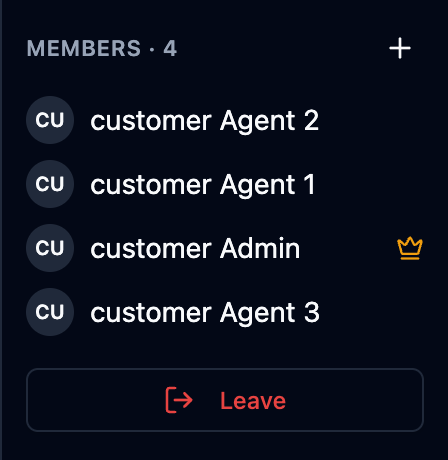
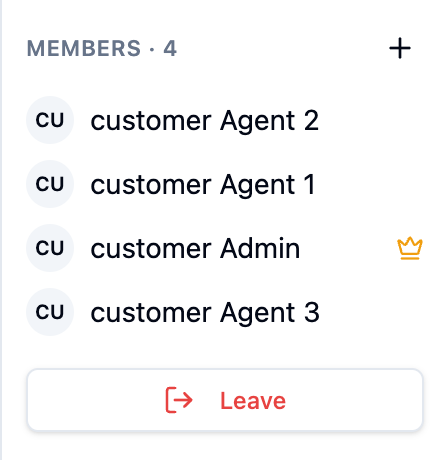
Open a group and the members pane appears on the right — the crown marks the owner:
Member changes appear as small system lines inside the conversation ("Jane Smith left"), so a group's history explains its membership.